
Hulu is known as one of the most popular and entertaining streaming service across the world. It fulfills the user demands by allowing to them stream popular TV shows. It is owned by the Walt Disney company and was founded in 2007. Their motto is to podcast the most recent TV shows from the most popular network and also they own and publish their originak content and independent movies. Or now Hulu is available only in the USA and Japan.
How is Hulu different from Netflix and Amazon prime?
Hulu allows the viewers to have early access to the most recent popular series which would be aired with the help of multiple traditional networks.
Apart from the success and all the mesmerizing content Hulu has several error codes and error messages which are not easy to understand and solve the problem. Some of the Hulu problems are associated with your device, the others are caused by the poor internet connection and some maybe caused by the hardware issues.
General Hulu trouble shooting problems.

The problems are generally a result of poor internet connection or the issue is related to the Hulu app, all these problems can be fixed by some general methods.
Common fixes for Hulu.
Try restarting your streaming device or restart your home network devices.
Try unplugging your steaming device and leave it unplugged for some time and then plug back in.
Try switching from a wireless to a wired network connection.
Try updating your Hulu app or reinstall it by uninstalling it first.
Make sure your browsing device is also fully updated.
These are the most general and basic tricks to solve some basic Hulu problems. But an error code is a different case where these basic ideas won’t work out. Let’s talk about the error code 5003.
Error code 5003.
The code refers and indicates an issue with the video playback while streaming on Hulu. The failure could come with the following set of messages, “We’re sorry, but there was an issue while playing the video”. Or “Please check your connection and try again”.
Reason behind the cause of Error 5003.
- An internet connection which is not quite up to the mark could trigger the Hulu app as it requires a perfect internet connection.
- Another reason to the problem may be an outdated app, it is really important to update your app to the latest version for a fitting experience.
- The good news is that all the devices can have access to the Hulu app but if the device is outdated, the Error code 5003 could show up so it is really important to keep your device up to date.
- Using VPN to access the Hulu app could end up in resulting the code 5003 as the app is only available in the USA and Japan.
Solution 1: PowerCycling Devices
As a primary troubleshooting step, we’ll be power-cycling all the devices involved within the streaming process to urge obviate any corrupt cache. In order to do that:
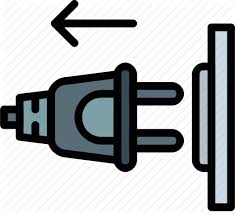
Unplug the power to your Internet Router and the device on which you are streaming.
Press and hold the “Power” button for a minimum of 15 seconds.
Plug the devices back in and await them to power on.
Try to stream and check to see if the issue persists.
Solution 2: Updating Application
This process might differ counting on the device that you simply are using to stream from Hulu, but we’ve listed the methods to update the Hulu app for many of the streaming devices.
For Windows:
The updating process is fairly easy for Windows. In order to update:
Close the Hulu app completely and click on on the “Microsoft Store” icon within the taskbar.
Click on the “Three Dots” within the top right corner and choose the “Downloads and Updates” button.
Select the “Get Updates” button and await the downloading process to start out .
After the updates are downloaded and installed, attempt to stream from Hulu and check to ascertain if the difficulty persists.
For Android:
Click on the PlayStore icon and choose the “Menu” button within the top left corner.
Then select “My Apps and Games” button and then select the “Updates” tab.
Click on the “Check for Updates” button and choose the “Update” button ahead of the Hulu app to initiate the updating process.
Wait for the update to be downloaded and installed.
Try to stream and check to see if the issue persists.
For Android TV:
Select the “Home” button on your remote and then choose “Google Play Store” below the “Apps” option.
Select the term “Auto-Update Apps”and then click on “Auto-Update Apps at that particular time”.
For Apple TV:
Open Settings and click on “Apps”.
Select the “Automatically Update Apps” button to configure the TV to update apps on its own.
Click on it again to turn it off after the app has been updated.
Solution 3:Updating Device Software
It is recommended that you should keep the device up to date to clear the chances of any malfunction.
Therefore, it’s recommended to see online for the tactic to update your exact console to the newest software provided by the developer. This will help in clearing out any sort of incompatibility or complicating issues with the application.

 Eduindex
You must be logged in to post a comment.