

INTERNSHIP IS THE NEED OF EVERY STUDENT RIGHT NOW !

An internship is the position of a student or trainee who works in an organization, sometimes without pay, in order to gain work experience or satisfy requirements for a qualification. A good degree with good marks will not take you to an organization , but internship will . you need the experience to get hands-on knowledge in your career field. In today’s labour market, employers rely heavily on CVs that demonstrate relevant work history, whether it is from actual job experience, volunteer work, or interning at a company. According to NACE’s Class of 2019 Student Survey, “More than half of all graduating seniors who applied for a full-time job (53.2%) received at least one job offer. Within this group, 57.5% of students who had an internship and 43.7% of graduating seniors who did not have an internship received a job offer.”

An internship is an official program offered by organizations to help train and provide work experience to students and recent graduates. The concept of working as an intern began a long time ago but has drastically evolved over the years. Internships first started as a labourer who would take on young individuals and teach them their art or trade. In exchange for being taught a skill, the trainee would agree to work for the labourer for a specific time. The skill taught there will help you in the real market scenarios , which will help you to solve real market problems .

Getting job experience is very important in today’s life . You can get an internship at a small company or get experience by freelancing. Any experience where you use skills that you can transfer to your future career is an excellent addition to your CV. It can help you demonstrate your commitment and capabilities to an employer while highlighting the skills that are both appropriate and transferable to the post you are applying for. An internship will give you the best experience regarding the job .

FIVE IMPORTANCE OF INTERNSHIP

  1. You will get an experience of the real market , the things which you have learnt in books , the things which you are having the book knowledge of , that book knowledge is used in the practical form .
  2. You will learn skills that will help you in your future jobs & these skills will let you fit in a better organization
  3. Internship allows you to learn about yourself , the more you will discover the job , the more you will get to know about yourself , your qualities & abilities.
  4. Internship allows you to gain competitive edge over others , those who have not done any internship will not get the exposure that you have received & will for sure lack the direction to do a specific work
  5. Internship helps you to build critical network connections because you are involve with them who are expert in that field .


How to Learn Video Editing

video editing

Editing is a key skill in video production that can make or break the overall quality of a video. However, editing is a relatively simple process to understand. Once you have learned the basics you’ll be able to use your new skills to significantly raise the quality of your videos. Most of all, experimentation is key to becoming a great editor, so don’t be afraid to take the road less travelled.

THE METHODS FOR LEARNING:

  1. Learning Basic Editing Techniques
  2. Acquiring Advanced Editing Techniques
  3. Choosing Ideal Software

1 Film footage to gather some practice material. Film anything and everything, as long as there’s lots of it. Don’t worry about trying to tell a story, just film your surroundings, the local park, your street, your room, or even your pet.

Most modern phones are able to shoot HD footage that is perfect for practicing your editing skills.

If you don’t have a camera handy, or just want to get started on editing, you can download video clips online to practice on.

2 Import the footage into your software. Usually editing software will have what’s called a ‘bin’, a specific place in the program to store all your raw footage.[1] This will look like a list of folders or a large blank space on the left side of the main editing screen.

If you can’t find an import button some software will allow you to drag in the file from your computer into the software.

3 Add clips to the timeline. After you have imported footage into the bins, start dragging them onto the ‘timeline’. The timeline appears as a long horizontal bar that takes up the bottom half of the editing screen.

The timeline is where the majority of the work will be done. Here, you can order, rearrange, and manipulate the footage in a variety of ways

4 Rearrange the clips on the timeline. Although the footage shot may be random, try rearranging the clips into different orders to tell different stories. To do so, click and drag the long rectangular box (that represents the video clip) back and forth.

The clips you place together can affect each other. The viewer of a video will always be thinking about the following clip in the context of the previous one.[3] When you’re watching a movie, TV show or video clip, the cut can become completely invisible if performed correctly.

5 Trim the video clips to change the pace of the video. The name of the tool varies from program to program, but generally it’s called the ‘Trim’ tool. You use this tool to trim the front or back of a clip to make it shorter or to extend it outwards. Click the very edge of a video clip in the timeline and drag it inwards and outwards. This will ‘trim’ the clip.

6 Implement transitions to make cuts more appealing. Depending on the tone of the video being made, a pre-made transition from one clip to another can give the video a breath of fresh air. Navigate to the ‘Transitions’ tab located in most editing software and drag a transition you like to the cut between two video clips.

Although transitions are fun, always be thinking about who you’re making the video for. Too many exaggerated transitions can detract from the quality of a video.

7 Export the video from the editing software to save your edits. Once you’ve finished trimming, rearranging and importing all the footage you like, it’s now time to export the video. The software collects all the edits you made of the clips and ‘encodes’ them into a friendly format.

Sometimes exporting can be intimidating due to the sheer amount of options available to you in the software. If in doubt, always export at 24 frames per second (fps) and at 1080p. This means that you’ll be able to play the final video in the media player of your choice. The quality will usually look better after the video is exported.

If you want to learn video editing then first you should understand very basics of video editing.

Then I think you should first start it with Windows movie Maker and after that goes to some other softwares. I’ll suggesting you some best softwares for video editing :—

  1. Adobe premiere pro
  2. Corel video studio
  3. Light worksFinal cut pro
  4. Sony Vegas movie studio
  5. Cinelerra
  6. Pinnacle studios
  7. iMovie
  8. Pitvi

These are the some software you must try to become a good video editor but as I said you should start with learning basics of video editing.

Some you tube channel where you can lean video editing are :—

  1. Surfaced Studios
  2. Rocketstock
  3. kaptainkristian
  4. Peter McKinnon
  5. PremiumBeat

Buddies I am not a professional editor and not also connected to this video editing feild too much. But I provided you information as best of my knowledge. 

How to learn Typing and typing speed

How to increase typing speed? Tips to improve typing speed - inORGnet

The Most, if not all, careers involve some computer-based work and require strong typing skills. Information technology professionals, for example, must be efficient typists in order to write code for computer and software programs. Accuracy is equally as important as speed, as a simple typo could result in a system-wide error.

Now way day’s technology-driven world, students and young adults become familiar with computers at an early age. Some schools have stopped teaching typing altogether, assuming students already possess the skills necessary to be successful in the modern workplace, according to an article in MIT’s Technology Review.

without proper training and practice, many individuals resort to hunt-and-peck typing, or looking down at the keyboard to select the right keys one-by-one. Mobile technology, such as tablets and smartphones, have also increased reliance on hunt-and-peck strategies.

Preferred typing method is known as touch-type, or typing without looking at the screen. This is much more efficient than hunt-and-peck; the average person types at an average of 40 words per minute, but a person who relies on the touch-type method can exceed 75 words per minute, allowing them to complete their work much more quickly and with minimal errors.

You can prepare to enter the workforce, here are some pointers to improve your own typing skills:

1.) Use the correct starting position

When practicing your typing skills, it’s important to use proper hand placement. To start, keep your fingers positioned over the home row keys (left hand over the A, S, D, and F keys, and the right hand over the J, K, L, and ; keys), with your thumbs hovering over the space bar. From here, you can move your fingers slightly to reach neighboring keys. Your hands should always return this starting position.

These conventions are meant to help you familiarize yourself with the keyboard. As you become more experienced, you can experiment with different variations of this starting position to find the placement that is most comfortable and natural for you.

2.) Don’t look down your hands

Instead of looking down at your hands, focus on your screen. This can be difficult at first, especially if you have not yet mastered the exact placement of the keys. However, looking at the screen will help improve your accuracy because you will be able to catch your typos as they occur. You’ll also begin to memorize the placement of the keys, so you’ll be able to type more quickly as you practice.

3.) Maintain good posture

Sitting in an upright position is going to make it easier to type faster. If you are used to slouching in your chair or working from the couch, try moving to a straight-backed chair or working at your desk.

4.) Find a comfortable position for your hands

The wrong hand placement can make it uncomfortable to type for extended periods of time. The space bar of your keyboard should be centered with your body, so that you are not reading your screen or typing from an angle. As you type, rest your elbows on the table and keep your wrists slightly elevated. You should never bend or angle your wrists dramatically.

5.) Practice!

Nothing is mastered overnight, and in order to really improve your typing accuracy and speed, you need to practice every day. There are many websites that offer free typing skills tests and practice, such as Typing Academy, TypingClub and How To Type. It’s important to take your time with these typing exercises and assessments. Attempting to rush through them will only result in more errors at first. Trust that your speed will improve naturally as you become more familiar with the keyboard.

Improving your typing skills will not only make your student life much easier, it will benefit you in your future career as well. It might take a lot of practice to see improvement, but don’t give up. You’ll be typing like a pro in no time!

A Handy Checklist for Google My Business Spam

If you work in local SEO, you know that dealing with spam on Google My Business is going to be a constant battle. This is especially true if you work in industries like:

  • Legal
  • Health
  • Home services

We need to understand why Google My Business spam is so rampant.

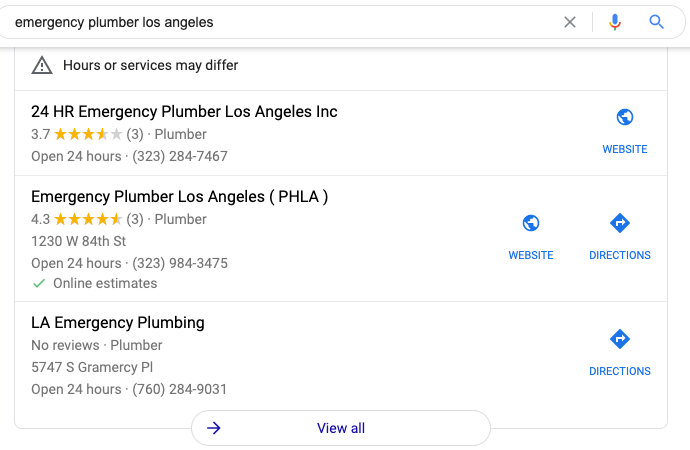
Unfortunately, having keywords in your business name is a massive ranking factor. As an example, I performed a search for “emergency plumber Los Angeles” and here are the top three Google My Business listings ranking in the map pack:

Emergency plumber Los Angeles Google map pack

The first result (24 HR Emergency Plumber Los Angeles Inc) is a lead generation website, which is against Google My Business Guidelines. The second result appears to be a lead generation website, too. The third result? You guessed it, it’s another lead generation listing, they don’t even list a website! 

These companies sell leads to real plumbers at a hefty price. Clicking through View all to see all listings, you don’t find a real plumber until the 10th result! Outside of completely fake listings that need to be removed, sometimes competitors will keyword stuff their Google My Business name.

Our Google My Business Spam Checklists

There are two checklists: one for identifying potential listings violating Google My Business guidelines and the other is a reporting checklist.

The first checklist doesn’t need to be done frequently, but it would be beneficial to do it at least once. If your rank tracking is set up correctly for Google Maps, you will likely just need to pay attention to your map rankings. If you drop a position on a major keyword, what listing is outranking you now? If it’s a new listing, head to checklist no.2.

Checklist No.1:

  • On google.com/maps, make sure you’re in the area you want to find spammers
  • Use the search operator intitle:”keyword” to surface listings with the keyword in the business title 
  • Any listing that has the primary keyword is a Yellow flag
  • Any listing that is ONLY named the keyword is a Yellow flag
  • Any listing that has a modifier (-) is a Yellow flag
  • Any listing that has no website is a Yellow flag
  • On a Google Sheet, add the business name, address, phone number, website, and link to Google My Business listing for each Yellow flag listing
  • Repeat this process for each major keyword (topic) that you/your client covers
  • For good measure, perform a few raw searches in Maps as if you were a customer looking for the particular service, including the city name

This checklist enables you to find potential listings relatively quickly. These listings may be fake or could be completely legit. The second checklist will help us go through each listing, one-by-one, to build a case for the listing to be corrected or completely removed.

Checklist No.2:

Tip: (A “no” response on any checklist item will require documentation)

  • Use the state’s business name lookup. Is there a business registered at the address? 
  • From the listing, click on photos and then go to Street View and 360º.
    • Is there signage for the business?
    • Is it a personal residence?
  • In a new tab, do a search of the exact address/is the listing the only one at that address?
  • Visit the website. Is the branding/logo the same as the business name? 
    • Does the site have an about page with real people or company history?
    • Is the content heavily ‘SEO’d’ and generic?
    • Is the content focused on connecting users to someone else (lead gen)?
    • For industries that require a license, is one listed? If yes, is it a valid license?

This checklist should be used on each listing that has a Yellow flag.

Documenting Your Evidence

As you’re going through the checklist, you need to document all of your findings, this will be used when we submit the Business Redressal Form.

Open a Google Doc, name it appropriately, and let your documentation live there. Each listing should have it’s own Google Doc. The more detail you can provide in the document, the better. Some suggestions for added detail could include adding screenshots, external links with descriptions, etc. 

Suggest an Edit or the Redressal Form?

If you are reporting a competitor that is just keyword stuffing their business name and the location is legitimate, you may want to consider simply suggesting an edit first.

  • Pro tip: Do not use an email address that is associated with Google My Business listings. This can cause your other listings to be suspended. (h/t to my friend, Jason Brown).

If and/or when your suggested edit does not stick, then submit the redressal form. If the listing is fake, go straight to the Business Redressal Form.

Filling Out the Redressal Form

Follow the Business Redressal Form instructions and fill out the sections. When you get to the last section that allows you to explain why you’re requesting a redress, this is where your Google Doc is going to come in handy. 

In this field, you can’t add photos, but you are able to include a link to your Google Doc. When grabbing the Google Doc link, make sure it is viewable by anyone with the link. If it’s not, Google Support will not be able to see the contents. Don’t just drop the link and submit, provide some context, and then place the Google Doc link.
Submit.

Repeat the process for each and every listing that you believe needs to be removed. Google recommends: 

“If you have many URLs to report, we recommend submitting 10-100 at a time for a faster processing time. You can submit multiple URLs by clicking the ‘Add additional’ link or by uploading a spreadsheet with all the URLs.”

Now the hardest part begins, waiting. 

In your original spreadsheet, add a date column and add the date that the redressal form was submitted. Timelines can vary depending on multiple factors but if nothing has happened after 10 weeks, then you’ll need to reassess the redressal and look for further evidence.

Having to deal with spam on Google My Business is frustrating and can be time-consuming, but if done correctly, can help protect users from spammers and help real small businesses. For more tips, check out SEMrush’s post about their Google My Business checklist.

How to Download Windows 11 on Your PC:

How to Download Windows 11 on Your PC: Follow These Steps

Windows 11 is arriving to deliver you the best experience that Microsoft has designed this year. The new operating system is promised to start rolling out as a free upgrade to Windows 10 users later this year. But if you can’t wait and are looking for a way to download Windows 11 right away, you can certainly take a short route and download the Insider Preview build of the latest operating system on your system today. This will let you experience Windows 11 ahead of its public debut.

Microsoft has not given any exact timeline on when we will get Windows 11 as an upgrade on our Windows 10 machines. Nonetheless, the Redmond, Washington-based company is expected to roll it out by as early as October. This means that you would be able to get the new Windows version on your machine sometime later this year — or next year — depending on the rollout process.

How to download Windows 11 on your PC

Before beginning with the steps on how you can download Windows 11 Insider Preview on your PC, it is important to note that Insider Preview builds are specifically designed for testing purposes and are not meant to be installed on your primary PC. You would also experience some bugs and errors, and some of the features that Microsoft showcased last month are not a part of the Insider build. Still eager to get started?

You can follow the steps below.

  1. Sign up for the Windows Insider Program by going to Settings > Update & Security > Windows Insider Program. And then, press Register and Sign Up. If you’re already a part of the Windows Insider community, you can sign in to your account and click Start flighting.
  2. Review the Privacy Statement and terms appearing on your screen and click Submit.
  3. Select Dev Channel from the Insider settings to download and install the current Windows 11 build meant for Windows Insider Preview and hit the Confirm button.
  4. Your machine will now ask you to Read the Microsoft Insider Privacy Statement and Agreement. Once you have reviewed the statement and terms, click on Confirm.
  5. Now, press Restart Now to restart your machine to get the Insider Preview build.
  6. After restarting, make sure you are connected to an active Internet connection. You can then go to Settings > Update & Security > Windows Update and click the Check for updates button.
  7. Your PC will start downloading the latest build from a Microsoft server.

Notably, Windows 11 has certain minimum hardware requirements that must be met to download the Insider Preview build. You can check out those requirements from the Microsoft website.

Programming Language

Before learning the programming language, let’s understand what is language?

What is Language?

Language is a mode of communication that is used to share ideas, opinions with each other. For example, if we want to teach someone, we need a language that is understandable by both communicators.

What is a Programming Language?

A programming language is a computer language that is used by programmers (developers) to communicate with computers. It is a set of instructions written in any specific language ( C, C++, Java, Python) to perform a specific task.

A programming language is mainly used to develop desktop applications, websites, and mobile applications.

Types of programming language

1. Low-level programming language

Low-level language is machine-dependent (0s and 1s) programming language. The processor runs low- level programs directly without the need of a compiler or interpreter, so the programs written in low-level language can be run very fast.

Low-level language is further divided into two parts –

i. Machine Language

Machine language is a type of low-level programming language. It is also called as machine code or object code. Machine language is easier to read because it is normally displayed in binary or hexadecimal form (base 16) form. It does not require a translator to convert the programs because computers directly understand the machine language programs.

The advantage of machine language is that it helps the programmer to execute the programs faster than the high-level programming language.

ii. Assembly Language

Assembly language (ASM) is also a type of low-level programming language that is designed for specific processors. It represents the set of instructions in a symbolic and human-understandable form. It uses an assembler to convert the assembly language to machine language.

The advantage of assembly language is that it requires less memory and less execution time to execute a program.

2. High-level programming language

High-level programming language (HLL) is designed for developing user-friendly software programs and websites. This programming language requires a compiler or interpreter to translate the program into machine language (execute the program).

The main advantage of a high-level language is that it is easy to read, write, and maintain.

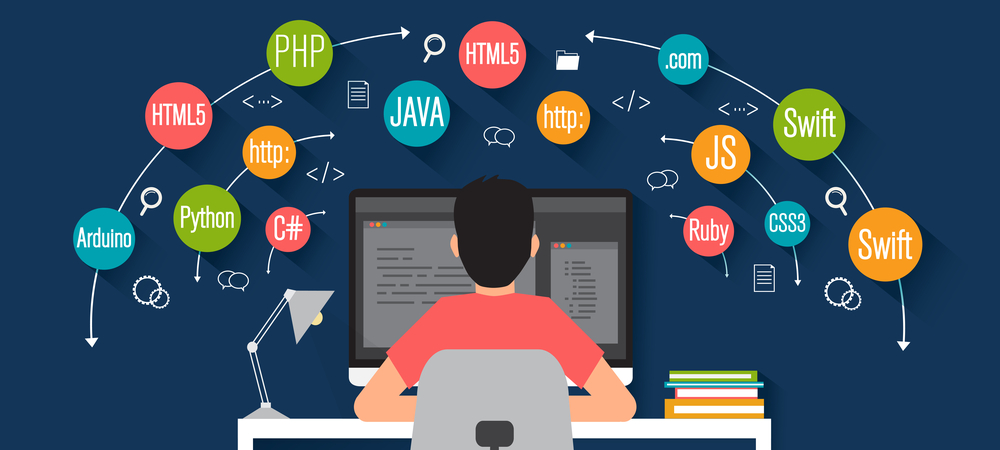
High-level programming language includes Python, Java, JavaScript, PHP, C#, C++, Objective C, Cobol, Perl, Pascal, LISP, FORTRAN, and Swift programming language.

A high-level language is further divided into three parts –

i. Procedural Oriented programming language

Procedural Oriented Programming (POP) language is derived from structured programming and based upon the procedure call concept. It divides a program into small procedures called routines or functions.

Procedural Oriented programming language is used by a software programmer to create a program that can be accomplished by using a programming editor like IDE, Adobe Dreamweaver, or Microsoft Visual Studio.

The advantage of POP language is that it helps programmers to easily track the program flow and code can be reused in different parts of the program.

The advantage of POP language is that it helps programmers to easily track the program flow and code can be reused in different parts of the program.

Example: C, FORTRAN, Basic, Pascal, etc.

ii. Object-Oriented Programming language

Object-Oriented Programming (OOP) language is based upon the objects. In this programming language, programs are divided into small parts called objects. It is used to implement real-world entities like inheritance, polymorphism, abstraction, etc in the program to makes the program resusable, efficient, and easy-to-use.

The main advantage of object-oriented programming is that OOP is faster and easier to execute, maintain, modify, as well as debug.

Note: Object-Oriented Programming language follows a bottom-up approach.

Example: C++, Java, Python, C#, etc.

iii. Natural language

Natural language is a part of human languages such as English, Russian, German, and Japanese. It is used by machines to understand, manipulate, and interpret human’s language. It is used by developers to perform tasks such as translation, automatic summarization, Named Entity Recognition (NER), relationship extraction, and topic segmentation.

The main advantage of natural language is that it helps users to ask questions in any subject and directly respond within seconds.

3. Middle-level programming language

Middle-level programming language lies between the low-level programming language and high-level programming language. It is also known as the intermediate programming language and pseudo-language.

A middle-level programming language’s advantages are that it supports the features of high-level programming, it is a user-friendly language, and closely related to machine language and human language.

Example: C, C++, language

Most commonly used Programming Language

As we all know, the programming language makes our life simpler. Currently, all sectors (like education, hospitals, banks, automobiles, and more ) completely depend upon the programming language.

There are dozens of programming languages used by the industries. Some most widely used programming languages are given below –