How To Host Blogger CSS And JavaScript Files In Google Drive

  Anyone that has ever worked on a web design or development can tell you that where you decide to store your files is important. Every time someone visits your site, the server or host will access this location and bring up the relevant files that need to be displayed. Wherever you decide to store your files, this will have an impact on some important aspects like the speed that your site loads, your overall SEO ranking and your ability to make necessary adjustments to the site.

Things To Think About

When you are designing your online structure and where to store your important CSS and JavaScript files, here is a run down on how this decision might impact your site later on:

Site Loading Speed

By combining some of the style sheets and website files, the Blogger server only has to collect information from a single location. When you split up your files or decentralize the file system, it takes a longer time for all the data to come together to make your site possible.

Slow loading speeds can negatively impact your SEO ratings because the slower the site is, the less likely that visitors are going to wait around for it to load. If someone visits your site and immediately clicks the ‘back’ button because it’s taking too long to load, that is going to increase your bounce rate and provide Google with statistics that show your site is either low quality or irrelevant to the search keywords.

File Storage Affects SEO

In addition to increasing your bounce rate, storing your files in a central location and managing the name of your files can affect SEO site wide. Web crawlers enlisted by Google, or some of the other search engines, index both the code on your site, and the name and directory of your files. If file names are random or not placed in the proper categories, the web crawlers aren’t going to know what to do with the information.

Clear file structure and a central location provide you with incentive to organize everything and name them appropriately. All the content that is relevant to the subject of your website or blog will be in the same location for web crawlers to review.

Storage Locations Affect Editing Abilities

Shuffling through files and folders or opening up FTP connections just to make some simple edits can be a hassle, and take up a lot of time that could have otherwise have been spent writing new content.

If you’re a Blogger site owner, this is something you need to think about. When you need to make alterations to things like social media sharing buttons, popular posts, recent posts and related posts widgets, you have to know where everything is intended to go, or risk losing both available content and money.

Some of the larger sites that produce hundreds of unique articles each month can’t afford to have content in different locations. When articles start to get lost out of order, they run the risk of duplicating content on their site, or forgetting to post it altogether. Things should be right at your fingertips to minimize mistakes and reduce the amount of time spent editing the site while it’s still live.

Storing Javascript/CSS Files With Google Drive

Storing Blogger CSS and JavaScript files with Google Drive will help to eliminate any of the problems mentioned above and reduce the clutter among your services. Taking this method can increase your site speed, increase the opportunities for a successful SEO campaign, and make your life so much easier.

Google Drive provides ample amount of space to store large files, and offers collaboration services so that you can work among different team members on the same project. Some of the files that you upload into the cloud services can remain unpublished and stay within the private site, whereas other files like blog posts can be published or stored to the public site.

Another beneficial feature of storing all your Blogger files on Google Drive is that it is highly secure. Google comes with the backing of one of the leading companies in the technical world so that you can be sure your content is safe from hackers and those looking to compromise your site.

This guide will provide you with step-by-step instructions on how to setup your Blogger site using Google Drive. It’s completely free to take advantage of this strategy, and will provide you with a solid platform from which to build your blog.

Step 1. Prepare the CSS/JavaScript Files

  • First, we need to create the file that we need to host. To host a CSS file, open the Notepad and paste the CSS code (if it is enclosed within the and tags, remove them). 
  • In the Notepad menu, select ‘File’ > ‘Save as’ and type the file name with the .css extension just like I did with mycssfile.css – see the screenshot below.
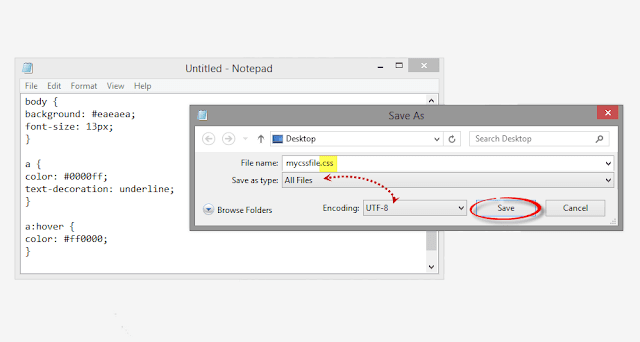
create a css file
  • In the same window, choose “All files” in the “Save as type” option and set the Character Encoding to UTF-8.
  • If you want to host a JavaScript file, add the .js extension (instead of .css) at the end of your file name (remove the … tags if you see them). Click “Save” and navigate to the location where you want to save the file.

Step 2. Upload Your File on Google Drive

  • Access https://drive.google.com and log in with your Gmail account. After you logged in, click on the ‘Create’ button and add a new separate folder to upload your JavaScript and CSS files.
create folder in Google drive
  • Open the newly created folder, and click on the Upload button with the upward arrow to choose the files that you need to upload.
upload files using google drive
  • Now, navigate to the location where you saved the files, select them (to select multiple files, press and hold down the Ctrl key on your keyboard and then click on them) and press the Open button.
  • After the files have been successfully uploaded, right click on the file names (to select all your files in the folder, click on the checkbox) and select ‘Share’:
share google drive files
  • In the ‘Sharing settings’ window, click on the ‘Change’ link and choose the ‘Public on the web’ option. Press ‘Save’ and copy the link(s) of your uploaded file(s) from the ‘Links to share’ box highlighted in blue, then paste it into a Notepad to use it later.
javascript css file sharing

Step 3. How to Add an External CSS/JavaScript file to Blogger

Before you can use the links, you must replace ‘https://drive.google.com/file/d‘ to ‘https://googledrive.com/host‘ and remove ‘/edit?usp=sharing‘ in the link.

For example, the link to mycssfile.css that I copied looks like this:

https://drive.google.com/file/d/0B4n9GL3eVuV-TkphMkc3SFR2Slk/edit?usp=sharing

Notice the part in blue after the “/file/d/” part. That is the file ID which is used to access it via the new hosting service. It should start with the following URL:

https://googledrive.com/host/

Add the file ID like this (remove the ‘/edit?usp=sharing’ part):

https://googledrive.com/host/0B4n9GL3eVuV-TkphMkc3SFR2Slk

Now log into your Blogger account, select your blog and go to Template > Edit HTML. Click anywhere inside the code area and press the CTRL + F keys to open the search box:

open blogger search box

If you want to add a CSS file, type the following tag inside the search box and hit Enter to find it:

Just BELOW the tag, add this line:

<link rel="stylesheet" type="text/css" href="https://googledrive.com/host/0B4n9GL3eVuV-TkphMkc3SFR2Slk” />

And replace https://googledrive.com/host/0B4n9GL3eVuV-TkphMkc3SFR2Slk with the link of your CSS file:

add external css to blogger

If you want to add a Javascript file, search for the following tag:

And add this line just ABOVE it:

<script src='https://googledrive.com/host/0B4n9GL3eVuV-eVYwLXBrTlZrVDg‘ type=’text/javascript’>

Replace the line in blue with your URL:

add external javascript js to blogger

Finally, press the ‘Save template’ button to save the changes. And you’re done!

In Conclusion

Once you have saved all your file folders and closed out of the drive, open your site in a browser and make sure that all the changes have completed successfully.

Next time you want to edit any of the information or move internal files, all you have to do is open up the Google Drive folder on your account and make the modifications from that location. Those files will then automatically sync to the online folder and make updates to your site. This works the same if you want to change the appearance by modifying the CSS code to extend the header, footer, or make customizations.

As you can see, changing your file storage out so that is CSS and JavaScript is stored on your Google Drive account is easy to do and only takes a few minutes. After you make the change, you can begin benefiting from faster loading speeds, higher SEO rankings, and overall a more convenient platform to work from to increase the efficiency of your work.

How Firebug Helps You Design Your Blogger Blog

  For most bloggers, the idea of adjusting the coding of their blog to improve the user experience is daunting at best and often quite frightening. HTML5, CSS, and other coding elements are their own virtual language and for the average Blogger user looking to update a personal blog, the automatic settings are about as good as it gets. What if there was a better way to code a blog, whether a beginner or a pro, that could be done within the browser itself?

If you’re using Firefox or Chrome, then you should also be using Firebug. It allows you to code your website in real time, so you can maximize the UX of your blog in no time at all.

You No Longer Need To Edit Through Blogger!

If you’ve ever tried to update a Blogger theme through the editing functions of the website, then you know how difficult it can be. You can preview your designs, but you can’t save any changes to officially see what is going to happen with your site until you publish the edits. If you’ve missed just one line of code or forgotten one small element, you’re going to have to go back into the editing matrix, find the error, update it again, and repeat until you have a responsive blog once again.

What Firebug allows you to do is see all of those elements that make up a website in real time. Instead of editing and then publishing, you can edit in real time and see updates happen, all without affecting the user experiences of visitors that are coming to your site while you’re editing. You can change the fonts, colors, or virtually anything else within the design of the site quickly and see the results of your work as it happens. Don’t like it? Just undo your changes.

It’s really that easy!

Using Firebug to Customize CSS in Blogger

This guide will show you how to modify the CSS code of a Blogger template. Usually, the Blogger Template CSS style declarations are editable through the style.css file, found between the  and  tags.

To download Firebug and get more details regarding its powerful features, visit: Firebug for Firefox, or if you are using Chrome, get the Firebug Lite app. I would recommend to use Firefox, which is more complete and quick, but, nevertheless, both work the same.

Once Firebug is installed, a small bug icon will be available in the upper right of your Web browser’s address bar. Clicking it, a horizontally split screen will be shown at the bottom of the browser’s window. The page will continue to show in the upper half, while the lower half will show the HTML of the current web page.

firebug

To customize any web element from a Blogger template, just click either on the Firebug icon in the toolbar, or the “Inspect Element with Firebug” item in the context menu. Next, click the blue cursor button to Inspect and place the cursor right over the element to customize.

For example, let’s say that we want to change the title of the “Blog Archive” gadget. After we clicked the inspect button, mouse over the “Blog Archive” title which will be highlighted as shown in the screenshot below. To change this element, click on it:

inspect element using firebug

Now that we decided which element we want to change, right click on the “Style” panel and select the “Add rule” option:

add CSS rule in firebug

This will give the class or the id of the highlighted element – in our case, the heading of the Blog Archive (#BlogArchive1 > h2). To edit this rule that we just added, click anywhere near the left curly bracket that will open a text box, so that we can type a new CSS declaration:

firebug css declaration

And here comes the fun part. Let’s say that we want to make the title red. We will type color and hit Enter, then we will type the color value or the red text and hit Enter. We will also set the set the font size to 20px, text alignment to center (text-align: center) and make the text underlined (text-decoration: underline):

modify blogger css with firebug

The cool thing about Firebug is that when modifying any CSS property, you can see the results directly applied on the page. So, after adding these declarations, we’ll see a big red underlined title for our Blog Archive gadget (see in the screenshot above).

To apply this CSS rule on a Blogger template, just select it beginning from the right curly bracket and to the #(id) or .(class) symbol, then right click it and Copy the CSS code.

copy firebug css rule

Before making any change, it’s highly recommended to make a backup of your current template. Go to “Template” and click the “Backup/Restore” button on the upper right side. On the same “Template” location, click on the “Customize” button and navigate to “Advanced” > “Add CSS”. Paste the CSS rule that you just copied into the CSS box:

add firebug css to blogger template

Click the “Apply to blog” button on the upper right corner to save the changes and view your blog.

Firebug Also Gives You One Distinct Advantage…

One of the best reasons to install Firebug into Chrome or Firefox is that it allows you to emulate some of your favorite website designs quickly and easily. Instead of hiring a web designer to do the work, which could cost you thousands, you can simply start Firebug and see what the CSS styles are for your favorite site. This allows you to create a similar widget.

From there, all you’ve got to do is change the coding to make the design elements work under the rules of your own custom.css. This means you can make easy design changes to your Blogger blog without having to go through all of the menus and editing functions so that your template can truly be your own. Do you have some work to do? Sure – but Firebug does all of the primary work for you.

All you’ve got to do is have a creative mind and a few minutes to make changes to the coding design. Whether you’ve been coding for years or are just starting your first blog, this is definitely the best way to make sure that your visitors have the best experience possible!

How To Display Most Commented Posts In Blogger

  One of the best gadgets for your Blogger blog is a popular posts widget for your sidebar. This lets visitors see what your trending posts are right now and encourages them to click on them to read them. This basic widget is just a little too basic, however, for the modern day website visitor. Not only do they want to see your trending posts, but they also want to join the discussions that are happening on your blog. To do that, you’ll need a most commented posts widget for Blogger.

Having a customized widget on your site is a lot easier than you might think. In order to have an effective widget, however, you’re going to need a few specific things to help you out.

most commented posts widget

Here’s What You’re Going To Get

There are certain aspects in the design of a most commented posts widget that you should expect. That’s why you’ll find these specific components with this custom widget:

  • Ordered by popularity. The posts that have the most comments are the most likely to have visitors want to read the post and join in with the conversation. By ordering your posts based on the popularity of them, you’ll give each visitor the chance to see what the hype really is about! This lets you have a charted graphic that gives a visitor easy recognition, but also allows you to keep it straight and aligned if you’re looking for a cleaner look.
  • Graphic incorporation. Blog posts that have at least one graphic incorporated with them will receive 100% more traffic than posts that have no images at all. For every graphic that you include with a blog post, the more likely you are to get a click! The same is true with your most commented posts widget, so be sure to incorporate graphics that stand out with your design.
  • Descriptions that blend in. The internet today revolves around the value that you can provide each individual user. People don’t just click on things because they look visually tempting. They click on them because they promise a level of value that another website like yours isn’t able to provide. By having descriptions that blend in, you’ll be able to enhance the perceived value that your site can provide. This leads to more clicks!

Related: Add Multi-Colored Popular Posts to Blogger

Add the Most Commented Posts Widget to Blogger

Step 1. Log in to your Blogger account and go to Template, press the “Edit HTML” button.

Step 2. Click anywhere inside the code area and press the CTRL + F keys to open the Blogger’ search box. Type the following tag inside it and hit Enter to find it:

Step 3. Just below , add this code:

add code to blogger html

Note: if you can’t find the tag, try to find the following tag instead and add the variables just below it:

<![CDATA[

Step 4. Now search for the following tag (CTRL + F):

]]>

Step 5. And just above it, add this CSS code:

.comment-count {
    padding: 3px 10px;
    background: #fff;
    color: #000;
    font-size: 10px;
    float: right;
}

.most-commented ul {
    padding: 0px !important;
    font-family: Century Gothic, sans-serif;
}

.most-commented ul li {
    list-style-type: none;
    padding: 10px;
    color: #555;
    margin-top: -10px;
}

.most-commented ul li a {
    color: #444;
    font-weight: bold;
    text-decoration: none;
    font-size: 11px;
}

.most-commented ul li img {
    float: left;
    margin: 0px 5px 0px 0px;
    width: 60px;
    height: 60px;
}

.most-commented:nth-child(3n+0) {
    background: $(most.commented.background1);
    width: 100%;
}

.most-commented:nth-child(4n+0) {
    background: $(most.commented.background2);
    width: 95%;
}

.most-commented:nth-child(5n+0) {
    background: $(most.commented.background3);
    width: 90%;
}

.most-commented:nth-child(6n+0) {
    background: $(most.commented.background4);
    width: 85%;
}

.most-commented:nth-child(7n+0) {
    background: $(most.commented.background5);
    width: 80%;
}

Step 6. Save the template.

Now, let’s add the Most Commented Posts widget to the Layout of our Blogger blog. Head over to the “Layout” section of your Blogger dashboard and click on the “Add a gadget” link on the right side. From the pop-up window, scroll down the list and select the “HTML/JavaScript” gadget:

blogger html javascript gadget

Copy and paste this script inside the content box:

function stripTags(s,n) {
    return s.replace(//ig,””).split(/\s+/).slice(0,n-1).join(” “)
}
function mostcommented(feed) {
    var i;
    for (i = 0; i < feed.count ; i++) {
var postURL = “‘” + feed.value.items[i].link + “‘”;
var postTitle = feed.value.items[i].title;
var postthumbnail = ““;
var postDescription = feed.value.items[i].postdescription;
var postComments = feed.value.items[i].commentcount;
var postList = ‘

  • ‘ + postComments + “

    ” + postthumbnail + “‘ + postTitle + “”  + ‘

    ‘ +stripTags(postDescription,10)+’…

    ‘ + ‘

‘;
 document.write(postList);
     }
 }
 
<script src="http://pipes.yahoo.com/pipes/pipe.run?
AddUrlHere=http://helplogger.blogspot.com
&NumberofPosts=5
&_id=2cb5eb603ed55a6264ee1484e5fdd45c
&_callback=mostcommented
&_render=json”
type=”text/javascript”>Add this widget

Here, change http://helplogger.blogspot.com with your blog URL. If you want to add more characters to the description, modify the “10” value in red from “postDescription,10“.

If you want a more simple look (without the thumbnails and post snippets), add this script instead:

function stripTags(s,n)
    {
    return s.replace(//ig,””).split(/\s+/).slice(0,n-1).join(” “)
}
function mostcommented(feed) {
 var i;
 for (i = 0; i < feed.count ; i++)
 {
var postURL = “‘” + feed.value.items[i].link + “‘”;
var postTitle = feed.value.items[i].title;
var postComments = feed.value.items[i].commentcount;
var postList = ‘

‘;
 document.write(postList);
 }
 }
 
<script src="http://pipes.yahoo.com/pipes/pipe.run?
 AddUrlHere=http://helplogger.blogspot.com
&NumberofPosts=5
&_id=2cb5eb603ed55a6264ee1484e5fdd45c
&_callback=mostcommented
&_render=json”
type=”text/javascript”>
Add this widget

…. and replace http://helplogger.blogspot.com with your address.
To add the “comments” text after the comments number, replace the line in red:

‘ + postComments + “

with:

‘ + postComments + ” comments” + “

Once you have finished adding your own settings, press the “Save” button to enable the gadget in the sidebar of your blog. That’s it!

configure html javascript gadget

To change the background colors of the most commented posts, go to “Template” > hit the “Customize” button and navigate to “Advanced” > “Most Commented” tab. Here you can pick 5 different colors by clicking on the color boxes:

blogger template designer

Once you’ve selected your favorite color scheme, click the “Apply to blog” button to save the changes… and you’re done.

Why Use the Most Commented Posts widget?

The basic psychology in every human is that they want to feel like they belong to a community. That’s exactly what this customized widget will bring to your site. No matter what content drew a visitor to see your content, this widget will invite them to join the lively parts of your piece of the internet. This helps to build relationships, with you and with other visitors, and this relationship-building engagement is what you need to start having real value.

Take the time to install this most commented posts widget on your site and you’ll see for yourself why this is one of the most useful widgets that is available right now. Enjoy 😉

Add A Pinterest Pin It Mouseover Button On Blogger Images

  Images have always played a prominent role in attracting new visitors through search engines like Google and Bing. But when Pinterest decided to enter the social media mix, it upped the ante in a big way.

Pinterest lets blog owners use their service to add a ‘pin’ to photos or content images on the site. When visitors of that site see a photo they like, they can choose to click on the red Pinterest button for Blogger, and add it to their Pinterest account.

The person who pressed your Pinterest button for Blogger can now see your photo on their dashboard, and share it with friends or followers on the service. They can also come across this photo when users add keywords or category tags to the image. More importantly, that photo links to your site when clicked on and will contain a description title of your blog name or post.

Therefore, adding the Pinterest button for Blogger will help you to benefit from tons of new traffic coming from Pinterest and people who had found your photos and post links using the service. Here are some steps to add your very own Pinterest button.

1. Access your Blogger Template

The first thing to do is to edit the code of your template so that it knows when to display this Pinterest Button for Blogger with the content. You can do this by logging into your Blogger Dashboard and finding your way to “Template” > “Edit HTML”.

blogger template html

When the editor opens up, it may look a bit foreign to you if you don’t have much experience using HTML. Click anywhere inside the code area and search by pressing the CTRL + F keys for the  tag – hit Enter to find it:

The body tags makes up the general content in your webpage. Think of it like the settings panel of a website. If you were to delete everything in this section your site would turn into a blank white page.

2. Add The Pinterest Pin it Script

Once you found the  tag, insert the following script just above it:

//<![CDATA[
var custom_pinit_button = “https://blogger.googleusercontent.com/img/b/R29vZ2xl/AVvXsEhG3CTZ6ubv2FajqEEO3ANbJOR6lK4yEKQ2yoEcgj4b2_ZZuAaaRNazyMqWMwabfF9zd-5umogf7NYogQEZA2LZwxzLmqKmATwUg8l7z6fA_2bygb4wW_5NsgQ3PqmAsCoBehWAhbh_cl9R/s1600/pinit-button.png“;
var pinit_button_position = “center“;
var pinit_button_before = “”;
var pinit_button_after = “”;
//]]>

// Visit helplogger.blogspot.com for more widgets and tricks.
//<![CDATA[
eval(function(p,a,c,k,e,r){e=function(c){return(c35?String.fromCharCode(c+29):c.toString(36))};if(!”.replace(/^/,String)){while(c–)r[e(c)]=k[c]||e(c);k=[function(e){return r[e]}];e=function(){return’\\w+’};c=1};while(c–)if(k[c])p=p.replace(new RegExp(‘\\b’+e(c)+’\\b’,’g’),k[c]);return p}(‘1i(1j).1k(r($){$(\’M\’).1l(\’\’);$(\’#7-6-P\’).1m();3 l;3 m;3 n;$(\’.A\’).1n(r(){m=$(\’.A\’).E(F);n=$(\’.A\’).G(F);$(\’.A\’).1o()});3 o=$(\’#7-6-P\’).1p().1q(“1r.1s.14”);o!=-1&&15();r 15(){$(\’.s-16 6,.H-M 6,.s-17 6\’).1t(\’.18,.18 6\’).1u(r(){$(\’.7-4\’).t(“4″,”D”);19(l);3 a=$(q);3 b=1a(a.t(“Q-u”));3 c=1a(a.t(“Q-v”));3 d;3 e;1v(1w){B\’1x\’:d=a.9().u+a.G(F)/2-n/2;e=a.9().v+a.E(F)/2-m/2;C;B\’1y\’:d=a.9().u+b+5;e=a.9().v+c+a.E()-m-5;C;B\’1z\’:d=a.9().u+b+5;e=a.9().v+c+5;C;B\’1A\’:d=a.9().u+b+a.G()-n-5;e=a.9().v+c+a.E()-m-5;C;B\’1B\’:d=a.9().u+b+a.G()-n-5;e=a.9().v+c+5;C}3 f=a.1C(\’O\’);3 g=a.1D(\’.H,.1E,.s\’).R(\’.H-S,.s-S,.s-1F\’);3 h=g.1G();w(T U===\’V\’){U=\’\’}w(T W===\’V\’){W=\’\’}w(g.R(\’a\’).1H){X=g.R(\’a\’).I(\’Y\’).1b(/\\#.+\\b/1c,””)}Z{X=$(1I).I(\’Y\’).1b(/\\#.+\\b/1c,””)}3 i=\’\’;3 j=a.11().26(\’a\’)?a.11():a;w(!j.y().27(\’7-4\’)){j.28(i);w(T l===\’V\’){j.y(\’.7-4\’).I(“1g”,”q.p.10=1;q.p.4=\’12\'”)}Z{j.y(\’.7-4\’).I(“1g”,”q.p.10=1;q.p.4=\’12\’;19(29)”)}}3 k=j.y(“.7-4”);k.t({“u”:d,”v”:e});k.t(“4″,”12”);k.L().1h(2a,1.0,r(){$(q).2b()})});$(\’.s-16 6,.H-M 6,.s-17 6\’).1f(\’2c\’,r(){w($.2d.2e){3 a=$(q).y(\’.7-4\’);3 b=$(q).11(\’a\’).y(\’.7-4\’);l=2f(r(){a.L().t(“4″,”D”);b.L().t(“4″,”D”)},2g)}Z{$(\’.7-4\’).L().1h(0,0.0)}})}});’,62,141,’|||var|visibility||img|pinit||position||||||||||||||||style|this|function|entry|css|top|left|if|none|next||loadpinitbutton|case|break|hidden|outerWidth|true|outerHeight|post|attr|box|shadow|stop|body|class|src|button|margin|find|title|typeof|pinit_button_before|undefined|pinit_button_after|pinitURL|href|else|opacity|parent|visible|custom_pinit_button|com|hoverCheck|content|summary|nopin|clearTimeout|parseInt|replace|gi|div|display|on|onmouseover|fadeTo|jQuery|document|ready|append|hide|load|remove|html|indexOf|helplogger|blogspot|not|mouseenter|switch|pinit_button_position|center|topright|topleft|bottomright|bottomleft|prop|closest|hentry|header|text|length|location|absolute|index|9999|http|pinterest|pin|create|url|media|description|block|outline|target|_blank|pinimg|moz|webkit|background|transparent|padding|border|Pin|Pinterest|is|hasClass|after|pinitOnHover|300|show|mouseleave|browser|msie|setTimeout|3000′.split(‘|’),0,{}))
//]]>

adding pinterest script

3. Changing the Position of the Pin it! button

The cool thing about this code is that you have some freedom over where the Pinterest button for Blogger will go over the image. Take a look at the code that you just copied and pasted into the HTML for the word ‘center’.

var pinit_button_position = “center“;

To move the pin to a different area of the photo, replace center with one of these settings:

topleft
topright
bottomleft
bottomright

And to change the Pin it! button that appears on mouse over, replace the address in blue from above with your own:

var custom_pinit_button = “https://blogger.googleusercontent.com/img/b/R29vZ2xl/AVvXsEhG3CTZ6ubv2FajqEEO3ANbJOR6lK4yEKQ2yoEcgj4b2_ZZuAaaRNazyMqWMwabfF9zd-5umogf7NYogQEZA2LZwxzLmqKmATwUg8l7z6fA_2bygb4wW_5NsgQ3PqmAsCoBehWAhbh_cl9R/s1600/pinit-button.png“;

pinit script

4. Save The Template

Make sure that you added everything correctly, then save the template and navigate to a recent post that you made that contain images. Hover your mouse over the image and you should now see a red Pinterest button for Blogger displayed on the image. Test it out and see it how it works.

If you want to hide the pinit button from a specific image, when you create a post, switch to the HTML tab of your post editor and type class=”nopin” right before the closing slash and angle bracket of your image element, like this:

nopin pinterest

The only downside of this button is that it doesn’t take the information from your custom image titles. It’s automatically set to take the title of the blog post where the image is located. So, you’ll need to pay closer attention to the title of the posts so that it fits closely with the images being shown.

Remember that when you have this code activated, you have to label your titles so that they are relevant to the photos you are posting. This might sound obvious, but sometimes you create a post with an image as a joke that won’t make sense in the context of viewing it on Pinterest.

If you use Google Analytics, you can start to see traffic flooding into your site from Pinterest. You should also create your own Pinterest account so that you can manage the content and track how it’s being shared. That’s it. Enjoy and happy blogging!

The Basics Of Google Analytics For Beginners

  If you’re a business owner or a member of a marketing team, you probably know that businesses depend upon data. Tracking trends and patterns is what allows you to get ahead of the dips in the market, and make informed decisions on the direction of your company.

Those same rules that apply to business apply to owning a website. In order to deliver the best possible experience and ensure that customers from around the world are able to access your site, you need to understand from where traffic is coming from and how to leverage that information to your benefit.

Setting Your Site Up With A Tracking ID

Google Analytics won’t start collecting data from your website until you’ve implemented a tracking code into your website’s files. The tracking code is basically a block of JavaScript code that will collect data about the html that visitor used to get to your site, any cookies that the visitors has collected during their browsing history, and information about what type of browser the person is using.

The importance of this information provides you with information on how to conform your web-site to the target audience, especially in terms of design. If customers are visiting your website from an eCommerce directory, you may want to modify those links so that the customers arrive at a landing page instead of a home page. If more customers are using smartphones and tablets instead of laptop browsers, you may have to redesign the site so that it is responsive and can be easily read from a small screen.

google analytics tracking code

In order to track each individual page on the website, you will need to add a tracking code before the code of your template. If you are using a site like WordPress or Joomla! that depends on templates, you may just have to add the tracking code on the main HTML index file. Keep in mind that it can take upwards of 24-hours for Google to begin collecting information and importing that data to your dashboard, so don’t expect to see measurable results right away.

Tutorial: How to Add Google Analytics to Blogger

Researching the Data

Once you insert the code into your site, it will begin tracking data from anyone who visits your site. This data is then sent back to the Google servers and stored in your Google Analytics profile. From there, you can determine what type of information that you want to look at.

The two features of Google Analytics that are often most useful to new users is the ability to track where customers are coming from, and the ability to see keywords that have been effective in drawing in audiences.

google analytics overview

Traffic Origins

Open up your Google Analytics dashboard and click on ‘Acquisition‘. You should see a few options, but you want to pull ‘All Referrals‘ so that you can the entire list of visitors.

Next to the referral path will show a few links with a number of how many people visited your site from that link. From here you can click on the link and find out the reason for the traffic. Maybe someone has written a review on the service, you can check to see if the advertisement campaign you are operating is producing results.

google analytics all referrals

Keywords

Within the same ‘Acquisition‘ directory is another option called ‘Search Engine Optimization‘. Click on this link and then click on ‘Queries‘ to look up a list of keywords being used to describe your site. The dashboard will display an overview of up to 1,000 words or phrases used on Google that brought new visitors to your site. You can use this information to modify your posts and producing content to increase the results of certain key phrases that you feel would benefit your customer outreach.

search engine optimization, ga queries

Demographics

Underneath the audience tab, you can also track demographics. This little option will allow you to view the age, gender, and interests of individual users and segments of your visiting population. Say for example you run a senior care facility for the retired and want to put together a A/B split test to determine which advertising campaign works best. After adding the campaign to a landing page or section of your site, you can look back and find out if retired citizens are the ones responding to your ads, or if you are just bringing in traffic from younger generations who may not be interested in your services.

google analytics, georgraphical summary

Custom Campaign Tagging

Custom campaign tagging is more of an advanced feature, but once you get used to the Google Analytics interface, you can use this to separate your campaigns and easily filter through data. Maybe you just want to find out who is coming to your site from your email newsletters, and not from the general site. Google Analytics will allow you to post special links to your content on those channels of communication and then view these results under the acquisition tab and then campaigns.

Determining What Works, and What Doesn’t

Using the tools that Google Analytics provides at your disposal allows you to really determine what type of experience you want to provide your customers. Within the first month of use, if start to see trends or patterns in data that you feel you feel you can improve upon, you can use this information as a guide to edit your sites design and layout.

Getting used to the program might seem overwhelming at first, but once you jump right in and start playing around all the features, you’ll get the hang of it in no time. Google Analytics really is an important tool that every website owner should have.

How To Center The Blogger Header Image

  The header of a website is what distinguishes your blog; it’s your identity or digital fingerprint. Whenever a visitor accesses your blog for the first time, the header is one major aspect that is used to determine who you are and the type of content that they can expect to read. Therefore, it’s important to develop a header that is both prominently placed and telling of your brand name.

What would seem to be counterintuitive to that idea is the default Blogger settings for header positioning. Whenever you upload a header to the site, it will automatically be aligned to the left of the page. Some Blogger users may be okay with this setting, especially if they are using a header design that doesn’t contain a background. Others may find that their background headers appear cut off, incomplete, or indistinguishable from the rest of their content.

If you find yourself in the second category of users, there is a way to adjust the positioning of your header so that it is displayed as a center Blogger header. By centering your site header, you have greater flexibility over the overall design, and it allows you to really shine light on this content. It’s hard to miss a header that is placed smack dab in the middle of the screen on every page that someone navigates to.

Center Header Image with Blogger Template Designer

Making the change is relatively easy. You’ll be able to make these adjustments on every page of your Blogger blog without having to change them individually. All you need to do is to modify the CSS of your blog that can be found directly through your Blogger dashboard. Even if you have little to no experience in web design or coding, you can center Blogger header by following these next few steps.

Step 1. Log in your blogger account and select your blog, then go to “Template” and click the “Customize” button on the right side.

center blogger header

Step 2. Navigate to “Advanced” > “Add CSS” tab and paste the code in the empty box:

#header-inner {
background-position: center !important;
width: 100% !important;
text-align: center;
}
#header-inner img {
margin: auto;
}

If you have a small image and you want it to become full width, add this CSS instead:

#header-inner {
 background-size: cover;
 width: 100% !important;
 text-align: center;
 }
 #header-inner img {
 width: 100%;
 height: 100%;
 }

Step 3. Hit the ENTER key after you paste the code snippet, then click the “Apply to Blog” button.

blogger header centered

Here are some other aligning options for your headers:

Align Blogger Header Banner and Text Side by Side

Image on the right and title on the left

#header-inner {
background-position: right !important;
width: 100% !important;
}
.titlewrapper, .descriptionwrapper {
float: left;
clear: both;
margin-left: 20px;
}

Image on the left and title on the right

#header-inner {
background-position: left !important;
width: 100% !important;
}
.titlewrapper, .descriptionwrapper {
float: right;
clear: both;
margin-right: 20px;
}

Note: for larger images, you may need to resize them in order to make them appear side by side with the text.

That’s it!

After making the changes to the CSS and saving your modifications, you may navigate back to your homepage. Refresh the page and you’ll notice that the header is now centered, instead of on the left. Click on a few of your page links and make sure that this modification has been made to every page or post on the blog.

If by chance you don’t see the changes to the header, go back through the code that you modified and make sure that you have copied and pasted the information into the file exactly as instructed. Even minor modifications in the code, or a missing semicolon may fail to make the changes you are trying to achieve, or come away with different results than what’s expected.

The great thing about CSS is that it is your site’s central hub for all things design. From the CSS file, you can modify just about any appearance on your site to give the blog a custom look and feel. Once you’re comfortable performing minor adjustments to the appearance of your site, you can start to get creative and come up with your very own modifications.

Make Blogger Header, Navigation And Footer Full Width

  Blogger is a user-friendly service that provides a lot of really attractive looking default templates for those just starting out. Default templates come in handy, but the nice things about owning your own blog is that you have the chance to add your own personal touch. As a matter of fact, templates aren’t made to restrict your freedom of design, but instead they’re there to provide you a foundation to build from. With every default template available on Blogger, you can make changes to fit your style.

One of the most common requests out of the Blogger community when making alterations is how to change the look of some of the key sections like header, navigation, and footer. Initially, these items are designed to fit within just 1/3 of the page, surrounded by padding and margins on either side. These margins are used to give the page a slim fitting appearance, but could also cause your content to look compressed.

Important: Backup your Template

Making the changes to a full screen Blogger navigation, footer, or header can be done and won’t take you much time. Before you can make any changes, you should save extra copies of the template .xml file in case anything goes wrong. That way, if you don’t like it or it doesn’t come out looking like it should, you can reuse the contents of the original file to restore your blog to working condition.

Demo

Hover your mouse over the image to see a before and after example:

How to Make Header, Navigation and Footer Full Width in Blogger

Step #1: Access Your CSS File

If you’ve never opened up your CSS file before, log in to your Blogger account, select your blog and navigate to Template > Edit HTML. This will bring up the code of your template containing all your blog’s internal files in one place.

Step #2: Modify the Background

Click anywhere inside the code area > press CTRL + F keys and type the following line > hit Enter to find it (stop at the first occurrence of it):

body {

Just below body { you should see some lines that will look like this:

body {
font: $(body.font);
color: $(body.text.color);
background: $(body.background);
padding: 0 $(content.shadow.spread) $(content.shadow.spread) $(content.shadow.spread);
$(body.background.override)
}

Where you see the highlighted line above in the code, remove the line and replace it with:

padding: 0px;

Different templates will have minor variations, but you should still be able to find these lines within every template.

Step #3: Change the Content Section

Next, search using the CTRL+F keys for this part:

.content-inner {

Just below it, you will see this line:

.content-inner {
padding: $(content.padding) $(content.padding.horizontal); 
}

Remove the line in red and replace it with:

padding: 0px;

This will remove any of the padding around the inner content, so it won’t leave any room on both sides.

Now find this part:

$(content.background.color.selector){

Just below it you will see this line:

$(content.background.color.selector){
background-color: $(content.background.color);
}

Replace the line in red with:

background-color: $(body.background);

Finally, search for this tag:

]]>

And just above it, add this CSS:

.main-outer {
background: $(content.background.color);
}

Step #4: Make the Content Outer Full Width

Content is displayed differently between browsers, so you’ll next want to fix this so that it alters the width across the board. This code can be found searching for:

.content-outer, .content-fauxcolumn-outer, .region-inner {

And just below it you will see the following lines:

.content-outer, .content-fauxcolumn-outer, .region-inner {
min-width: $(content.width);
max-width: $(content.width);
_width: $(content.width);
}

Delete the line in red and replace that line with:

max-width: 100%;

Step #5: Finish It Up

Now you have just two more lines you need to change. Look for:

And click on the right arrow to expand the styles. Note: you will need to search for tag again, and just before it you’ll see these symbols highlighted in yellow:

]]>

Above this ]]> section of code, add the following:

.main-outer {
max-width: $(content.width);
margin: 0 auto;
}

Then run a search for:

]]>

Add these lines of code just before/above it:

.tabs-inner {
padding: 0px;
}
.section {
margin: 0px;
}
.header-inner .widget {
margin: 0px;
}

Save the template and exit out of the editor.

Finished!

Following along with this tutorial won’t affect or alter the pictures you are using on the blog, just the design of the content area. If you have a logo that stretches across the screen and fits perfectly for 1/3 page header, you will need to resize and re-upload this content so that it is able to work with the new adjustments.

7 Search Engine Optimization Tips For Bloggers

  SEO, as you might have already know, is an acronym for search engine optimization. In the simplest of words, it’s the way search engines like Google.com, Yahoo.com, Bing.com and others present your page in users’ search results on their sites.

Cool, how do they that?

Well, they do that via sophisticated software tools, called spiders. Consider the whole internet as an empty room, with air particles as websites. Now sneak a spider into that room. Each tiny step that this spider would take now is essentially crawling a website (as the room is dark and full of websites). This is how search engines crawl through the web picking up site after site, studying them and ranking them. This ranking is important, really important. A higher ranked website by Google will always be on the first page of Google’s search results for a related query compared to a lower ranked one.

So, in order to get ranked higher, you and I need SEO. SEO is like black pepper without which fried egg might not taste ‘that’ tastier. In simple words, in order for search engines to find your site and rank it higher than others in your field, you need to optimize it. Let’s see how with these 7 simple tips.

Ways to SEO Optimize your Blog

Before starting with our 7 simple tips for a quality SEO, it’s important to broadly classify those tips into two basic areas, on the basis of origin:

On-page Optimization

Refers to optimization of your actual web content including your HTML code, your text, as well as graphic content.

Off-page optimization

Off-page optimization, however, deals with things like backlinks (hyperlinks pointing to you site from other websites, apps and networks).

1. Create SEO Friendly Blog Post Titles

Post titles are important for SEO. They really are since they are deal makers or breakers. Whenever you write something, make sure you give proper attention to the post’s title. Make your titles simple, intriguing, descriptive and gullible so that people may know what is this all about and what to expect. An even better approach is to wear searchers shoes while giving a title and think how would you Google it if you were looking for content like this.

google search results, seo titleAlso, don’t forget to include keywords in your title and keep it under 70 characters (or search engines would crop it before looking).

2. Improve the quality of your content

If you think ‘content’ isn’t important for SEO, think again! Your content is the most important part of your site. While writing, don’t copy-paste from elsewhere, don’t stuff it with keywords alone, don’t bombard it with images and multimedia files and don’t write any lesser than 300 words. These all would affect your ratings quite poorly.

So, write original, use keywords in scenarios instead of straying them around (like I didn’t use SEO here, SEO there in every next line), use images where they suffice and make sure you name them properly to appear in image search results, i.e. an image with the “img009.jpg” name would never appear in the image search results but “tips_to_success.jpg” would. The best would be to use text content and wrap them proper in HTML tags like

etc. (search engines likes content this way). Also, make sure your blog post’s length is somewhere between 300-500 words – crossing over is fine but lesser isn’t.

seo title headings

3. Keywords are keys

Keywords are terms that others may use to search for your content. While keywords are important for SEO, don’t go on and stuff your site with keywords. This would make your content appear like a spam to spiders, who would neglect it henceforth.

Ideal is that once you have chosen your title (and included your keyword in it, as I have added keyword SEO in title above), use it in page URL, in your starting and ending paragraphs, as well as in article body where required without sounding awkward. Additionally, you may link it using anchor text to relevant resources in and out of site.

Adding keyword in the post URL using Custom Permalink

4. Meta-tags are important, but not ‘that’ much

If we had been living in early part of 21st century, meta tags might have done all the SEO for your site. Unluckily, we aren’t. Google and other search engines have long left using meta-tags for finding site information. Hence, if someone tells you meta-tagging is all you need for your sites SEO, tell them it isn’t.

Nevertheless, it’s important that you use your keywords in your meta-data. Some themes already do that for you, if they don’t (you can check that using page source or using view source code from browser), don’t sweat. You can use 3rd party plugins like All in One SEO Pack and Scribe.

5. Socialize!

Make others talk about your site and share your content on social media sites or their blogs. It gets even better if somehow sites with high ratings link back to your site. This makes spiders think that you are someone important that everyone these days is talking about, resulting in enhancing your ratings dramatically.

Guest posting is another good approach for that. Comment on other sites, make friends with bloggers (best in business) and make them comment at yours. These tiny little things do matter a lot, resulting in enhanced SEO of your site.

6. Link in and Link-Out

Hyperlinks or Links are important from SEO perspective. You can use them to:

Link out to other sites, networks and posts, or even to your previous posts (also called inbound or backlinks) using anchor element with keyword.

anchor element with keyword

Or even better, make others to link in to you, via sharing your content on their sites or social media networks.

As mentioned, an even outstanding strategy for building links is guest posting.

7. Write Often

Sites with new content every day, or twice thrice a week have still far better ratings than those who post every fortnight. A better incoming content frequency makes spider come to your site regularly, resulting in better ratings and enhanced SEO.

Are we done then? Well, trust me – your sites rating is in your hands, not in Google or Yahoo. SEO is just about doing things neatly and in a sophisticated manner. Walk your site these 7 steps for a quality SEO and you will witness the difference yourself at Google, if no place else.

Remember, code clean, write original, socialize… this is what SEO is all about!

How To Optimize Images For Better Search Engine Rankings

  When search engines start indexing the pages on your site, they don’t just focus on the writing. Web crawlers employed by services like Google and Bing shuffle through your site’s structural code looking for any relevant information that they might offer to their customers. Some of the information includes things like backlinks, tags and even images.

Images make up a big part of any website. They help to excite the visual senses of readers and offer a little extra entertainment value. What most blog owners don’t realize is that all of the photos that they upload to their site aren’t confined to their site alone. Crawlers make sure that these images also show up within their respective search engines sites.

Image searches can have the effect of drawing in large numbers of new readers that were just looking through content in Google images. You can benefit from this traffic and increase your average subscriber by practicing image optimization.

seo image optimization

Image Optimization Tip #1: Alt Tags & File Names

Visitors may love images, but computers don’t. Computers are designed to do what you tell them without violating any of the parameters. When web crawlers come across images on a website, they really don’t know what to do with it because they are made to collect information, not interpret it. The solution to this problem is to optimize images and appropriately label your alt tags so that they display the correct content when someone goes to look for it.

For example, let’s say you upload a picture of your dog, and label the “alt” tag by the dog’s name, ‘Frank’. The web crawler is going to read the alt tag without ever realizing it’s a picture of a dog; therefore, the crawler will come to the conclusion that it needs to display the image when someone run a search for ‘Frank’.

The minor word choice mistakes may not affect the operations of your website, or how your image is displayed, but it will affect the search results of others and the traffic that comes into your website. Whereas you may have been able to attract the dog lovers in the world using image optimization of your dog tagged ‘dog’, you are now drawing in crowds searching for their uncle “Frank”.

To include the alt tag, simply add alt=”this is your alt text” to your image tag. Here’s an example:

<img src="pug-dog.jpg" alt=”frank dog” />

But you don’t have to touch the html code of the image. Once the picture is uploaded, click on it and you will see the “Properties” setting. Add the alt text inside the box and hit OK:

image alt tag

This goes the same for file names on a website. You need to optimize images and file names on everything that you decide to save to your website directory so that this information can be appropriately indexed and be used as a search term. You could name the file of your dog Frank, “pug-dog.jpg”, which would encourage the search engine to add Frank into searches being performed with the phrase ‘pug dog’. Alt tags and file names play an important interpretation role between you and the machine that makes your blog possible.

Image Optimization Tip #2: Add A Caption

After uploading your images, you should always add a caption to the image, so that average browser understands what they’re looking at. This gives your website a more professional appearance and will help to keep people on your page.

Not everyone that comes across your picture using a Google Image search is looking for your blog. Maybe they just want to download the image, and that’s all you’ll ever get from them. The important thing is that they found your photo relevant to their search, and decided to navigate to your site in order to save it for their own use.

The longer those users stay on the site, the better it looks for you because it plays a role in the “bounce rate”. Bounce rate refers to when someone clicks on a link, realizes it’s not what they’re looking for, and then immediately goes back to the search engine. If you can reduce the number of times that this happens by providing captions and intriguing content that will make people want to stick around, your SEO ranking will improve.

blogger image caption
Image caption and SEO

Image Optimization Tip #3: File Size

Improving your bounce rate can be tough because the attention span of the everyday Internet user is incredibly short. It may be as short as 8 seconds. High bounce back rates and slow loading sites can be the death of most blogs because no one wants to wait for the content to load. By the time your website finally loads with the content that you need, they could have easily visited two or more sites and found what they need from someone who was better prepared to handle their traffic.

Optimize images so that you are able to keep the file size as small as possible while retaining the quality of the photo. Images taken from DSLR camera – although they may look great – can be up to 1.4 MB in size if you take them directly off your camera and upload them on your blog. This type of space is massive for any everyday blog, and will hurt your SEO ratings.

Use Photoshop or one of the many online services like Google Picasa to rescale your images or reduce the file size. One service that can perform this ability for free and do a great job is Kraken. When you access Kraken site, it will allow you to upload the picture and download the new image optimization versions to use on your Blogger site.

Putting It All Together

At the end of the day, the quality of your site and overall SEO ranking isn’t just about what you have to say. It’s the entire package of what you have to offer. Optimize images every chance you get and use the strategies discussed above. Now that you know that you might have been neglecting images all along, you can make necessary adjustments and start to see even better results from all your hard work.

5 Easy Ways To Improve The SEO Of A Blog & Boost Traffic

  5 easy ways to improve the SEO of a blog

A blogger needs to know at least the basics of SEO. For this, you don’t need to be an SEO expert but you need to know the minimum so that your posts are well indexed in the search engines.

The phrase “Content is King” is one of the widest spread Internet memes being used by so many bloggers with the idea that you should focus on having quality content, while the rest isn’t that important. This is not true. Quality content is essential, but bloggers shouldn’t focus only on this matter. Besides producing quality content, your text needs to be optimized for the search engines.

improve seo, seo tips, boost traffic
Boost traffic & increase SERP visibility with SEO

5 Easy Ways to Improve the SEO of a Blog

Now, let’s get to know the basics that any blogger needs to learn about SEO, as well as other simple SEO techniques. Below are 5 easy tips to improve the SEO of your blog:

1. Define the keyword

When you write a post, it is recommended to choose the right SEO keyword for your text. Your purpose is to make this keyword – or term – to be searched on Google, and then get your post among the top. For this, you need to use this keyword a few times in the text.

For example, here the keyword could be SEO, but this term is too common and I could hardly get in the top for this search. Then, I’ll work with a phrase or a long tail keyword, so that this post will rank for the term “easy ways to improve the SEO of a blog“. I will use this keyword a few times, but without overdoing it.

2. Use the keyword in the post title

Now that I have defined the keyword, I will use it in the post title. This step is very important, and certainly will help you to get a better SEO rank. For instance, the post title contains the easy ways to improve the SEO of a blog keyword, along with other words to form an attractive and optimized title for SEO.
3. Use the keyword in H2 tags

You must also use heading tags (h2, h3) in your posts. Here, we added the “easy ways to improve the SEO of a blog” keyword in a H2 heading. Do this always as it will help you rank well in the search results. If you don’t know or don’t understand what are the heading tags, I would suggest to do a further research on this topic.

4. Use the keyword in the text

Include the chosen keywords throughout the text. Especially in the first paragraph (please note that I have repeated the title in italics in the first sentence). But be careful when doing this, there is a maximum and minimum limit for that. A good keyword density is between 1.5% to 4.5% for best results. Less than that will have no effect and more can alert the search engines and your text might be considered spam.

5. Publish Posts with 300 words or more

Posts under 300 words have little chance to be among the top results in search engines. Of course, you will be able to rank for multiple keywords that are less popular with less than 300 words, but for the most competitive keywords that have the potential to bring a greater number of visits, it will be nearly impossible.

Thus, it is recommended to write posts with more than 300 words. It’s not hard when you really understand the topic you’re talking about.

Conclusion

As you can see, with some simple SEO techniques you can improve the traffic coming to your blog from the search engines. I hope you enjoyed these 5 easy ways to improve the SEO of a blog!

Blogger Vs WordPress: Which Is Better For You?

  There are two big-name services in the world of blogging: Blogger vs WordPress. No matter where you go on the internet looking for advice, these two names are nearly impossible to avoid because they play such an important role within the online content community.

If you’re just starting out a new blog, or making some major changes to your current layout, you’ll most likely be faced with the decision to choose between Blogger vs WordPress. Both are stellar services that are going to make your life as a blogger much easier, but ultimately, your decision must come down to one. So don’t cross over, let’s walk this path together and ensure that you don’t get lost in the wonder world of web, looking for answers.

blogger vs wordpress

Before we start!

WordPress as you might have noticed, comes in two different flavors, wordpress.org and wordpress.com. Seemingly same, but practically, not. Like in Blogger vs WordPress, hosting at wordpress.com is like renting a corporate apartment where the corporate is responsible for maintenance and facilitation of your place. While hosting at wordpress.org is similar to buying your own apartment, where you are responsible for your place’s security, maintenance and many others.

So, wherever in this post you see the word ‘WordPress’; know that it refers to wordpress.org.

User-Friendliness

WordPress is a clear front-runner in the blogging and web design community in terms of how many people actually use the platform. The founder of WordPress, Matt Mullenweg, provided eye-opening statistics that around 18.9% of the entire Internet runs on WordPress. Compared to a 2012 study done by Blogging.org, of all the actual blogs on the Internet, WordPress makes up 43%, Blogger 35%, and the remaining blogs are Tumblr or other less known services.

However, just because something is used more often than another, it doesn’t mean it’s easier to use. The problem with WordPress is that it wasn’t designed for beginners who just want to take up blogging as a side hobby. In order to set up your own WordPress blog, you have to have some previous knowledge of things like hosting, bandwidth, HTML and SEO practices. There are WordPress services out there that will help set up your site and get you online, but WordPress itself comes as a set of files that you are expected to download and configure to your own site.

Some hosting companies have made the idea of using WordPress a little bit easier with things like one-click downloads; but it’s still a pretty steep learning curve for new bloggers to overcome. You also have to deal with paying for the costs of hosting your site and acquiring the domain name. If you opt to use one of the many WordPress services instead of setting it up yourself, you’ll be stuck with a URL such as ‘yourwebsite.wordpress.com’, which takes away from the professional image you may be trying to portray.

Blogger is entirely based on Google and makes setting up a blog a breeze. With Blogger vs WordPress all you need to get started is to sign up for the service using your Google account, or make a new account like you would if you were setting up an email account. From there, Blogger takes responsibility for all your files, backing up the systems and the details associated with operating a content site like a database. Blogger is so much easier in terms of walking you through the steps, providing you with everything you need to be successful and it’s at little-to-no cost to you.

Design & Customizability

Hosting at WordPress means stepping into the Disney world. With hundreds of featured rich-customizable design templates, you would find yourself literally lost in the WordPress arena, ensuring that your site looks unique, catchy and simply marvelous to visitors. The wide array of WordPress templates include customized designs for nearly every walk of life including fashion, entertainment, music, health, kitchen, etc.

Blogger templates, some would say, are not responsive; but let me tell you a secret. With a little search online, you can find hundreds of free, highly customizable, responsive Blogger templates that you can easily integrate into your blog, so that you, and your site visitors stay in touch with your blog through their handsets. For WordPress, however, you don’t need to wander around. By default, it has rich and responsive native designs, making WordPress ideal for mobile bloggers.

Both platforms will allow you to make modifications to the theme and features of the site if you have experience or feel comfortable to use HTML and CSS. They also both provide helpful post areas for when you go to submit new content. These post areas will also include HTML and some basic functions to change the font style and the size of your text.

One design feature between the two that may tip the scale toward Blogger in the Blogger vs WordPress discussion is that Blogger is integrated with other Google services like Google Picasa. Picasa is a photo sharing site that will allow you to share all your personal photos, or the photos that you plan on using within your posts. These can then be accessed via the text editor when you are submitting content and can be easily included with the content.

Gadgets, Widgets & Plugins

Talking of plugins, WordPress provides you with thousands of easy to integrate plugins from security to multimedia, enabling you to add any feature or functionality in your site, in a couple easy steps. Users of this platform have submitted thousands of independent plugins that you can install for just about anything you would need, from SEO to E-commerce. There are so many interesting plugins available, that blog owners often make the mistake of cluttering their site with too many and distracting their readers from the content.

Blogger may not have as many plugins or widgets as WordPress, it does have enough to provide you with what you need. Blogger’s simplicity in many ways provides it with an edge over WordPress because you are able to focus most of your time in producing great content, instead of seeing how many bells and whistles you can add on the site.

The SEO Question

Not every person that starts a blog is looking to make money off the content; some people just like to write for the sake of writing. Whatever your goals are for starting the blog, search engine optimization – or SEO for short – is a key strategy in growing your readership, so others might enjoy what you have to share.

Over 1 quadrillion searches are performed via Google each year. The goal of most SEO producers is to implement strategies that can appease Google so that their content will be ranked higher up in search query results. Blogger is a service created by Google, so it’s obvious that they added their own formulas to the service to ensure that those blogs are doing what they need to do to be found.

Sticking to Blogger means Google would optimize your blog itself from a SEO perspective. All you need to do is check / uncheck a couple of options from your dashboard and Google will start crawling your site with just a click of a button. WordPress takes a hands-on approach that will require you to know a little bit more to modify your website design and content to meet these standards.

And the Blogger vs WordPress Winner Is…

In terms of Blogger vs WordPress, both services might be worth trying out, but ultimately Blogger comes out as a winner in all four categories discussed above. For new or returning bloggers, it is a fantastic service that makes it easy to focus on what you love, regardless of all the add-ons and fancy additions of WordPress. Blogger’s simplicity is perhaps one of it’s greatest advantages and provides bloggers of all experience levels a chance to succeed.

PageRank Checker – Check Your Google Page Rank

 PageRank is an algorithm used by Google Search to rank websites in their search engine results. Page Rank was named after Larry Page, one of the founders of Google as a way of measuring the importance of website pages.

What is Google PageRank and Why Is It Important

According to Google:

“PageRank works by counting the number and quality of links to a page to determine a rough estimate of how important the website is. The underlying assumption is that more important websites are likely to receive more links from other websites.”

Briefly, the Page Rank is an assessment of the importance of a web page. This relevance is calculated and published on a scale from 0 to 10. Google basically takes into account the number of backlinks that each page receives, however, the number doesn’t matter that much if we don’t build high quality backlinks from sites which are related to our links, preferably internal links.

A greater importance has the quantity of internal links linked by other websites, which happens when you create a post and someone publishes the link that redirects to this post that you created. So, the more backlinks your blog or site has, the higher is the chance of having a good PageRank.

Now that we have a basic understanding of what Page Rank is, how about checking yours?

Check Google Page Rank using the PageRank Checker

You can easily calculate your page rank and check the importance of your page. Just enter the address of your website / blog below and check it out:

Check Page Rank of your Web site pages instantly:


This page rank checking tool is powered by Page Rank Checker service

Do you want to share your page rank with your visitors? You can add a button to your blog by visiting the PageRank Buttons page.

The Difference Between White Hat SEO And Black Hat SEO

  The search engine optimization (SEO) is a good way to promote your blog on Google search results and other search engines. For those who don’t understand how SEO works, here you can find several SEO articles that might help you, but we need to be also aware of the good and bad SEO techniques that could have a direct impact on our ranking.

This article will shed some light on the terms known as black hat and white hat SEO and we will get to know what’s good and what is not when we optimize our website and its content.

black hat and white hat seo

What is Black Hat SEO?

From the ‘SEO dictionary’, the term black hat SEO has to do with the abusive techniques that will force the search engines to look at a specific site and rank it. This might work at first, but the algorithms can already see some of these techniques that have become common for a fast result.

Such practices to trick the search engines are, for example, the excessive use of keywords, especially in headings and subheadings; transparent keywords to the user or the so-called hidden text, automatically generated content, pages redirecting automatically to other content and more.

What is White Hat SEO?

The white hat SEO has to do with the good techniques in the ‘eyes’ of the search engines. These are considered ethical techniques for the ranking, helping thus, the positioning of a website or blog. However, working on the white hat is a process that requires dedication and results may take longer to appear (this is why so many people opt for black hat in order to ‘try’ something more ‘effective’) but the results could be much more safe and satisfactory on a long term.

Keep in mind that Google has plenty of tricks up its sleeve to penalize anyone who doesn’t act in accordance with the policies and rules of their website – this includes removing your page from any of the positions. Fair enough, after all, why Google would ‘reward’ somebody with the top spot if the site doesn’t provide good content for its users and at the same time, doesn’t meet the requirements of the algorithm?

For those who are interested and want to get to the top of Google search results, visit the webmaster guidelines page. There, you can find more information about how to create good content, how the design of your blog/site should be and how to work with your links. Also, you can find mentions about black hat SEO techniques.

Top 10 Search Engine Optimisation for Blogger Post

  No matter what online platform you’re using, search engine optimization (SEO) is a must. Relevant keywords, quality content, and social media marketing are all important aspects of running a successful online business. If you want your blog to stand out from the competition and to really rake in the dough, follow these 12 advanced SEO strategies.


Follow These 12 SEO Strategies to Drive Traffic to Your Blog

There’s no point in having a blog for your business or website if no one sees it. Search engine optimization is just as important for a blog as it is for any other website, so you’ll want to take your time planning a detailed SEO strategy.

As you start planning your blog, keep these 12 advanced SEO strategies in mind:

1. Start with Strong Keyword Research

If you have your own blog, you may not be tied to set-in-stone deadlines. Even so, most bloggers find that it helps to plan out their posts so there is ample time for research and brainstorming. In addition to thinking about what you’re going to write, you should also perform some keyword research before you actually start to write. Why? Because keywords are the driving force behind SEO.

When you sit down to do some keyword research, there are two ways to go. One option is to come up with some topic ideas yourself and then do the keyword research for that topic. Another option is to research trending topics in your niche (and on your competitor’s blogs) and then do some research to see which keywords offer the greatest opportunity.

There are plenty of free online tools you can use to do keyword research, so take advantage of them! Create a list of potential keywords and make note of their competition ranking and search volume. You want to strike the right balance between finding keywords that people are searching for and keywords that don’t already have a ton of content. It’s a skill you’ll have to develop, but it will all start to make sense as you see how different blog posts perform when you get around to doing a site audit.

2. Take Advantage of Long-Tail Keywords

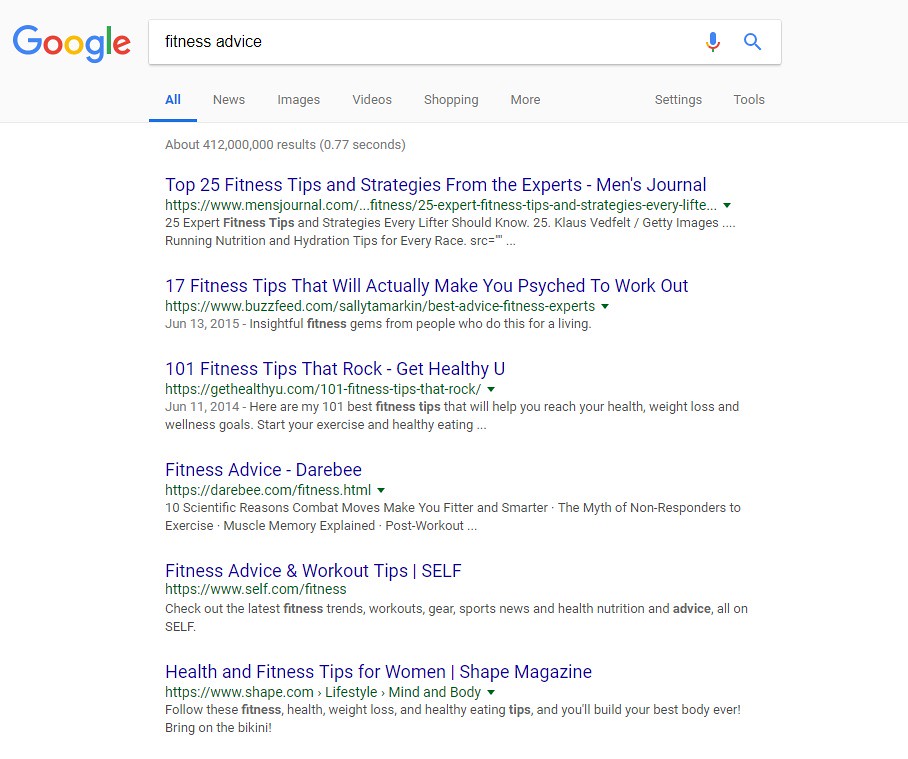
As you do your keyword research, you’ll find that certain keywords have a great deal of competition. For example, if your blog is about fitness and you type something simple like “fitness advice” into your Google search bar, you’ll get hundreds of thousands of results. You’ll see big names like Men’s Journal and Self.com on the first page of search results – names that you can’t possibly compete with.

So, how do you work your way into the first page of Google search results? By taking advantage of long-tail keyword opportunities.

Using “fitness advice” as an example, a long-tail keyword would be a string of words you put into the search bar to find specific information. If you think about it, people probably aren’t going to be searching for general fitness advice anyway – they’ll be looking for advice about specific fitness topics such as exercise motivation tips or the best workouts to burn fat.

These longer, more specific search terms are called long-tail keywords and they are a great tool for improving your blog’s SEO. Long-tail keywords have lower competition rankings while still having decent search volume. That combination means that you have a better chance of showing up on the first page of search results!

3. Perform SERP Research for Every Post

If you do a Google search for three different topics, you’ll find that the search engine results pages (SERPs) may look completely different. Some search terms yield a simple list of websites while others include paid product ads, maps of local results, answer boxes, and more. If you want your blog to rank well, you need to know what kind of SERP you’ll be appearing on and optimize for it.

The best way to do this is to try out different keywords (don’t forget about those long-tail keywords!) and see what kind of SERPs pop up. Depending on what the results are, you’ll have some idea what kind of search terms yield which results, and you can make your choices accordingly.

4. Optimize All Images for SEO

When it comes to a strong SEO strategy, the wider you spread your net the better. This doesn’t necessarily mean loading every page with dozens of keywords, however. Instead, it means taking advantage of specific SEO opportunities to build a strong overall strategy. One thing you don’t want to overlook when optimizing your blog is your images.

A good blog is all about the content, but you can’t rely solely on text for your SEO strategy. Every blog post you publish should include at least one image and it should be a good one. Depending on what topics you write about, images can do more than just break up big blocks of text – they can also demonstrate concepts and add quality to your post.

So, how do you optimize your images for SEO? You should try to work your keywords into the image file name, the alt text, and the caption text (if you use it). The image file name and caption text are self-explanatory, but you may not be familiar with alt text if you’re still new to SEO. Alt text for images is simply a description of the image that can be read by visually impaired visitors using a screen reader.

Your alt text should be an accurate and detailed description of the image, not just a list of keywords, but if you can work in your keywords naturally, all the better!

5. Make Use of Internal Links to Existing Posts

While linking to other posts within your own site is good for SEO, these links aren’t as valuable as external links. Even so, it’s a good idea to do it so you create a framework within your site that keeps your readers around for as long as possible. When planning a new post, think about the different posts you could potentially link to – don’t just link to your most popular posts, either. Internal links can be an opportunity to boost traffic to posts that are struggling to get attention. When you create internal links, be sure to use keywords for the link and use the keyword as your anchor text.

6. Update Existing Content to Keep It Current

The latest Google algorithm highly favors updated content, so don’t think that once you hit the “publish” button your work is done.  You’ll need to revisit your old posts once in a while to make sure the content is still relevant and current then make changes as needed to keep it updated. While you should do this for all of your posts if you have time, it is especially important for those posts where you appear on the 2nd or 3rd page of search results so you can bump it up to page 

When updating your existing content, there are a few different ways you can go. One option is to simply review the content and expand on some of your points. You could also beef up some of your claims with scientific evidence and an external link to the relevant journal article. Another thing you could do is add a section of quick tips at the end or scatter “fun facts” throughout the piece. Just don’t make the piece too cluttered or spammy with keywords.

7. Write Guest Posts and Obtain Backlinks

As a blogger, you have the freedom to choose what you write about and you can link to other posts on your site to increase value for your readers. What you really need to do, however, is get links from other reputable blogs back to yours – this is called backlinking and it is an important part of any successful SEO strategy. But how do you do it?

One way to get backlinks to your blog is to write a guest post for another blog. If you go this route, make sure it is a relevant blog – one that is in the same or a similar niche to yours. This ensures that the people reading your guest post will actually be interested in it and in following the link to your blog. It doesn’t hurt, however, if writing guest posts earned you some attention from a new audience.

So, how do you go about getting a gig as a guest blogger? Take the time to do some research to find other blogs that cover topics similar or complementary to your own then reach out to the owner about writing a guest post. Once you get approval, take some time to familiarize yourself with the blog and with the kind of content they publish so you can create a detailed pitch.

Unfortunately, you’ll probably find yourself dealing with a few rejections along the way, especially if you’re targeting blogs with a high readership. Just stick with it until you’re successful and then do a good job on the first one so you can get more.

8. Collaborate with Influencers

The goal of SEO is to make your blog appear on the first page of search results, so you have the greatest chance of reaching your target audience. While you should be optimizing your site for your target audience, you also want to expand your audience every opportunity you get. In addition to doing guest posts, you should also think about featuring influencers in your niche on your blog.

So, how do you collaborate with influencers on your blog? One way is to do an interview and write up a summary of that interview. You could also feature a quote from an influencer in one of your relevant posts or use some of their content as a reference in yours. When you do things like this, look for an opportunity to communicate directly with the influencer and see if you can get them to share the blog post with their own audience.

9. Experiment with Different Formats

If your blog is cluttered with content and difficult to navigate, it isn’t going to perform well. One of the main goals of SEO is to keep your readers on your site for as long as possible. If your site isn’t formatted well, readers may become frustrated at how difficult it is to find what they’re looking for that they end up leaving and going to the next result on the SERP.

Every blog is unique, so the format that works for one blog may not work for another. Don’t be afraid to experiment with different formats to see which one works best for you. Play around with different elements like infographics, videos, images, podcasts, and more. Trying out a new kind of content might inspire you or open up your blog to an entirely new audience.

10. Consider Creating a Mobile App 

We’ve already talked about the importance of optimizing your website for mobile users, but you may also want to consider creating a mobile app. Mobile apps work better for some applications than for others, but it never hurts to consider the possibility. You may even want to brainstorm some ideas then sit down and talk with an app developer to discuss your options. It’s unlikely that you’ll have the skills or the time to develop the app yourself.

While creating a mobile app is great, it can also be very expensive. If you think that it will really boost traffic and open your blog up to a new audience, it may well be worth the cost and the effort. If you aren’t sure, take the time to examine other options for improving your SEO before you spend a small fortune developing an app. If you have the money, a mobile app could be a great tool to have in your long-term SEO plan.

11. Perform Competitor Research for Keywords

Before you write a new post, you need to do your keyword research so you know how to optimize the post for SEO. In addition to doing keyword research for your own posts, however, you should also keep an eye on the keywords your competitors are ranking for. Online tools can help you identify the top-performing keywords for any given site so you can check up on your direct competitors as well as some of your lower-level competitors.

But what do you do with that keyword research? One thing you can do is try to steal the top slot on SERPs for the keywords your competitors are ranking for. If you notice that your competitor is ranking well for a low-competition keyword and you already have some content relevant to the keyword, consider making some updates to that content to further optimize the post.

You can also use competitor research to identify gaps areas where you might be able to slide into the top spot by writing a new post that is optimized for one of the keywords your competitor is not ranking well on. The options are endless, so take the time to familiarize yourself with the competition and what they are doing well so you can emulate it and improve upon it on your own blog.

12. Complete an SEO Audit

If you want to make significant improvements to your blog (and to its performance), you need to know exactly what is and is not working. You may already have some idea which posts are your most popular, but have you recently completed an in-depth audit of your entire site to see where you have opportunities to make improvements? If not, it might be time.

Generally speaking, an audit is an examination of your existing blog content and structure which includes various metrics for its performance. An SEO audit in particular looks at those specific aspects of site performance which can help you create new goals for future content in addition to providing guidance for how to update or upgrade your existing content for better search results.

When performing an SEO audit, you’ll want to look at how well each post is optimized for keywords and whether those keywords are still ranking well. You’ll want to make sure your SEO meta titles and descriptions are completed and current, and you want to check your page URLs as well. Make sure your image alt tags contain relevant keywords and include both internal and external links in your posts as much as possible.

These simple things could lead to a big boost in SERP rankings with minimal effort on your part.

Now that you’ve learned about the top 12 advanced SEO tips to drive traffic to your blog, all that is left is for you to implement them. Good luck!

Call for Papers: International Journal of Research (IJR)

 Dear esteemed researchers and scholars,

The International Journal of Research (IJR) invites submissions for consideration in our esteemed publication. As a reputable and scholarly journal committed to advancing knowledge across diverse fields, we encourage researchers, academicians, and professionals to contribute their original research papers, review articles, case studies, and scholarly works.

IJR seeks to publish high-quality, peer-reviewed manuscripts covering a wide spectrum of disciplines including, but not limited to:

  • Science and Technology
  • Engineering
  • Medicine and Healthcare
  • Social Sciences
  • Business and Management
  • Arts and Humanities
  • Education
  • Interdisciplinary Studies

Submission Guidelines:

  • Manuscripts should be original and previously unpublished.
  • Papers must adhere to the journal’s formatting and citation style.
  • All submissions undergo a rigorous peer-review process to ensure scholarly excellence.
  • Authors are requested to submit their manuscripts online via our website or email to ijr@ijrjournal.com.

Important Dates:

  • Submission Deadline: 30 of each month
  • Notification of Acceptance: Within a week
  • Publication Date: Within a week of Acceptance

Authors are encouraged to review our submission guidelines and policies available on our website for detailed information on manuscript preparation and submission procedures.

We look forward to receiving your scholarly contributions and fostering a collaborative platform for impactful research dissemination.

Best regards,

[International Journal of Research (IJR)]
[Website: www.ijrjournal.com]