POEMS


                         POEMS

The Art which connects the multiple effects of writing, reading, understanding, visualizing and mesmerizing thoughts that are always connected with actions is called poetry.


I strongly believe that the deadlines for poems have no point as it is the process of desire.

The feelings are more clearly read in eyes than listening them in the words. Yes, That is called the art of understanding!

THE ART OF LIVING IN READING

Poems can bring an adverse effect in all kinds of generation because they always come with the imagination of inventive thinking. No one in the world is born without feelings may be some or not ready to express it quietly at times and there comes the Power of the Poems which the inexpressive person can become an expression one within a nanosecond and that can be noted with a blink in the eye.

POETIC FORMS

The most frequently used poetic types are Sonnet, villanelle, Haiku, Elegy, Epigram, Limericks and free verse.
Sonnets are fourteen lines with specific rhyme and the scheme of stanzas. The music flows in the heart of readers while enjoying it to the fullest.

Villanelle are the nineteen lines with the repetition of the certain theme and it is considered to be the most challenging form.

Haiku is short and sweet format poems. Japanese haiku still resembles to be a masterpiece.

Elegy is usually used to express grief, admiration and acceptance. They are unique and enjoyed by all generations.
 
Epigrams are the form of statement which have the dimension of both humor and wit in the text.

Limericks are the five line poem with the line rhyme in the line 1,2,5 and then another rhyme in the lines of 3,4.

Free verse is an open poetic form which does not have specific rules or rhyme to be followed by. It may be short or long under any medium.


 POWERFUL POEMS WHICH CAN CHANGE YOUR MIND


NO MAN IS AN ISLAND BY JOHN DONNE


No man is an island,

Entire of itself;

Every man is a piece of the continent, 

A part of the main.

If a clod be washed away by the sea,

Europe is, the less,

As well as if a promontory were:

As well as if a manor of thy friend’s

Or of thine own were.

Any man’s death diminishes me,

Because I am involved in mankind.

And therefore never send to know for whom the bell tolls;

It tolls for thee.


The poet uses  two important elements, he starts with the continent and ends in the bells which represents the church.  He adds that no man is an island every human being is interconnected with one another. One man’s death is the loss of the whole continent. The poet addresses himself, and he asks that when the bell tolls one should not worry who it is tolling for. It is tolling for everyone. A single person’s death is like the death of everyone.


SEVEN STAGES OF LIFE BY WILLIAM SHAKESPEARE


All the world’s a stage,
And all the men and women merely players;
They have their exits and their entrances,
And one man in his time plays many parts,
His acts being seven ages. At first the infant,
Mewling and puking in the nurse’s arms;
And then the whining schoolboy, with his satchel
And shining morning face, creeping like snail
Unwillingly to school. And then the lover,
Sighing like furnace, with a woeful ballad
Made to his mistress’ eyebrow. Then a soldier,
Full of strange oaths, and bearded like the pard,
Jealous in honor, sudden and quick in quarrel,
Seeking the bubble reputation
Even in the cannon’s mouth. And then the justice,
In fair round belly with good capon lined,
With eyes severe and beard of formal cut,
Full of wise saws and modern instances;
And so he plays his part. The sixth age shifts
Into the lean and slippered pantaloon,
With spectacles on nose and pouch on side;
His youthful hose, well saved, a world too wide
For his shrunk shank; and his big manly voice,
Turning again toward childish treble, pipes
And whistles in his sound. Last scene of all,
That ends this strange eventful history,
Is second childishness and mere oblivion,
Sans teeth, sans eyes, sans taste, sans everything

The poet says about the seven stages of life of man. 

Stage1 – infancy – helplessness

Stage 2 – schoolboy – slowly walks to school

Stage 3 – teenage – craze on girl

Stage 4 – adulthood – mans works for name

Stage 5 – middle age – respect, prosperus

Stage 6 – oldage – loses influence

Stage 7 – death – loses all

Above all, Poems can also make you feel romantic, grateful and also powerful. Poems are loved by all kinds of people. If you ever feel sad read poems which makes gives you a great feeling.


BENEFITS OF INTERMITTENT FASTING(IF)

 So, if you’re the one person who runs away from exercise and workout and still dream of a HEALTHY LIFESTYLE, let me bust out an age old myth about fasting for you. How can fasting benefit one’s body? What does intermittent fasting do to your body? Is a sixteen hour fast beneficial for your health? These are the type of questions that generally arise in our skeptical minds when we hear about intermittent fasting. Well, if you too find yourself in middle of these questions, then you have reached the right place. We’ll provide you with ample reasons to choose this fasting in order to benefit your inner and outer self.

Intermittent fasting is one of the most aired dieting methods these days, a pattern of eating and fasting in a cycle within 24 hours.

There are different patterns of intermittent fasting, the most common being the 16/8 (16 hours of fasting window and 8 hours of eating window) pattern. Others can be 20/4, 5:2 pattern etc.

You will be shocked to know that it is a scientifically proven method of improving your mental and physical health.

So here we bring your attention to some of the top benefits of intermittent fasting: 

1.CHANGES HORMONE, CELLS AND GENE FUNCTION

Many changes occur in our body while we don’t eat. Our body changes the level and functions of the hormones to allow them to use the stored fat for primary energy generation. It also initiates the repair of damaged body cells. 

Some of the aforesaid changes occurring in our body due to fasting are;

a. Increase in Human Growth Hormone (HGH)

The exotic increase in level of HGH in blood leads to high fat burning, repair of tissues in the brain, boost in metabolism and gain in muscle mass, that’s why it is very common in body building industry.

b. Lowering the Insulin level-

Keeping the insulin level low in the blood is the main aim of IF. During the fasting window the insulin level of body lowers down dramatically and reverses the formation of fat and hence, you lose fat. Lowering in insulin also prevents diabetes. 

c. Repair of cells-

During IF, our body cells rejuvenate, cleanse themselves of all waste materials and repair themselves with the help of HGH in order to become stress resistant.

d. Correcting Gene expression-

IF affects different gene expressions to cures many diseases and health problems at genetic levels like cancer etc.

2. LOSING WEIGHT

                   While following an intermittent fasting routine; the body lowers the level of insulin, increases the level of HGH and increases amount of noradrenaline. This consequently leads to burning of excess body fat which is then converted into energy, that is utilized by the body for its daily activities.

                  It also breaks down visceral fat from our abdominal cavity that otherwise is hazardous for our physical well-being. So basically, IF takes down our calorie intake in order to boost our metabolism and correct our lifestyle.

3.IMPROVES BRAIN FUNCTION AND IMMUNE SYSTEM

                      As the metabolic activity of the body improves, so does the condition of the brain which is the most important part of our body. IF reduces inflammation, oxidative stress, blood sugar and insulin resistance of our body which leads to the growth of new nerve cells. It also leads to the secretion of brain hormones which prevents depression and brain damage like strokes.

IF even protects the body against incurable disease like Alzheimer’s.

4.PROTECTS FROM HEART DISEASES

               The intake of healthy IF diet leads to almost no formation of low-density lipoprotein or bad cholesterol which prevents heart attack and also reduces the risk of high blood pressure and other inflammatory diseases of heart. According to new research, regular follow up of IF can considerably lower the rate of heart failure and can add more years to someone’s life.

5. INCREASES LIFE LONGITIVITY

                   Taking an IF diet can persistently uplift a poor lifestyle of a person and help him get rid of heart diseases, abnormal blood pressure, atypical brain problems, obesity, fatigue etc. This, thus, brings the overall health of  a person in the right track also benefitting him from over-aging by repairing the body cells timely. 

LET US KNOW IF YOU HAVE ANY QUESTIONS AND IF YOU WANT ANOTHER ARTICLE ON HOW TO START INTERMITTENT FASTING.


YOU CAN BUY WEALTH BUT NOT HEALTH..

As we all are aware that, “Health is Wealth”. It is important to take care of our health, because if you lost it then, no one is going to give you your perfect health even if you pay lakhs of rupees. God gives good health to every human, but it is in our hands whether to keep it good or make it worse. Health is not only being physically fit but being mentally healthy. To be physically fit, we need to eat healthy and exercise, and to be mentally health, avoid negative thoughts.

SOME WAYS TO BE PHYSICALLY HEALTY AND FIT:

1.Eat healthy, whatever you eat, eat with love and satisfaction, don’t hate your food.

2.Take foods like fruits, vegetables and, homemade meat dishes instead of Fast foods.

3.Eat fully, make your tummy happy, if you eat half and if you stay half empty, it leads to health issues.

4.Prefer homemade foods, because the homemade is filled with love and tastes good.

5.Eat whatever you like, but have a limit, because anything more is poison though.

6.Excercise daily, drink more water, maintain your physic. 

7.Avoid bad habits like Smoking, drinking, taking drugs etc.

SOME WAYS TO BE MENTALLY HEALTHY:

1.Firstly, to be mentally healthy, you need to avoid negative thoughts.

2.You should accept all the situations of life, may be happy or sorrow times.

3.Receive everything with love, even if it hurts you, try to accept it, then your mind feels free.

4.Spend time with your family and beloved ones, instead of always running after earning money.

5.Think positive, Be positive, Do positive, Receive positive and Stay positive.

6.Do not overthink about anything, don’t stress your mind 

I want to tell some important things before I end this article. 

  • It’s better to buy healthy foods like fruits, veggies etc. instead of buying medicines.
  • It’s better to drink fresh water instead of drinking soft drinks and hard drinks as well.
  • It’s better to have homemade food instead of having harmful food(fast foods).
  • It’s better to think about something useful and worthy instead of overthinking about something unnecessary.
  • It’s better to share your sorrow, instead of feeling depressed.
Finally, stay fit and healthy both physically and mentally..

Automatic Featured Posts Slider Widget For Blogger

  Anyone with a blog wants readers to stay rather than move on to another. It’s not being selfish but after someone has read one post, you’d definitely want them to read another, right? After all, isn’t it one of the tenets of SEO to make people stay longer on your blog if it has to have a fighting chance at the rankings game?

The question now is: how exactly do you entice them to read a few more of your blog posts?

First off, you don’t know exactly what brought a reader to your site. Well, you sort of do, if you have Google Analytics and all that. But that’s beside the point. It wouldn’t be productive for you to stare at GA the entire day hoping that it will tell you that yes, someone has been perusing your blog.

The point being driven at here is that you have to offer more on your blog. It’s not enough that you get traffic from search engines and other sites; you also have to add some extras that will entice visitors to stay longer.

How exactly do you do that?

The Tactics of Persuading Users to Stay

Bloggers have employed a variety of tactics to persuade readers to stay. For one, they load the sidebar with widgets for Popular Posts, for example. Of course, it would be in the interest of your readers to know which other posts on your blog are gaining traction. Maybe those pieces are of interest to them as well. As a result, you’ve got one surefire way of making readers stay.

Now, what if you want to highlight Featured Posts, for example? Let’s say that your blog has been around for a number of years and in that span, it has produced some great content that received quite the number of shares, likes, +1s, comments on so on. Wouldn’t that be the kind of post you want featured? Unless your reader was looking for that topic specifically, there’s little chance that they might uncover that gem if you don’t bring it to their attention.

Thankfully, it’s quite possible to add a Featured Posts slider for Blogger. And if you don’t know how to make one yourself, this is exactly what this post is for. Here’s an awesome Featured Posts slider widget that you can use on your blog.

How to Add Featured Posts Slider Widget in Blogger

1. Go to ‘Layout’ > click the ‘Add a gadget’ link in the sidebar area and select ‘HTML/JavaScript’ gadget from the pop-up window.

2. Add the code below inside the empty box:

ul.featured-widget-list,ul.featured-widget-list li{margin:0;padding:0;list-style:none;position:relative }ul.featured-widget-list li{display:none}ul.featured-widget-list li:nth-child(1){display:block;line-height:0}ul.featured-widget-list img{border:0;width:100%;height:auto}ul.featured-widget-list .featuredbg{width:100%;height:100%;position:absolute;z-index:2;left:0;top:0;opacity:.6;background-image:url(https://blogger.googleusercontent.com/img/b/R29vZ2xl/AVvXsEg9xYcCNrcnTNWee7JpsdHu1DUMSjLwE-Wwmp1Vo0Cb-5i2okkL-ltU_fDOVylXzY7-rdbnvn3bwdfWIvhN8wNgbM6IfUhLHSJ1QnUz2n1EKL7QrqtQu2Uh3zqY23DZB3uPo87zey3xP20/s400/overlay-bg.png);background-position:0% 100%;background-repeat:repeat-x}ul.featured-widget-list .featuredbg:hover{opacity:.1}ul.featured-widget-list h5{position:absolute;left:0;right:0;text-align:center;bottom:10px;z-index:2;color:#fff;margin:0;text-transform: capitalize;padding:10px 20px;line-height:1.9em;letter-spacing:0.3px;font: 600 16px ‘Abel’, sans-serif;overflow:hidden}ul.featured-widget-list li:hover h5{bottom:30px}ul.featured-widget-list .featured-meta{font: 11px ‘Abel’, sans-serif;letter-spacing:0.3px;position:absolute;bottom:0;left:0;right:0;text-align:center;z-index:2;color:#fff;opacity:0}ul.featured-widget-list h5, ul.featured-widget-list .featured-meta {-webkit-transition: all 0.3s;-moz-transition: all 0.3s;-o-transition: all 0.3s;transition: all 0.3s;}ul.featured-widget-list li:hover .featured-meta{bottom:20px;opacity:1}.feat-buttons{position:absolute;top:50%;left:0;z-index:5;width:100%}
.feat-buttons a{text-indent:-9999px;margin:0 7px;width:15px;height:15px;padding:5px;background:#000;-ms-filter:”progid:DXImageTransform.Microsoft.Alpha(Opacity=60)”;filter: alpha(opacity=60);-moz-opacity:0.6;-khtml-opacity:0.6;opacity:0.6;position:relative;-webkit-border-radius: 50%;-moz-border-radius: 50%;border-radius: 50%;}.feat-prev{float:left;}.feat-next{float:right;}.feat-buttons a.feat-prev::before, .feat-buttons a.feat-next::before{content:””;width:0;height:0;border-width:6px 7px;border-style:solid;border-color:transparent #fff transparent transparent;position:absolute;top:50%;margin-top:-6px;margin-left:-11px;left:50%}
.feat-buttons a.feat-next::before{border-color:transparent transparent transparent #fff;margin-left:-3px}

//<![CDATA[
featuredbwidget({
listURL:”https://helplogger.blogspot.com/&#8221;,
featuredNum:9,
listbyLabel:false,
feathumbSize:350,
interval:3000,
autoplay:true,
featuredID:”#featuredbwidget”
});
function featuredbwidget(a){(function(e){var h={listURL:””,featuredNum:3,featuredID:””,feathumbSize:300,interval:5000,autoplay:false,loadingFeatured:”nextfeatured”,pBlank:”https://blogger.googleusercontent.com/img/b/R29vZ2xl/AVvXsEgL-HKGMbN4lhifWz37o83dbEiXjZvmygWZ2ZkBjvACHCKc1_hJ2acw7PlNWJ3d3pvYFfPC8IATHKHUmvtWpcRSJcBdazEraoM0c5G_QoSB3sA1-gzXdWBVJEmXpTBDvLQrj3mAkGnVtUI/s500/no-image.png&#8221;,byMonth:[“Jan”,”Feb”,”Mar”,”Apr”,”May”,”Jun”,”Jul”,”Aug”,”Sep”,”Oct”,”Nov”,”Dec”],listbyLabel:false};h=e.extend({},h,a);var g=e(h.featuredID);var d=h.featuredNum*200;g.html(‘

‘);var f=function(w){var q,k,m,u,x,p,t,v,r,l=””,s=w.feed.entry;for(var o=0;o<s.length;o++){for(var n=0;n<s[o].link.length;n++){if(s[o].link[n].rel=="alternate"){q=s[o].link[n].href;break}}if("media$thumbnail" in s[o]){u=s[o].media$thumbnail.url.replace(/\/s[0-9]+\-c/g,"/s"+h.feathumbSize+"-c")}else{u=h.pBlank.replace(/\/s[0-9]+(\-c|\/)/,"/s"+h.feathumbSize+"$1")}k=s[o].title.$t;r=s[o].published.$t.substring(0,10);m=s[o].author[0].name.$t;x=r.substring(0,4);p=r.substring(5,7);t=r.substring(8,10);v=h.byMonth[parseInt(p,10)-1];l+='

  • ‘+k+’

  • “}e(“ul”,g).append(l).addClass(h.loadingFeatured)};var c=function(){e(h.featuredID+” .feat-next”).click()};var b=function(){e.get((h.listURL===””?window.location.protocol+”//”+window.location.host:h.listURL)+”/feeds/posts/summary”+(h.listbyLabel===false?””:”/-/”+h.listbyLabel)+”?max-results=”+h.featuredNum+”&orderby=published&alt=json-in-script”,f,”jsonp”);setTimeout(function(){e(h.featuredID+” .feat-prev”).click(function(){e(h.featuredID+” .featslider li:first”).before(e(h.featuredID+” .featslider li:last”));return false});e(h.featuredID+” .feat-next”).click(function(){e(h.featuredID+” .featslider li:last”).after(e(h.featuredID+” .featslider li:first”));return false});if(h.autoplay){var i=h.interval;var j=setInterval(c,i);e(h.featuredID+” .featslider li:first”).before(e(h.featuredID+” .featslider li:last”));e(h.featuredID+” .featslider”).hover(function(){clearInterval(j)},function(){j=setInterval(c,i)})}e(“ul”,g).removeClass(h.loadingFeatured)},d)};e(document).ready(b)})(jQuery)};
    //]]>

    Automatic Featured Posts Slider Settings

    • listURL – replace “https://helplogger.blogspot.com/&#8221; with your blog URL
    • featuredNum – add the number of posts to display in the slider
    • listbyLabel – if you want to display posts by category / label, such as the tag fashion, it will be written as listbyLabel: “fashion”
    • feathumbSize – the size or dimension of the image in pixels
    • interval – time taken to change the slides position in milliseconds
    • autoplay – replace true with false if you don’t want the slides to change automatically.

    3. Once you are done with the settings, click the ‘Save’ button.

    Now, this code is for a slider widget which means that instead of just a random list of Featured Posts, you get to display them with images (if they have one) and you can include effects too. You can also control how many slides should be shown because it just wouldn’t be prudent to feature your entire oeuvre, right?

    Plus, being a slider widget, it adds a nice little visual to your site. And we all know how visuals are important in enticing people to stay, don’t we?

    7 Search Engine Optimization Tips For Bloggers

      SEO, as you might have already know, is an acronym for search engine optimization. In the simplest of words, it’s the way search engines like Google.com, Yahoo.com, Bing.com and others present your page in users’ search results on their sites.

    Cool, how do they that?

    Well, they do that via sophisticated software tools, called spiders. Consider the whole internet as an empty room, with air particles as websites. Now sneak a spider into that room. Each tiny step that this spider would take now is essentially crawling a website (as the room is dark and full of websites). This is how search engines crawl through the web picking up site after site, studying them and ranking them. This ranking is important, really important. A higher ranked website by Google will always be on the first page of Google’s search results for a related query compared to a lower ranked one.

    So, in order to get ranked higher, you and I need SEO. SEO is like black pepper without which fried egg might not taste ‘that’ tastier. In simple words, in order for search engines to find your site and rank it higher than others in your field, you need to optimize it. Let’s see how with these 7 simple tips.

    Ways to SEO Optimize your Blog

    Before starting with our 7 simple tips for a quality SEO, it’s important to broadly classify those tips into two basic areas, on the basis of origin:

    On-page Optimization

    Refers to optimization of your actual web content including your HTML code, your text, as well as graphic content.

    Off-page optimization

    Off-page optimization, however, deals with things like backlinks (hyperlinks pointing to you site from other websites, apps and networks).

    1. Create SEO Friendly Blog Post Titles

    Post titles are important for SEO. They really are since they are deal makers or breakers. Whenever you write something, make sure you give proper attention to the post’s title. Make your titles simple, intriguing, descriptive and gullible so that people may know what is this all about and what to expect. An even better approach is to wear searchers shoes while giving a title and think how would you Google it if you were looking for content like this.

    google search results, seo title

    Also, don’t forget to include keywords in your title and keep it under 70 characters (or search engines would crop it before looking).

    2. Improve the quality of your content

    If you think ‘content’ isn’t important for SEO, think again! Your content is the most important part of your site. While writing, don’t copy-paste from elsewhere, don’t stuff it with keywords alone, don’t bombard it with images and multimedia files and don’t write any lesser than 300 words. These all would affect your ratings quite poorly.

    So, write original, use keywords in scenarios instead of straying them around (like I didn’t use SEO here, SEO there in every next line), use images where they suffice and make sure you name them properly to appear in image search results, i.e. an image with the “img009.jpg” name would never appear in the image search results but “tips_to_success.jpg” would. The best would be to use text content and wrap them proper in HTML tags like

    etc. (search engines likes content this way). Also, make sure your blog post’s length is somewhere between 300-500 words – crossing over is fine but lesser isn’t.

    seo title headings

    3. Keywords are keys

    Keywords are terms that others may use to search for your content. While keywords are important for SEO, don’t go on and stuff your site with keywords. This would make your content appear like a spam to spiders, who would neglect it henceforth.

    Ideal is that once you have chosen your title (and included your keyword in it, as I have added keyword SEO in title above), use it in page URL, in your starting and ending paragraphs, as well as in article body where required without sounding awkward. Additionally, you may link it using anchor text to relevant resources in and out of site.

    Adding keyword in the post URL using Custom Permalink

    4. Meta-tags are important, but not ‘that’ much

    If we had been living in early part of 21st century, meta tags might have done all the SEO for your site. Unluckily, we aren’t. Google and other search engines have long left using meta-tags for finding site information. Hence, if someone tells you meta-tagging is all you need for your sites SEO, tell them it isn’t.

    Nevertheless, it’s important that you use your keywords in your meta-data. Some themes already do that for you, if they don’t (you can check that using page source or using view source code from browser), don’t sweat. You can use 3rd party plugins like All in One SEO Pack and Scribe.

    5. Socialize!

    Make others talk about your site and share your content on social media sites or their blogs. It gets even better if somehow sites with high ratings link back to your site. This makes spiders think that you are someone important that everyone these days is talking about, resulting in enhancing your ratings dramatically.

    Guest posting is another good approach for that. Comment on other sites, make friends with bloggers (best in business) and make them comment at yours. These tiny little things do matter a lot, resulting in enhanced SEO of your site.

    6. Link in and Link-Out

    Hyperlinks or Links are important from SEO perspective. You can use them to:

    Link out to other sites, networks and posts, or even to your previous posts (also called inbound or backlinks) using anchor element with keyword.

    anchor element with keyword

    Or even better, make others to link in to you, via sharing your content on their sites or social media networks.

    As mentioned, an even outstanding strategy for building links is guest posting.

    7. Write Often

    Sites with new content every day, or twice thrice a week have still far better ratings than those who post every fortnight. A better incoming content frequency makes spider come to your site regularly, resulting in better ratings and enhanced SEO.

    Are we done then? Well, trust me – your sites rating is in your hands, not in Google or Yahoo. SEO is just about doing things neatly and in a sophisticated manner. Walk your site these 7 steps for a quality SEO and you will witness the difference yourself at Google, if no place else.

    Remember, code clean, write original, socialize… this is what SEO is all about!

    How To Add Font Awesome Social Icons In Blogger

      It’s near impossible to find a blog or site these days without at least one social media account to their name. Be it Twitter or Facebook, Instagram or Pinterest, or all of those for that matter, what’s become increasingly clear is that social media helps increase your online presence.

    Gone are the days when you used to rely on good old search engine results alone. These days, maybe you don’t rank well in results for your keyword on Google or any other search engine, but you can launch a social media campaign that can hopefully give you the results that you want.

    Essentially, your site and social media need to co-exist. One cannot live without the other, if you want another way of putting it. Social media is one of the best drivers of traffic on the internet, and if you want to increase your chances of being seen, then you have got to get an account on one or more platforms as long as it fits with your brand’s identity.

    Spreading Awareness of Your Social Media Presence

    Once you’ve set up your social media accounts, you don’t just leave it there to be discovered. Sure, you can make use of hashtags and communicate with industry leaders, but that’s not enough to bring awareness to your customers. To let them know you have a presence on Facebook, Twitter, Instagram, Vine or Pinterest, you have to make use of the real estate on your website.

    How exactly do you do that, you ask? Well, by means of social icons.

    Social icons are those little images you see that represent a symbol associated with a particular social network. For example, social icons for Twitter usually feature a blue bird. If not that, then a lowercase letter T.

    The presence of these images remind your viewers that they have other ways of being up to date with whatever you put out. Social media use is pretty high these days thanks to the immediacy of the medium as well as the fun factor. And more likely than not, your audience would want to know whether you’re on any social network.

    If you’re on the Blogger platform, you can add these social media representations through Font Awesome social icons.

    What is Font Awesome?

    Font Awesome “gives you scalable vector icons that can instantly be customized – size, color, drop shadow, and anything that can be done with the power of CSS”. In essence, it functions as a toolkit where you get access to more than 500 icons for use on your site – free of charge.

    Now, if you’ve used social media icons before, you know that there are non-vector varieties. But those offered by Font Awesome are scalable vector icons, and in the long run, they are the better option for your site.

    Why is that the case?

    Well, a very good reason would be that images take time to load. Yes, these images are tiny but the point still stands. Plus, images tend to lose their quality as computer resolution increases. In other words, if you want your icons to load faster and have a nice, crisp and clean look, then you’re better off with using the collection of Font Awesome. Also, the chance to customize your icons accordingly is definitely an attractive factor too.

    Why you should start using Font Awesome?

    Of the many providers out there, why stick with Font Awesome?

    • Large collection of icons. You’ll not only find social media icons here, but other traditional icons as well.
    • CSS support. With CSS, you can adjust the icons according to what suits your site best. You can tinker with the colors, size, shadows and other components. This is something sorely lacking with non-vector images because you’re stuck with the icon you chose.
    • Speed. Vector images are lightweight and therefore load faster.
    • Free. You don’t have to pay a single thing when you use Font Awesome.

    So now you know the importance of icons on your site, it’s time to learn how to add Font Awesome icons in Blogger.

    Adding Font Awesome Social Icons in Blogger

    The adding of icons to your Blogger isn’t rocket science. In fact, the process is pretty straightforward.

    Here’s what you have to do:

    Add Font Awesome Stylesheet into Blogger

    Follow the steps below to get Font Awesome working with your blog:

    1. Log into your Blogger dashboard, then go to Theme and press the Edit HTML button.
    2. Click anywhere inside the code area and press CTRL + F keys to open the search box.
    3. Type the  tag inside the search box and press Enter to find it.
      font awesome stylesheet
    4. Add the following line of code referencing the location of the font-awesome.min.css stylesheet just below the  tag:
    5. Click the ‘Save theme’ button to save the changes and start playing with Font Awesome!

    Using the Font Awesome Icons

    After you get the steps in the previous section done, you’re now ready to use Font Awesome in your blog. The first thing you need to do is add the social icons links to the HTML and delete the icons that you don’t need anymore.

    This is a sample HTML that you can add:


    In the above HTML code, we can see 8 separate social icons which can be recognized by looking at the link title attribute. For example, the first one is for Facebook.

    To use the social icons, paste your URL where it says URL-HERE for each social icon you want to include. Put the link between the quotes and make sure to not remove any of the quotation marks.

    If you want to remove a social icon, just delete that line of code starting with “<a href" and ending with "”.

    Now, keep in mind that Font Awesome works anywhere with the  tag as it was designed to work with inline elements. Although you can use , official documentation prefers the  option for brevity.

    Font Awesome icons can be placed anywhere using the CSS prefix fa together with the name of the icon. For a list of social media icon names, you can refer to the official website of Font Awesome.

    Let’s say that you want to display a Youtube icon so you can link it to your official account on the platform. Find the Youtube icon on the list and click on it:

    font awesome icon

    That will bring you to a page for Youtube where you will see this code:

    font awesome social icons

    To include the icon within the list, copy any line starting with “<a href" and ending with " from the code above, paste where you want it to appear and replace the code starting with “<i class="fa " and ending with "” with that of your chosen icon.

    Finally, after adding the icon, the list will look like this:


    Note: don’t forget to change the title and add your URL between the quotes.

    Once you’ve finished editing the icons, insert the code into a HTML/Javascript gadget by going to “Layout” and click on the “Add a gadget” link. If you’re using WordPress, paste it in a Text widget.

    Customize the Font Awesome Icons Using CSS

    Suppose you want to make the icons a lot bigger than they currently are. That task is made simple with the use of CSS. Here’s a sample code:

    #fawesomeicons a {
        font-size: 16px;
        width: 30px;
        height: 30px;
        line-height: 30px;
    }

    To change the font size, increase or decrease the 16px value. Below are the values (30px) for the container’s width and height which should always match. Increasing/decreasing these values, will increase/decrease the size of the container where is the font.

    Here are some different styles for the font awesome social icons. In the CSS, look for the #background-color#border-color#font-color and #hover-color text so that you can know here to put the color codes. You can use this tool to generate the color code: Color Code Generator. And if you’re not familiar with CSS, please see this tutorial.

    font awesome social icons

    #fawesomeicons {
    text-align: center;
    }
    #fawesomeicons a {
    background: #background-color;
    color: #font-color;
    display: inline-block;
    font-size: 16px;
    width: 30px;
    height: 30px;
    line-height: 30px;
    margin: 0 1px 6px;
    }
    #fawesomeicons a:hover{
    background: #hover-color;
    }

    font awesome social icons

    #fawesomeicons {
    text-align: center;
    }
    #fawesomeicons a {
    background: #background-color;
    color: #font-color;
    display: inline-block;
    font-size: 16px;
    width: 30px;
    height: 30px;
    line-height: 30px;
    margin: 0 1px 6px;
    -webkit-border-radius: 100%;
    -moz-border-radius: 100%;
    border-radius: 100%;
    }
    #fawesomeicons a:hover{
    background: #hover-color;
    }

    font awesome social icons

    #fawesomeicons {
    text-align: center;
    }
    #fawesomeicons a {
    border: 1px solid #border-color;
    color: #font-color;
    display: inline-block;
    font-size: 16px;
    width: 30px;
    height: 30px;
    line-height: 30px;
    margin: 0 1px 6px;
    }
    #fawesomeicons a:hover{
    background: #hover-color;
    }

    font awesome social icons

    #fawesomeicons {
    text-align: center;
    }
    #fawesomeicons a {
    border: 1px solid #border-color;
    color: #font-color;
    display: inline-block;
    font-size: 16px;
    width: 30px;
    height: 30px;
    line-height: 30px;
    margin: 0 1px 6px;
    -webkit-border-radius: 100%;
    -moz-border-radius: 100%;
    border-radius: 100%;
    }
    #fawesomeicons a:hover{
    background: #hover-color;
    }

    font awesome social icons

    #fawesomeicons {
    text-align: center;
    }
    #fawesomeicons a {
    color: #font-color;
    display: inline-block;
    font-size: 23px;
    margin: 0 6px 6px;
    }
    #fawesomeicons a:hover{
    background: #hover-color;
    }

    Now, what if we want to change the background or font color of a specific icon? First, we need to identify the icon class which is just after the <i class="fa …" and add it like this:

    #fawesomeicons a .fa-facebook {
    background: #background-color;
    color: #font-color;
    }

    Here, we can change the background and color for the Facebook icon but we can do it for any icon you want. For example, let’s add another rule for the twitter icon:

    #fawesomeicons a .fa-facebook {
    background: #background-color;
    color: #font-color;
    }
     #fawesomeicons a .fa-twitter {
    background: #background-color;
    color: #font-color;
    }

    To make the fonts bigger, we can add the CSS code like this:

    #fawesomeicons {
    text-align: center;
    }
    #fawesomeicons a .fa{
    display: inline-block;
    font-size: 16px;
    width: 30px;
    height: 30px;
    line-height: 30px;
    }
    #fawesomeicons a .fa-facebook {
    background: #background-color;
    color: #font-color;
    }
     #fawesomeicons a .fa-twitter {
    background: #background-color;
    color: #font-color;
    }

    To apply, copy the code above and add the CSS rule with the icon class that you wish to change.

    Important: When adding the class for your icon, always put a dot (.) in front of it as you can see in the example above, otherwise it won’t work.

    And that’s it! Hopefully, this tutorial helped you to add Font Awesome social icons in Blogger. If you’re still in trouble adding them, please take a look at Examples page.

    5 Best Popular Posts Widgets For Blogger

      If you’re using Blogger as the platform for your personal or business blog, you’re probably looking for ways to customize it and make it your own. This way, you’ll make your webpages unique and eye-catching and ensure they’ll stand out from the many other pages on the internet. You’ll also grab the attention of your target market, encourage them to browse through your blog and become your loyal readers and followers.

    Fortunately, there are lots of ways to personalize your Blogger blog, and one of these is to customize your Popular Posts widget. Haven’t installed this yet? Don’t worry since putting it in your blog easy.

    Adding the Popular Posts Widget for Blogger

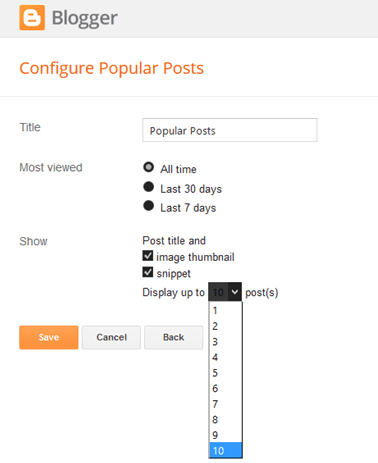
    Just click on your blog title, access the “Layout” menu, click “Add a Gadget” and choose “Popular Posts”. A window will appear asking you to configure the widget by choosing which posts you’ll feature (e.g. those that were most viewed in the past 7 days or 30 days or from the beginning of your blog). You’ll also be asked to choose how many posts you’ll feature in your Popular Posts section and select if you’ll show the post title only or along with the image thumbnail and/or the snippet. (Remember that each widget style has different requirements, so follow the styles and instructions carefully to find out if you need the snippet and image thumbnail or not).

    Configuring Popular Posts Widget for Blogger

    Once you’ve followed these instructions, you’ll get to see the basic version of the Popular Posts Widget for Blogger in your blog. You can stick with this if it matches your blog design but, if it sticks out like a sore thumb or doesn’t suit your taste, there’s no need to fret since you can personalize it. You can choose from the following styles – see the demo blog:

    Popular Posts Style 1 – Box within a box

    This is an interesting widget style since it uses your snippet and image thumbnail in a unique way. Your snippet is written in opaque text and placed in a small transparent box. This, in turn, is placed in a bigger rectangular box, wherein your image thumbnail is used as a background. Choosing this Popular Posts Widget for Blogger can be a great option if you want to brighten up your blog and grab the attention of readers with your colorful photos.

    popular posts widget for blogger

    CSS code:

    .sidebar .PopularPosts ul{margin:0;padding:0;}.sidebar .PopularPosts ul li{list-style:none !important;padding:0 !important;margin-bottom:10px;}.sidebar .PopularPosts .item-thumbnail{height:190px;margin:0;overflow:hidden;width:100%;}.sidebar .PopularPosts .item-title{position: relative;}.sidebar .PopularPosts img{height:auto;width:100%;padding:0;}.sidebar .PopularPosts .item-title a{color: #FFFFFF;font:20px Oswald;text-transform:uppercase;padding:10px;position:absolute;right:0;left:0px;margin:0px auto;text-align:center;text-decoration:none;top:40px;width:60%;height:26px;overflow:hidden;z-index:2;}
    .sidebar .PopularPosts .item-snippet{background:rgba(0, 0, 0, 0.35);border-top:6px solid rgba(0, 0, 0, 0.1);border-bottom:6px solid rgba(0, 0, 0, 0.1);color:#FFFFFF;left:0px;right:0px;margin:0px auto;padding:65px 10px 10px;position:absolute;font:13px ‘Times New Roman’,Times,FreeSerif,serif;text-align:center;top:35px;width:60%;z-index:1;}.sidebar .PopularPosts .item-content{position:relative;}

    Popular Posts Style 2 – Large thumbnails with small post titles underneath

    This uses the same code as the basic Blogger Popular Posts Widget with a few tweaks. Popularized by well-known blogs, this style is eye-catching because it focuses on pictures, which don’t only summarize the posts’ content but also add visual drama to the entire page. This is particularly useful for blogs that focus on clothes, makeup, art and other topics that highly depend on visual presentation to better express ideas.
    popular posts widget for blogger

    CSS code:

    .sidebar .PopularPosts ul{counter-reset:popularcount;margin:0;padding:0;}.sidebar .PopularPosts ul li{width:100%;list-style:none !important;padding:0 !important;margin-bottom:20px;position:relative;border:0;text-align:center;}.sidebar .PopularPosts .item-thumbnail a{clip: auto;display:block;height:auto;height:120px;}.sidebar .PopularPosts .item-thumbnail{width:100%;height:120px;overflow:hidden;position:relative;margin-bottom:15px;}.sidebar .PopularPosts .item-thumbnail::before{background:rgba(0, 0, 0, 0);border-bottom:29px solid #fff;border-left:29px solid transparent;border-right:29px solid transparent;bottom:0px;content:"";height:0;width:0px;left:0px;right:0px;margin-left:auto;margin-right:auto;position:absolute;z-index:3;}.sidebar .PopularPosts .item-thumbnail:after{color:#000;content:counter(popularcount, decimal);counter-increment:popularcount;font:13px "Times New Roman",Times,FreeSerif,serif;list-style-type:none;position:absolute;bottom:0;margin:0px auto;left:0px;right:0px;z-index:4;}.sidebar .PopularPosts .item-thumbnail img{position:relative;width:100%;height:auto;padding:0;}.sidebar .PopularPosts .item-title{font:15px 'Oswald', sans-serif;text-transform:uppercase;margin:0px auto;padding-bottom:10px;border-bottom:1px solid #000;}.sidebar .PopularPosts .item-title a{color:#000;text-decoration:none;}.sidebar .PopularPosts .item-snippet{padding:10px 15px;font:13px "Times New Roman",Times,FreeSerif,serif;}

    Popular Posts Style 3 – Colorful boxes

    If your blog needs a pop of color, this is the right choice for you. This widget style presents your Popular Posts in several boxes that feature a thumbnail image and have bright, eye-catching shades like light green, ocher yellow and vivid orange. Each box has a different color, and you can add up to four boxes.

    popular posts widget for blogger

    CSS code:

    .sidebar .PopularPosts ul{padding:0;margin:0;}.sidebar .PopularPosts .item-thumbnail a{clip:auto;display:block;height:auto;overflow:hidden;}.sidebar .PopularPosts .item-thumbnail{width:130px;height:130px;border-right:5px solid #fff;margin:0px 10px 0px 0px !important;position:relative;}.sidebar .PopularPosts .item-thumbnail img{position:relative;height:auto;width:100%;padding:0;}.sidebar .PopularPosts ul li{float:left;margin-bottom:5px;max-height:130px;min-width:250px;overflow:hidden;}.sidebar .PopularPosts ul li:first-child{background:#D9EDF7;}.sidebar .PopularPosts ul li:first-child + li{background:#F2DEDE;}.sidebar .PopularPosts ul li:first-child + li + li{background:#DFF0D8;}.sidebar .PopularPosts ul li:first-child + li + li + li{background:#FFEEBC;}.sidebar .PopularPosts ul li:first-child + li + li + li + li{background:#E0E0E0;}.sidebar .PopularPosts .item-title{font:13px 'Oswald', sans-serif;text-transform:uppercase;padding:10px 5px 10px;}.sidebar .PopularPosts .item-title a{color:#000;text-decoration:none;}.sidebar .PopularPosts .item-snippet{font:13px "Times New Roman",Times,FreeSerif,serif;padding-right:5px;}.sidebar .PopularPosts .widget-content ul li{padding:0px 5px 0px 0px!important;}

    Popular Posts Style 4 – Grid layout

    Just like the large-picture widget style, the grid layout is an excellent option if you want to showcase your pictures or if your blog depends on visual information. However, the title of your posts won’t be included in the layout, so readers will have to hover their mouses on the images to read the titles.

    popular posts widget for blogger

    CSS code:

    .sidebar .PopularPosts ul{padding:0;}.sidebar .PopularPosts ul li:first-child{width:100%;max-height:100%;opacity:0.9;}.sidebar .PopularPosts ul li:nth-child(even){margin-right:2%;}.sidebar .PopularPosts ul li{-moz-box-sizing:border-box;-webkit-box-sizing:border-box;box-sizing:border-box;position:relative;padding:0px !important;width:49%;max-height:120px;opacity:0.4;overflow:hidden;float:left;margin-bottom:2%;-webkit-transition: all 0.5s ease 0s;-moz-transition:all 0.5s ease 0s;-ms-transition:all 0.5s ease 0s;-o-transition:all 0.5s ease 0s;transition:all 0.5s ease 0s;}.sidebar .PopularPosts ul li:hover{opacity:1;}.sidebar .PopularPosts .item-thumbnail{margin:0;width:100%;line-height:0;}.sidebar .PopularPosts ul li img {-moz-box-sizing:border-box;-webkit-box-sizing:border-box;box-sizing: border-box;width:100%;height:auto;padding:0;}.sidebar .PopularPosts .item-content:hover .item-title a,.sidebar .PopularPosts .item-thumbnail-only:hover .item-title a{visibility:visible;opacity:1;}.sidebar .PopularPosts .item-title a{color:#fff;background:rgba(0, 0, 0, 0) linear-gradient(to bottom, rgba(0, 0, 0, 0) 0%, rgba(0, 0, 0, 0.93) 100%, rgba(0, 0, 0, 0.85) 100%);text-decoration:none;position:absolute;text-align:center;font:13px 'Oswald', sans-serif;left:0;right:0;bottom:0%;padding:100px 10px 10px;opacity:0;visibility:hidden;}.sidebar .PopularPosts .item-snippet{display:none;}

    Popular Posts Style 5 – Numbered posts

    If you love numbered lists, or if you’d like to make your blog more organized, this can be the perfect option. By using the code for this widget style, your Popular Posts will be automatically numbered and will feature clean, minimalistic boxes that include your snippet and image thumbnail.

    popular posts widget for blogger

    CSS code:

    .sidebar .PopularPosts ul{counter-reset:popularcount;margin:0;padding:0;}.sidebar .PopularPosts ul li{float:left;max-height:130px;min-width:250px;position:relative;}.sidebar .PopularPosts .item-thumbnail::after{color:rgba(255,255,255, 0.63);content:counter(popularcount, decimal);counter-increment: popularcount;font:70px 'Oswald', sans-serif;list-style-type:none;position:absolute;left:5px;top:-5px;z-index:4;}.sidebar .PopularPosts .item-thumbnail::before{background:rgba(0, 0, 0, 0.3);bottom:0px;content:"";height:100px;width:100px;left:0px;right:0px;margin:0px auto;position:absolute;z-index:3;}.sidebar .PopularPosts .item-thumbnail a{clip:auto;display:block;height:auto;overflow:hidden;}.sidebar .PopularPosts .item-thumbnail{width:100px;height:100px;margin:0px 10px 0px 0px !important;position:relative;}.sidebar .PopularPosts .item-thumbnail:hover:before{display:none;}.sidebar .PopularPosts .item-thumbnail img{position:relative;padding-right:0px !important;height:auto;width:100%;}.sidebar .PopularPosts .item-title{font:13px 'Oswald', sans-serif;text-transform:uppercase;padding:0px 5px 10px;}.sidebar .PopularPosts .item-title a{color:#000;text-decoration:none;}.sidebar .PopularPosts .item-snippet{font:13px "Times New Roman",Times,FreeSerif,serif;}.sidebar .PopularPosts .widget-content ul li{padding:0px 5px 0px 0px !important;}.sidebar .PopularPosts .item-content{padding:5px 0px;border-bottom:1px dotted #dedede;overflow:hidden;height:100px;position:relative;}

    These are just some of the widget styles you can choose from. When you’ve picked a style you want, make sure to copy its CSS code. Once you do so, go to your blog, click “Theme” on the left side and select “Edit HTML” under the template preview.

    These next codes need to be pasted above the “” or “” tags, so check the instruction to know exactly where you need to put the code.

    Adding the CSS

    When the template editor has opened, click anywhere inside the code area and hit CTRL + F or Command F to search the following tag:

    Just ABOVE the  tag, copy-paste the CSS code of one of the styles above.

    Important: If the Popular Posts widget is located in the footer of your blog, remove the .sidebar class found in the CSS code in order to make it work.

    Please note that most of the styles are using the ‘Oswald’ font which you need to add to your template’s code as well.

    So, search for this tag:

    … and just BELOW it, add this line:

    Adding the JavaScript

    These styles also require using a script in order to resize the popular posts image / thumbnail and trim the post snippet and title. To add the JavaScript code, search the  tag and paste the following script just above it:

    //ajax.googleapis.com/ajax/libs/jquery/1.11.1/jquery.min.js

    Note: if you have already the jQuery library in your template, remove the line in red.

    After you have added all the codes in the right place, press the “Save theme” button to save the changes.

    That’s it!

    The five Popular Posts widgets for Blogger featured today are all great solutions for adding a popular post section to your blog. They all have different appearance for determining what makes a post popular, but the end result is the same: visitors are always one click away from your best content. Try some of these styles, find your favorite, and see how it impacts the performance of your blog.

    Blogger.Com Turns On HTTPS On All Blogspot Domain Blogs

      For many bloggers, enabling the free HTTPS support for your blog on blogspot offers a number of benefits. However, if the latest news from Blogger.com is true you may not need to manually enable the HTTPS support from now on. Every current non-HTTPS blogs are going to be automatically changed to HTTPS and this means a whole new world for bloggers and webmasters who use this particular domain.

    First, this means that all blogs on blogspot will be granted a free SSL Certificate whether it is something that you want or not. Before, the webmaster was the one who decided whether the HTTPS was right for your site. Today, it has become mandatory which means that you will need to be prepared for the benefits and potential consequences.

    Blogger.com turns on HTTPS on blogspot blogs

    The Blogger.com HTTPS Notification

    The notification that was sent out by Blogger.com essentially stated that everyone who visits a blog on their domain would be able to view it through an encrypted connection. In addition, all bookmarks and links will still work on your site, but the HTTPS Availability setting will no longer be present and your blog will always use the HTTPS version that is available.

    Those who log into their Blogger account will see the message and can interpret for themselves the ramifications of what it truly means. It should be noted that this is only for domains on Blogger.com that are free and that the custom ones will continue to go on functioning as they have in the past. That means there will be no support provided by free SSL HTTPS to custom domains.

    While this will naturally cause some concern for webmasters because Blogger.com does have some limitations that are well known, the truth is that this particular change may bring about a better, more secured experience to those visiting the sites as well as have a positive impact on search engine optimization (SEO).

    What is HTTPS?

    The use of Hyper Text Transfer Protocol Secure (HTTPS) is basically a secure version of HTTP. This means that the data which is transferred between the user and server is now encrypted and protected from access or hacking from unwanted third parties.

    HTTPS as a ranking signal

    Perhaps the most notable impact is how it will affect the SEO of your site. With Google in particular placing a higher importance of HTTPS as compared to HTTP sites, the secured connection actually makes a positive impact thanks to the additional security. Better security means higher ratings for your blog.

    In addition, your blog might actually run a little better with a secured connection as compared to your competition, some of which might not enjoy such a connection.

    Since all of your traffic will now be automatically diverted, there will not be a negative effect in terms of loss or lowering of your SEO. In fact, this is actually a good move for blogspot.com and is certainly a worthwhile addition to all of their blogs as the support offers solid benefits for every blogger who uses their domain.

    Curiosity (science)

    • Why do we wake up from sleep?

    Sleep is essential to give the brain and nerves some rest. While we sleep, our bodies too, get a chance to recover from the fatigue caused by daily activities. When we are well rested, both physically and mentally, we wake up. Sometimes, we wake up because we feel cold or hungry or because a bad dream has made us afraid.

    To sum up, we all have an internal body clock that tells our brain to wake our bodies up after a certain amount of time. However, some things or situations such as noise, temperature in the room or sunshine interrupt our sleep and wake us up too.

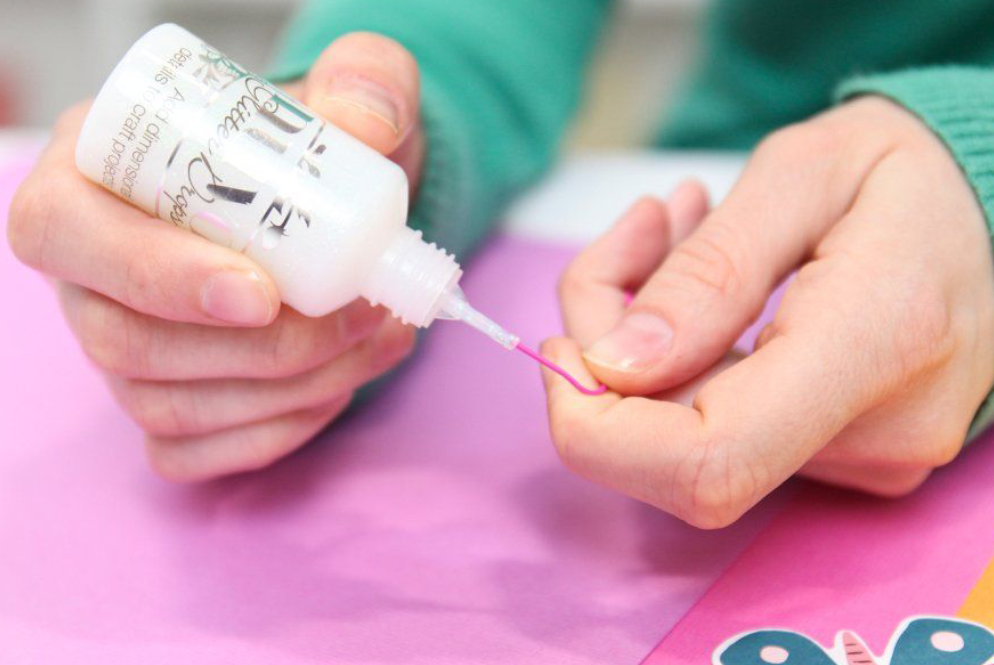
    • Why doesn’t glue stick to the insides of the bottle?

    The regular white glue that we use is made up of a variety of chemicals that are either sticky or stretchy. White glue also contains water. Water acts as a solvent that keeps the glue liquid until you want it to stick. When you put glue on a piece of paper, the water in it is exposed to air. The water eventually evaporates and as it does so, the glue dries and hardens and holds the things that need to be glued, stuck together.

    When the glue is inside the bottle, there’s not enough air inside the bottle to cause the water to evaporate to make the glue sticky. The bottle protects the glue from the air and keeps the glue runny. This is also why if you’ve ever left the top off a glue bottle for a while, the next time you try to use the glue, it would have dried up.

    • Why do the lights of a distant town appear to twinkle?

    When you are traveling at night, the lights of towns in the distance appear to twinkle. This is because of the constant movement of air above towns. The air above towns is warm, as a result of the heat given off from buildings. Warm air keeps moving up to be replaced by cold air which then gets heated and rises. This constant movement of air is known as turbulence.

    When we are near a town or in it, we don’t notice the turbulence because it is quite small and the lights are nearly. However, when we are some distance away, the lights are far away too. They appear as only pinpricks. The warm and cold air that make up the turbulence above the town have different densities and light passing through the layers is bent at different angles because of this difference. As a result it appears as though the lights of the distant town are twinkling.

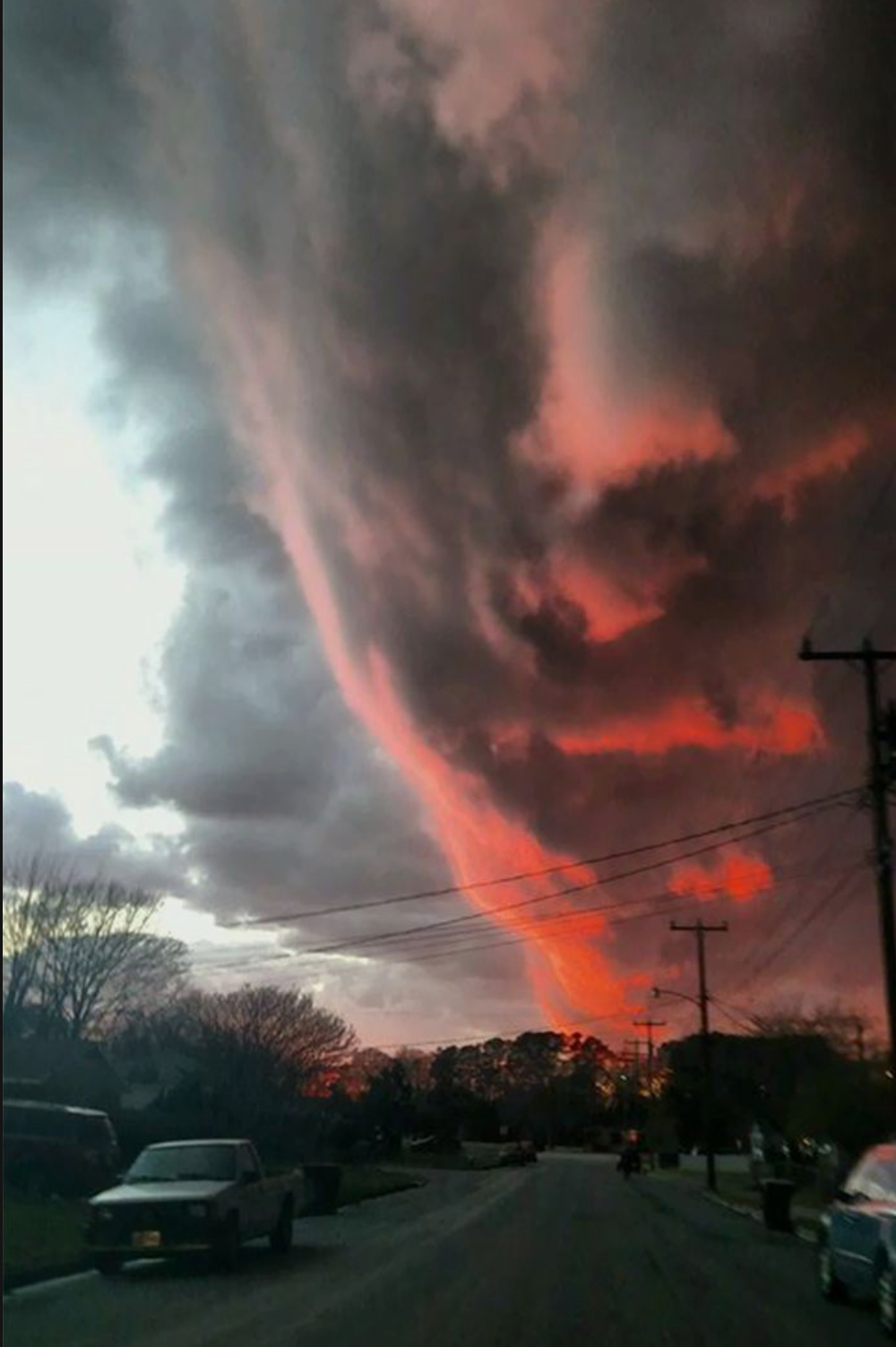
    • Why do clouds have different shapes?

    Clouds are made up of tiny droplets of water vapour or ice particles or both. The shape of the cloud depends on its height and temperature. Cumuliform clouds are shaped liked mushrooms and are formed when rising warm air cools as it goes up. Stratiform clouds come in flat, dull layers and are formed when air sinks in a high pressure area, creating a layer of cold air near the ground that doesn’t rise or rises only very slowly. Cirriform clouds are clouds that have risen on a front or tropical cyclone and frozen into ice crystals at very high altitude. They look like thin hair. The shape of cloud also depends on the time of the day.

    Towards evening, clouds tend to be thinner and flatter than during daytime. Changes in wind patterns also change the shapes of cloud.

    Thank you for reading. Have a nice day!🌼

    7 ways by which you can earn from home

    Vaishali Singh (Cheenu Singh Rathore)

    Hello there, today we gonna talk about the ways by which we can earn money by putting into some work from home using an internet connection and a laptop.

    1. Freelancing, Thanks to the internet and gadgets like laptops and PCs which enables you to work at your own pace and helps to earn you a lot of money in your pyjamas, India is the second largest economy of freelancing, USA ranks first. Now, you just need a proper skillset in a specific field and then you have to create your freelance profile on your desired platform it varies for the kind of work you do , it can be designing, programming, development, writing, content writing, video production, graphic designing, content creation, video editing, voice overs, or any other thing you’re interested in.

    2. Virtual assistants, these days people needs virtual assistants and they upload about the kind of work they want their virtual assistant to do on internet, it can be from a very simple task like translating a page to a complex one like researching and finding the clues and sources about a specific thing or event, so based upon the work, the virtual assistants gets paid. It can be a very good source of earning for a lot of people who want to assist somebody in their work and want to make money out of it.

    3. Online tuitions or courses, now the COVID-19 pandemic has created an online studying environment and a lot of people find it more comfortable and better than the offline one as they do not need to go out for gaining the proper knowledge they can learn at their own pace so the opportunities for teaching others through online tuitions or by creating the online courses have increased a way too much, you can charge according to you, or you can also sell your course on the platforms like Skillshare, udemy, coursera etc online course platforms and can generate a good amount of money from there.

    4. Video production, people like watching videos more than reading a book or listening to a podcast beacause they can connect more easily to the host by watching a video and visuals also helps in learning and understanding things better than reading or listening so video trend is increasing day by day, YouTube has become very popular these days because it’s free and accessible to everyone, so either you can create video content on YouTube, or can freelance work for the people who needs videos.

    5. Blogging, perhaps the best and easiest way to earn money at your own pace is blogging, it’s my personal favourite thing, in order to start out in this field you just need a blogging account and internet access then you can write and create your business using a mobile phone even. You have 2 options in blogging either you can write for your own blog and can earn through adsense or affiliate and also through brand deals or the other option is to work for someone else’s blog or a website who pays you to write blogs for their organization.

    6. Internship, The another simple way of earning is to intern someone or an organisation and do paid internships there, you just need to create a CV and write about your education, achievements, qualifications, passion and skillset in that CV and apply according to it to the desiring organisation.

    7. Digital marketing, Digital marketing basically focuses upon marketing of a company, product or service digitally, it uses the knowledge of SEO and SEM, data analysis, content writing, email marketing, social media skills, content creation and editing skills, basic knowledge of design and interface, technical specifications etc, these are some of the skills you need to expertise in order to become a great digital marketer in this era.

    So, these were some of the ways through which you earn easily by working from home, if you want me to write a detailed blog on all the options in details including these options too then, follow cheenusinghrathore at ttp://cheenusinghrathore.wordpress.com wordpress.com and comment down below.

    Thank you http://cheenusinghrathore.wordpress.com

    Launching of One Plus Nord in India

    Vaishali Singh (Cheenu Singh Rathore)

    One Plus are launching their another smartphone called One Plus Nord today in India on July 21st 2020 at 7:30 PM IST.

    The expected price of this smartphone will be around ₹ 34,900

    The key specifications of the phone are:

    The phone comes in 3 variants 6 GB + 128 GB, 8GB + 256 GB and 12 GB + 256 GB, the entry level price for this mobile is expected to be around ₹ 25,999. The phone will come with 3 colour variants one is Nordic White, second is Arctic Blue, and another one is Amber Red. The back of the One Plus Nord will reportedly flaunt a frosted glass panel, like the previously launched OnePlus 7T.

    The OnePlus Nord will come equipped with a Type-C port and will draw power from a 4,200 mAh battery unit powered by a 30W fast-charger. It is well-established that the OnePlus Nord will flaunt a 90Hz refresh rate AMOLED display with dual punch hole housing a 32MP + 8MP selfie camera setup. As far as the rear camera is concerned, we are expecting the OnePlus Nord to boast a quad-lens camera setup featuring 48MP + 8MP + 2MP + 2MP hardware. The OnePlus Nord will use the Adreno 620 GPU to handle graphics.

    Features:

    • Octa core (2.4 GHz, Single Core + 2.2 GHz, Single core + 1.8 GHz, Hexa Core)
    • Snapdragon 765G
    • 12 GB RAM

    Display:

    • 6.44 inches (16.36 cm)
    • 409 PPI, Fluid AMOLED
    • 90 Hz Refresh Rate

    Camera:

    • 48 + 8 + 5 + 2 MP Quad Primary Cameras
    • LED Flash
    • 32 MP + 8 MP Dual Front Cameras

    Battery:

    • 4115 mAh
    • Warp Charging
    • USB Type-C Port

    Android system:

    Android 10 Oxygen OS

    Kendriya Vidyalaya Sangathan 2020 admissions begins, 20 July 2020

    Vaishali Singh (Cheenu Singh Rathore)

    Kendriya Vidyalaya Sangathan (KVS) has started the online registration process of the admission in Class 1st for academic session 2020-21 on it’s official website kvsangathan.nic.in Check the procedure down below to apply, it contains the direct link, important instructions, lists of the documents and everything which is required for the admission.

    • Step 1: Visit the official website at kvsangathan.nic.in
    • Step 2: Click on the admission link
    • Step 3: Now, read though the details and documents required for the admission process
    • Step 4: Click on the registration link
    • Step 5: Upload all the documents and click on submit
    • Step 6: Now, download all the documents and keep a copy This is how you can apply.

    The online registration for Class 1 will close on August 7 at 7pm. The registration for class 2 onwards has also started on July 20 and will close on July 25 at 4 pm if vacancies exist (in offline mode).

    The first provisionally selected students list for class 1 will be released on August 11th 2020, the second list will be out on August 24th 2020 while the third list will be out on August 26th 2020 (if seats remain vacant).

    Declaration of provisional select list of candidates as per priority service category for unreserved seats, if any (keeping the left over reserved seats blocked) will be done from August 27th 2020 to  August 29th 2020.

    The registration for class II onwards (Except Class 11th) will take place from July 20th 2020 to July 25th 2020 (Offline mode). 

    Declaration of list of Class II onwards will be done at July 29th 2020 at 4:00 PM. Admission for class 2 onwards students will take place from July 30th 2020 to August 7th 2020.

    For KV students: Registration for admission in Class 11th will be done within a week of class 10th result declaration.

    Admission list for class 11th will be declared within 1 week of registration.

    Non-KV students availability of vacancies, display of admission list & admissions in Class 11th registration will be done after the admission of KV students in Class 10th.

    According to the official schedule, last date of admission for all classes including class 11th is September 15 2020.

    Note:

    1. If any of the dates happen to be a public holiday the next working day will be treated as opening/closing date.
    2. The studies of Class 1 will commence from 15th September 2020 either online or regular depending upon improvement in COVID-19 situation.
    3. Presently around 198 Kendriya Vidyalaya across the country are being used as Isolation Centre or Quarantine Center by Central/State Government due to pandemic COVID-19. These KVs will be functional for regular classes only after lifting of lockdown.

    Source: embibe

    Book Review: Free lancing guide, Pyjama Profit

    Vaishali Singh (Cheenu Singh Rathore)

    If you want to build an indepebdent free lance career right away then here is the solution, the book Pyjama profit is a free lancing guide, it has the answers of all the questions wandering in your mind whenever you think of this one word ‘freelancing’ grab your copy and start doing what you love to do and get paid for it.

    So here is a short and concise review of the book.

    The millennial’s guide to a sustainable freelance career, it is the tagline of one of the best selling books on Amazon, ‘PYJAMA PROFIT’ the authors of the book are Varun Mayya and Abhinav Chhikara. The books is all about their journeys from the freelancing to a successful and stable business, the co author of the book Varun Mayya says “Tommorow, if you put me in a strange country without any resources, all I need is a laptop and an internet connection and I know I’ll build myself an awesome life fairly quick.”

    Pyjama profit is a modern guide to free lancing. The book talks about the in demand online skills, the different paths one can take to become an expert in specific fields and the freedom that freelancing allows to hone further skills, taking on bigger assignments. A stable income from freelancing was the bedrock that allowed the authors – Varun and Abhinav to pursue their dreams and passions. Now, they have shared their stories of what worked for them and how anyone, anywhere can thrive without being tied to a 9 to 5 job. The book is a perfect fit in today’s time as the freelance economy grows and so do the aspiration among millennials to find a work they love, and not just something that pays their bills.

    Insert Adsense Inside Posts: After The First Paragraph

      Want to know which part of your site or blog will bring you more profit? Add AdSense inside posts and then check out the famous Google AdSense heat map. Recent studies, however, showed that placing AdSense after the first paragraph of a site or blog is one of the best AdSense placement. Unfortunately, the default Blogger platform offered by Google doesn’t allow placement of ad after the first paragraph. But because it has become one of the most profitable areas, plenty of webmasters have tried to take advantage of the best AdSense placement. How can you enjoy the same level of profit?

    To solve the problem, we will just move the locations of the ads to be displayed by adding JavaScript and DIVs. With the following script, you can easily choose the paragraph or heading after which you want to inject the ad to. This way, you won’t have to manually change every post.

    How to Display AdSense Ads after the First Paragraph in Blogger

    1. Log into your Blogger account, select your blog and click “Template” on the left side. Open the Template editor using the “Edit HTML” button.

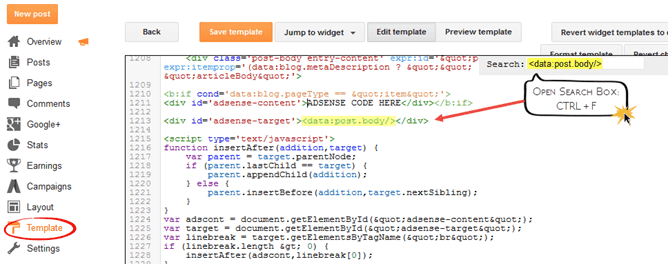
    2. Once the editor has opened, click anywhere inside the code area and press the CTRL + F keys (or Command + F) on your keyboard to open the editor’ search box. Search the following line (press Enter to find it):

    Note: You will find multiple occurrences of  but you need to stop at the second one, or if you don’t see any changes, test the last one.

    3. Add the below DIVs in red before and after like this:

    4. Copy the AdSense code that you want to show and use this tool to convert it into plain text. After conversion, add the following HTML and replace the “ADSENSE CODE HERE” text with the converted ad code just above the line that we just found:


    ADSENSE CODE HERE

    Align AdSense Left or Right

    By default, the Google AdSense ad unit will appear in the middle just after the first paragraph. If you are unhappy with the results and want to wrap text around the ad, you can choose one of the options below:

    a) Align AdSense on the left – change 

     with:

    After modifying it, the ad will display something like this:

    adsense inside posts, adsense placement

    b) Align AdSense ad on the right of the content – change 

     with:

    5. Finally, right after 

     from step 2, add this script:

    function insertAfter(addition,target) {
    var parent = target.parentNode;
    if (parent.lastChild == target) {
    parent.appendChild(addition);
    } else {
    parent.insertBefore(addition,target.nextSibling);
    }
    }
    var adscont = document.getElementById("adsense-content");
    var target = document.getElementById("adsense-target");
    var linebreak = target.getElementsByTagName("br");
    if (linebreak.length > 0){
    insertAfter(adscont,linebreak[0]);
    }

    Note:
    – To insert the ad after the second paragraph, change “0” from the line in red with “2”.
    – If you want to put AdSense just below the heading h2 or heading h3 of a post, replace br from "br" with h2 or h3.

    6. Click “Save template” to save the changes and you’re done.

    With this trick, you can insert AdSense after the first paragraph automatically in Blogger with ease. Now it’s your turn to decide which format works best on your site.