STEPS TAKEN TO BOOST EXPORTS OF PROCESSED FOOD

  The efforts being made by Government for promoting exports of processed food products include:

(i) A comprehensive “Agriculture Export Policy” has been introduced to harness export potential of Indian agriculture.

(ii) Products Specific Export Promotion Forums set up by Agricultural and Processed Food Products Export Development Authority (APEDA) to give impetus to the export of potential products as well as to remove the bottlenecks in the supply chain.

(iii) APEDA has also formed Export Promotion Forums (EPFs) for the products, viz., Grapes, Onions, Mango, Banana, Pomegranate, Floriculture, Rice, Dairy Products and Nutri cereals.

(iv) A Farmer Connect Portal has been set up for providing a platform for farmers, Farmer Producer Organizations (FPOs) and cooperatives to interact with exporters.

(v) Assistance provided through several other schemes to promote exports, including food products export, viz. Trade Infrastructure for Export Scheme (TIES), Market Access Initiatives (MAI) Scheme, Remission of Duties and Taxes on Exported Products (RoDTEP), Export Promotion schemes of Agricultural and Processed Food Products Export Development Authority (APEDA)& Marine Products Export Development Authority (MPEDA), etc.

(vi) District as Export Hubs (DEH) scheme is being implemented using ODOP(One District One Product) approach with an objective of converting each District of the country into a Manufacturing and Export Hub by identifying products with export potential in the district.

(vii) Under the Production Linked Incentives (PLI) scheme for food products, marketing and branding support is provided by Ministry of Food Processing Industries for enhancing global visibility of Indian food products.

7 Winning Content Writing Tips

 Effective Content Writing

Although there is no secret formula for writing high-quality content, these are several tips that can help improve the quality and quantity of your written material:

  1. Write a Head-Turning Headline. The headline determines whether audiences will read the rest of your work. If the headline doesn’t spark interest, stir an emotion or make the reader want to learn more about the topic, you simply won’t achieve the desired results with your content. Walker Sands’ professional copywriting services take the guesswork out of generating effective headlines by using proven techniques and traffic-driving strategies.
  2. Create a Hook That Grabs Their Attention. You have three seconds to keep readers hooked after the headline. The first sentence also plays a role in determining whether they read the rest of your content. As a result, it should capture the reader’s attention and smoothly lead them into your first point.
  3. Do Your Research. You must have extensive knowledge on the topic you’re writing about, especially in the B2B market. Include statistics, data and metrics to establish credibility and support your claims.
  4. Focus on a Single Purpose. You should identify at least one key message you’d like to convey before you create your content. Keep this in mind when writing and tie your content back to the main point as much as possible.
  5. Write in a Unique Voice. The content you publish is the voice of your company and it should be unique to your company’s personality. It’s important to align the tone of your writing to your target audience, business goals and brand persona.
  6. Optimize Digital Content. The best digital content often consists of short paragraphs, short sentences and bulleted lists. Digital content should also be optimized for search using SEO best practices and the latest SEO content strategies.
  7. Edit Your Work. After you have created a first draft, go back and consider how you might polish the rough edges of your writing. In most cases, writing improves as it goes through a round or two of edits—even when it has been drafted by experienced content creators.


Effective content writing is critical in turning site visitors into satisfied customers. It’s not just about getting content out there—it’s also important to produce high-quality content. Search engines crawl website content and reward websites with well-written articles by ranking them higher in search results.

What is Anxiety

 Anxiety is body’s natural response to stress. It’s a feeling of fear or apprehension about what’s to come. For example, going to a job interview or giving a speech on the first day of school may cause some people to feel fearful and nervous.

But if the feelings of anxiety are extreme, last for at least 6 months, and are interfering with your life, then it may be anxiety disorder.

What are anxiety disorders?

It’s normal to feel anxious about moving to a new place, starting a new job, or taking a test. This type of anxiety is unpleasant, but it may motivate us to work harder and do a better job. Ordinary anxiety is a feeling that comes and goes but doesn’t interfere with our everyday life.

In the case of an anxiety disorder, the feeling of fear may be with us all the time. It’s intense and sometimes debilitating.

This type of anxiety may cause us to stop doing things we enjoy. For example, it may prevent us from entering an elevator, crossing the street, or even stepping out of home in extreme cases.

If left untreated, the anxiety will keep getting worse.

Anxiety disorders are the most common form of emotional disorder and can affect anyone. But, according to the American Psychiatric Association, women are more likely than men to receive a diagnosis of an anxiety disorder.

What are the types of anxiety disorders?

Anxiety is a vital part of several different disorders. These include:

1. panic disorder. This means you experience recurring panic attacks at unexpected times.

2. Phobia. This is an excessive fear of a specific object, situation, or activity.

3.Social anxiety disorder. This is an extreme fear of being judged by others in social situations.

4.obsessive-compulsive disorder. This means you have recurring irrational thoughts that lead you to perform specific, repeated behaviours.

5. Separation anxiety disorder. This means you have a fear of being away from home or your loved ones.

6.  anxiety disorder. This is anxiety about your health (formerly called hypochondria).

In addition, a number of mental health and medical conditions may feature anxiety as a symptom. These include:

a. post-traumatic stress disorder (PTSD). This is anxiety following a traumatic event.

b. Major depressive disorders. A strong relationship exists between depression and anxiety.

c. Chronic disease. Managing conditions such as chronic obstructive pulmonary disease (COPD) and diabetes may result in anxiety symptoms.

d. Inflammatory conditions. Anxiety can lead to chronic inflammation and diseases such as arthritis

e. substance use disorders: many people with anxiety may try to self-medicate to help manage their symptoms.

f. Chronic pain. Anxiety is often found in those with chronic pain disorders.

What are the symptoms of anxiety?

Anxiety feels different depending on the person experiencing it. Feelings can range from butterflies in your stomach to a racing heart. You might feel out of control like there’s a disconnect between your mind and body.

You may have a general feeling of fear and worry, or you may fear a specific place or event. In some cases, you may experience a panic attack.

Symptoms of anxiety can include:

1.    anxious thoughts or beliefs that are difficult to control

2.    restlessness

3.    trouble concentrating 

4.    difficulty falling asleep

5.    fatigue

6.    irritability

7.    unexplained aches and pains

Your anxiety symptoms might be different from someone else’s. That’s why it’s essential to know how anxiety can present itself.

What is a panic attack?

A panic attack is a feeling of intense fear that comes on suddenly and peaks within 10 to 20 minutes. The initial trigger of the fear can be known or unknown.

The physical symptoms can mimic a heart attack. Once you’re experiencing a panic attack, the symptoms may get worse if you believe you may be having a heart attack or having a mental health emergency. Another common fear that may exacerbate a panic attack is the fear that you might be judged negatively if you’re having an attack in public.

Panic attacks can vary greatly, and symptoms may differ among individuals. In addition, the many symptoms of anxiety don’t happen to everyone, and they can change over time.

Common symptoms of a panic attack include:

chest pain

feeling of choking

fear of losing control

feeling of impending doom

sweating, chills, and hot flashes

shaking

numbness and tingling of hands, feet, or face

nausea or upset stomach

shortness of breath

fear of dying

When you experience repeated panic or anxiety attacks, you may have a panic disorder.

What causes anxiety?

1.stress

2.other medical issues such as depression or diabetes

3.first degree relatives with generalized anxiety disorder

4.environmental concerns, such as child abuse

substance use

5.situations such as surgery or occupational hazard

In addition, researchers believe that it stems from the areas of the brain responsible for controlling fear and the storing and retrieval of emotional and fear-related memories.

Who is at risk of anxiety disorders?

With each type of anxiety, there are different risk factors. But there are some general influences including:

1.    Personality traits. This includes shyness and nervousness in childhood.

2.    Life history. This includes being exposed to negative or stressful life events.

3.    Genetics. Of those who have a diagnosis of anxiety, 25 percent  have a first degree relative who also has a diagnosis of anxiety.

4.    Other health conditions. Thyroid problems and other health conditions can make you prone to anxiety.

5.    Stimulants. Consuming caffeine, specific substances, and medications can worsen your symptoms.

Are there tests that diagnose anxiety?

A single test can’t diagnose anxiety. Instead, an anxiety diagnosis requires a lengthy process of physical examinations, mental health tests, and psychological questionnaires.

Some doctors or healthcare professionals may conduct a physical exam, including blood or urine tests to rule out underlying medical conditions that could contribute to the symptoms one is experiencing.

Several anxiety tests and scales are also used to help a doctor assess the level of anxiety.

What are treatments for anxiety?

Treatment for anxiety falls into three categories:

Psychotherapy. Therapy can include cognitive behavioural therapy and exposure response prevention.

Complemental health techniques. Mindfulnessyoga, and self-management strategies such as stress management are ways to treat your anxiety using alternative methods.

Medication. Doctors prescribe antianxiety and antidepressant drugs.

Meeting with a therapist or psychologist can help you learn tools to use and strategies to cope with stress when it occurs.

What natural remedies are used for anxiety?

Lifestyle changes can effectively relieve some of the stress and anxiety you may cope with every day. Most natural “remedies” consist of caring for your body and participating in healthy activities while eliminating unhealthy ones.

These include:

a. getting enough sleep

b.  meditating

c. staying active and exercising

d. eating a healthy diet

e.  avoiding alcohol

f. avoiding caffeine

g. quitting smoking cigarettes 

h.  Anxiety and depression

if you have an anxiety disorder, you may also be experiencing depression. While anxiety and depression can occur separately, it’s not unusual for mental health disorders to happen together.

Anxiety can be a symptom of clinical or major depression. Likewise, worsening symptoms of depression can become triggered by an anxiety disorder.

You can manage symptoms of both conditions with many of the same treatments: psychotherapy (counselling), medications, and lifestyle changes.

Why it’s important to address your mental health

It’s important for people to address their mental health to live lives that are fulfilling. Acknowledging and treating your mental health helps create resilience. It also teaches you to better cope. Then when a similar situation occurs, you are equipped to handle it.

Stressful situations are going to happen. How you react can determine how these situations will affect you. Many resources are available regarding anxiety, depression and stress.


What is Empathy

 Empathy is the capacity to understand or feel what another person is experiencing from within their frame of reference, that is, the capacity to place oneself in another’s position. 

Empathy is, at its simplest, awareness of the feelings and emotions of other people. It is a key element of Emotional Intelligence, the link between self and others, because it is how we as individuals understand what others are experiencing as if we were feeling it ourselves.

Empathy goes far beyond sympathy, which might be considered ‘feeling for’ someone. Empathy, instead, is ‘feeling with’ that person, through the use of imagination.


On the other hand, sympathy involves understanding from your own perspective. Empathy involves putting yourself in the other person’s shoes and understanding why they may have these particular feelings. In becoming aware of the root cause of why a person feels the way they do; we can better understand and provide healthier options.

“Unsympathetic” is a word that may be used to describe a person who lacks empathy. Someone may also use the terms “insensitive or “uncompassionate” to describe people who lack empathy.


Signs of a Lack of Empathy

  • Being extremely critical of other people.
  • Blaming the victim.
  • Not forgiving people for making mistakes.
  • Feeling like other people are too sensitive.
  • Not listening to other people’s perspectives or opinions.
  • An inability to cope with emotional situations.


What causes lack of empathy?


Low emotional intelligence, burnout, and stress
Being under prolonged stress may also lead someone to be less tolerant of other people’s behavior and have lower cognitive empathy. In some cases, emotional avoidance may also be a reason why someone may not develop or practice empathy.


Elements of Empathy


Understanding Others

Developing Others

Having a Service Orientation

Leveraging Diversity

Political Awareness

1.Understanding Others: This is perhaps what most people understand by ‘empathy’ “sensing others’ feelings and perspectives, and taking an active interest in their concerns”. Those who do this:

·         Tune into emotional cues. They listen well, and also pay attention to non-verbal communication, picking up subtle cues almost subconsciously. For more, see our pages on Listening Skills and Non-Verbal Communication.

·         Show sensitivity, and understand others’ perspectives.

All these are skills which can be developed, but only if you wish to do so. Some people may switch off their emotional antennae to avoid being swamped by the feelings of others.

2. Developing Others: means acting on their needs and concerns, and helping them to develop to their full potential. People with skills in this area usually:

  • Reward and praise people for their strengths and accomplishments, and provide constructive feedback designed to focus on how to improve. See our page on Giving and Receiving Feedback for more.
  • Provide mentoring and coaching to help others to develop to their full potential. See our pages on Mentoring and Coaching Skills for more.
  • Provide stretching assignments that will help their teams to develop. See our page on Delegation Skills.

3. Having a Service Orientation: Primarily aimed at work situations, having a service orientation means putting the needs of customers first and looking for ways to improve their satisfaction and loyalty.

People who have this approach will ‘go the extra mile’ for customers. They will genuinely understand customers’ needs, and go out of their way to help meet them.

In this way, they can become a ‘trusted advisor’ to customers, developing a long-term relationship between customer and organisation. This can happen in any industry, and any situation.

4. Leveraging diversity: means being able to create and develop opportunities through different kinds of people, recognising and celebrating that we all bring something different to the table.

Leveraging diversity does not mean that you treat everyone in exactly the same way, but that you tailor the way you interact with others to fit with their needs and feelings.

5. Political Awareness: Many people view ‘political’ skills as manipulative, but in its best sense, ‘political’ means sensing and responding to a group’s emotional undercurrents and power relationships.

Political awareness can help individuals to navigate organisational relationships effectively, allowing them to achieve where others may previously have failed


Empathy, Sympathy and Compassion

There is an important distinction between empathy, sympathy and compassion.

Both compassion and sympathy are about feeling for someone: seeing their distress and realising that they are suffering. Compassion has taken on an element of action that is lacking in sympathy, but the root of the words is the same.

Empathy, by contrast, is about experiencing those feelings for yourself, as if you were that person, through the power of imagination.

Three Types of Empathy

Psychologists have identified three types of empathy: cognitive empathy, emotional empathy and compassionate empathy.

  • Cognitive empathy is understanding someone’s thoughts and emotions, in a very rational, rather than emotional sense.
  • Emotional empathy is also known as emotional contagion, and is ‘catching’ someone else’s feelings, so that you literally feel them too.
  • Compassionate empathy is understanding someone’s feelings, and taking appropriate action to help.


How Do We Empathize?

Experts in the field of social neuroscience have developed two theories in an attempt to gain a better understanding of empathy. The first, Simulation Theory, “proposes that empathy is possible because when we see another person experiencing an emotion, we ‘simulate’ or represent that same emotion in ourselves so we can know first-hand what it feels like,” according to Psychology Today.

There is a biological component to this theory as well. Scientists have discovered preliminary evidence of “mirror neurons” that fire when humans observe and experience emotion. There are also “parts of the brain in the medial prefrontal cortex (responsible for higher-level kinds of thought) that show overlap of activation for both self-focused and other-focused thoughts and judgments,” the same article explains.

Some experts believe the other scientific explanation of empathy is in complete opposition to Simulation Theory. It’s Theory of Mind, the ability to “understand what another person is thinking and feeling based on rules for how one should think or feel,” Psychology Today says. This theory suggests that humans can use cognitive thought processes to explain the mental state of others. By developing theories about human behaviour, individuals can predict or explain others’ actions, according to this theory.

While there is no clear consensus, it’s likely that empathy involves multiple processes that incorporate both automatic, emotional responses and learned conceptual reasoning. Depending on context and situation, one or both empathetic responses may be triggered.

Cultivating Empathy: Empathy seems to arise over time as part of human development, and it also has roots in evolution. In fact, “Elementary forms of empathy have been observed in our primate relatives, in dogs, and even in rats,” the Greater Good Science Centre says. From a developmental perspective, humans begin exhibiting signs of empathy in social interactions during the second and third years of life. 

This suggests we have a natural predisposition to developing empathy. However, social and cultural factors strongly influence where, how, and to whom it is expressed. Empathy is something we develop over time and in relationship to our social environment, finally becoming “such a complex response that it is hard to recognize its origin in simpler responses, such as body mimicry and emotional contagion,” the same source says.

Psychology and Empathy: In the field of psychology, empathy is a central concept. From a mental health perspective, those who have high levels of empathy are more likely to function well in society, reporting “larger social circles and more satisfying relationships,” according to Good Therapy, an online association of mental health professionals. Empathy is vital in building successful interpersonal relationships of all types, in the family unit, workplace, and beyond. Lack of empathy, therefore, is one indication of conditions like antisocial personality disorder and narcissistic personality disorder. In addition, for mental health professionals such as therapists, having empathy for clients is an important part of successful treatment. 

Empathy plays a crucial role in human, social, and psychological interaction during all stages of life. Consequently, the study of empathy is an ongoing area of major interest for psychologists and neuroscientists in many fields, with new research appearing regularly. 


How to Develop Empathy at Work

1.Give Your Full Attention: Listen carefully to what someone is trying to tell you. Use your ears, eyes and “gut instincts” to understand the entire message that they’re communicating.

Start with listening out for the key words and phrases that they use, particularly if they use them repeatedly. Then think about how as well as what they’re saying. What’s their tone or body language  telling you? Are they angry, ashamed or scared, for example?

Take this a stage further by listening empathically . Avoid asking direct questions, arguing with what is being said, or disputing facts at this stage. And be flexible – prepare for the conversation to change direction as the other person’s thoughts and feelings also change.


2.Consider Other People’s Perspective: You’re likely familiar with the saying, “Before you criticize someone, walk a mile in their shoes.” Examine your own attitude, and keep an open mind. Placing too much emphasis on your own assumptions and beliefs doesn’t leave much space for empathy!

Once you “see” why others believe what they believe, you can acknowledge it. This doesn’t mean you have to agree with it, but this is not the time for a debate. Instead, be sure to show respect and to keep listening.

When in doubt, invite the person to describe their position some more, and ask how they think they might resolve the issue. Asking the right questions  is probably the simplest and most direct way to understand the other person.

3.Take Action: There’s no one “right way” to demonstrate your compassionate empathy. It will depend on the situation, the individual, and their dominant emotion at the time. Remember, empathy is not about what you want, but what the other person wants and needs, so any action you take or suggest must benefit them.

And remember that empathy is not just for crises! Seeing the world from a variety of perspectives is a great talent – and it’s one that you can use all of the time, in any situation. And random acts of kindness brighten anyone’s day.


5 Cool Recent Post Widgets For Blogger

  For bloggers that pride themselves on always staying up-to-date with new content, a recent post widget for Blogger can be an invaluable tool. A recent posts widget for blogger is in many ways similar to a ‘breaking news alert’ that journalists love to use during their reports, providing the most recent and relevant posts that you have to offer.

Adding a recent post widget for Blogger helps to reduce the dependency on email marketing, because you don’t have to send out an email just to let people know you made a new post. Instead, it updates automatically for everyone to see. You can then use this information to design scheduled email newsletters, and take advantage of what’s often referred to as the ‘Twitter effect’ where audiences will regularly check back on your site for the possibility that new posts are available. Without this, you force people to do run their own search for information and content, increasing the likelihood that they’ll leave the site and hurt your bounce rate.

blogger recent posts widgets

Once you’ve managed to attract visitors to one of your posts using the recent post widget for Blogger, it will continue to act as an accessible secondary resource to navigate around your site. That way, you can avoid having them sifting through old content that might be outdated. If you’d rather show off some of your best posts instead of your most recent posts, you can do that instead, or add that feature to the bar with just a few alterations.

Apart from looking great and taking up minimal space, there are too many benefits for you not to have a recent post widget for Blogger. The best part about these add-ons is that they come in a wide variety of designs that will fit any theme.

If you’re interested in adding a widget to your site, here are 5 cool recent post widgets that might catch your eye and fit perfectly with your Blogger template:

Recent Posts Style #1

rainbow widget, recent posts

function showlatestpostswiththumbs(t){document.write(‘

    ‘);for(var e=0;e<posts_no;e++){var r,n=t.feed.entry[e],i=n.title.$t;if(e==t.feed.entry.length)break;for(var o=0;o<n.link.length;o++){if("replies"==n.link[o].rel&&"text/html"==n.link[o].type)var l=n.link[o].title,m=n.link[o].href;if("alternate"==n.link[o].rel){r=n.link[o].href;break}}var u;try{u=n.media$thumbnail.url}catch(h){s=n.content.$t,a=s.indexOf("<img"),b=s.indexOf('src="',a),c=s.indexOf('"',b+5),d=s.substr(b+5,c-b-5),u=-1!=a&&-1!=b&&-1!=c&&""!=d?d:"https://blogger.googleusercontent.com/img/b/R29vZ2xl/AVvXsEhGXhcugGoQUQxn5RDem0-WJadm-zbn6-bMKyl7VrmScGnyb512uXyea_Puo968ocLTMMQPjRhcQ58TulknVg1Z3ZC1EXwnWThTA7cZhZQFZdV4nKToY04KASXIUP9LNvckW48nw0hiuMkl/s1600/no-thumb.png&quot;}var p=n.published.$t,f=p.substring(0,4),g=p.substring(5,7),v=p.substring(8,10),w=new Array;if(w[1]="Jan",w[2]="Feb",w[3]="Mar",w[4]="Apr",w[5]="May",w[6]="Jun",w[7]="Jul",w[8]="Aug",w[9]="Sep",w[10]="Oct",w[11]="Nov",w[12]="Dec",document.write('

  • ‘),1==showpoststhumbs&&document.write(‘‘),document.write(‘
    ‘+i+”

    “),”content”in n)var A=n.content.$t;else if(“summary”in n)var A=n.summary.$t;else var A=””;var k=/]*>/g;if(A=A.replace(k,””),1==post_summary)if(A.length<summary_chars)document.write(A);else{A=A.substring(0,summary_chars);var y=A.lastIndexOf(" ");A=A.substring(0,y),document.write(A+"…")}var _="",$=0;document.write('

    ‘),1==posts_date&&(_=_+w[parseInt(g,10)]+” “+v+” “+f,$=1),1==readmorelink&&(1==$&&(_+=” | “),_=_+’Read more‘,$=1),1==showcommentslink&&(1==$&&(_+=”
    “),”1 Comments”==l&&(l=”1 Comment”),”0 Comments”==l&&(l=”No Comments”),l=’‘+l+”“,_+=l,$=1),document.write(_),document.write(“

    “),document.write(“

  • “)}document.write(“

“)}

var posts_no = 5;
var showpoststhumbs = true;
var readmorelink = true;
var showcommentslink = false;
var posts_date = true;
var post_summary = true;
var summary_chars = 70;

Recent Posts Widget
Your browser does not support JavaScript!

img.recent-post-thumb{width:50px;height:50px;float:right;margin:5px -5px 0px 0px;-webkit-border-radius:50%;-moz-border-radius:50%;border-radius:50%;padding:3px;background: #fff}
ul.recent-posts-container {list-style-type: none; background: #fff;padding: 0px;font:12px ‘Ubuntu Condensed’, sans-serif;margin: 5px 0px 5px 0px;}
ul.recent-posts-container li:nth-child(1n+0) {background: #F49A9A; width: 100%}
ul.recent-posts-container li:nth-child(2n+0) {background: #FCD092; width: 95%}
ul.recent-posts-container li:nth-child(3n+0) {background: #FFF59E; width: 90%;}
ul.recent-posts-container li:nth-child(4n+0) {background: #E1EFA0; width: 85%;}
ul.recent-posts-container li:nth-child(5n+0) {background: #B1DAEF; width: 80%;}
ul.recent-posts-container li {padding:5px 10px;list-style-type: none; margin: 0 0 -5px; color: #777;}
.recent-posts-container a { text-decoration:none; }
.recent-posts-container a:hover { color: #222;}
.post-date {color:#e0c0c6; font-size: 11px; }
.recent-post-title a {font-size: 14px;color: #444; font-weight: bold;}
.recent-post-title {padding: 6px 0px;}
.recent-posts-details a{ color: #222;}
.recent-posts-details {padding: 5px 0px 5px; }

Recent Posts Style #2

recent posts widget for blogger

function showlatestposts(e){for(var t=0;t<posts_no;t++){var r,s=e.feed.entry[t],n=s.title.$t;if(t==e.feed.entry.length)break;for(var a=0;a<s.link.length;a++)if("alternate"==s.link[a].rel){r=s.link[a].href;break}n=n.link(r);var i="… read more";i=i.link(r);var l=s.published.$t,o=l.substring(0,4),u=l.substring(5,7),c=l.substring(8,10),m=new Array;if(m[1]="Jan",m[2]="Feb",m[3]="Mar",m[4]="Apr",m[5]="May",m[6]="Jun",m[7]="Jul",m[8]="Aug",m[9]="Sep",m[10]="Oct",m[11]="Nov",m[12]="Dec","content"in s)var d=s.content.$t;else if("summary"in s)var d=s.summary.$t;else var d="";var v=/]*>/g;if(d=d.replace(v,””),document.write(‘

  • ‘),document.write(n),document.write(‘
  • ‘),1==post_summary)if(d.length<summary_chars)document.write(d);else{d=d.substring(0,summary_chars);var f=d.lastIndexOf(" ");d=d.substring(0,f),document.write(d+" "+i)}document.write("

    “),1==posts_date&&document.write(‘

    “)}}

    var posts_no = 5;var posts_date = true;var post_summary = true;var summary_chars = 80;
    /feeds/posts/default?orderby=published&alt=json-in-script&callback=showlatestpostsRecent Posts Widget
    Your browser does not support JavaScript!

    .recentpoststyle {counter-reset: countposts;list-style-type: none;}
    .recentpoststyle a {text-decoration: none;color: #49A8D1;}
    .recentpoststyle a:hover {color: #000;}
    .recentpoststyle li:before {content: counter(countposts,decimal);counter-increment: countposts;float: left;z-index: 1;position:relative;font-size: 15px;font-weight: bold;color:#fff;background:#69B7E2; margin:13px 5px 0px -6px;line-height:30px;width:30px;height:30px;text-align:center;-webkit-border-radius:50%;-moz-border-radius:50%;border-radius:50%;}li.recent-post-title{margin-bottom: 5px;padding: 0;}
    .recent-post-title a {color: #444;text-decoration: none;font: bold 13px “Avant Garde”,Avantgarde,”Century Gothic”,CenturyGothic,AppleGothic,sans-serif;}
    .post-date {font-size: 11px;color: #999;margin:5px 0px 15px 32px;}
    .recent-post-summ {border-left:1px solid #69B7E2; color: #777; padding: 0px 5px 0px 20px; margin-left: 10px; font: 15px Garamond,Baskerville,”Baskerville Old Face”,”Hoefler Text”,”Times New Roman”,serif;}

    Recent Posts Style #3

    recent posts gadget

    function showlatestpostswiththumbs(t){document.write(‘

      ‘);for(var e=0;e<posts_no;e++){var r,n=t.feed.entry[e],i=n.title.$t;if(e==t.feed.entry.length)break;for(var o=0;o<n.link.length;o++){if("replies"==n.link[o].rel&&"text/html"==n.link[o].type)var l=n.link[o].title,m=n.link[o].href;if("alternate"==n.link[o].rel){r=n.link[o].href;break}}var u;try{u=n.media$thumbnail.url}catch(h){s=n.content.$t,a=s.indexOf("<img"),b=s.indexOf('src="',a),c=s.indexOf('"',b+5),d=s.substr(b+5,c-b-5),u=-1!=a&&-1!=b&&-1!=c&&""!=d?d:"https://blogger.googleusercontent.com/img/b/R29vZ2xl/AVvXsEhGXhcugGoQUQxn5RDem0-WJadm-zbn6-bMKyl7VrmScGnyb512uXyea_Puo968ocLTMMQPjRhcQ58TulknVg1Z3ZC1EXwnWThTA7cZhZQFZdV4nKToY04KASXIUP9LNvckW48nw0hiuMkl/s1600/no-thumb.png&quot;}var p=n.published.$t,f=p.substring(0,4),g=p.substring(5,7),v=p.substring(8,10),w=new Array;if(w[1]="Jan",w[2]="Feb",w[3]="Mar",w[4]="Apr",w[5]="May",w[6]="Jun",w[7]="Jul",w[8]="Aug",w[9]="Sep",w[10]="Oct",w[11]="Nov",w[12]="Dec",document.write('

    • ‘),1==showpoststhumbs&&document.write(‘‘),document.write(‘
      ‘+i+”

      “),”content”in n)var A=n.content.$t;else if(“summary”in n)var A=n.summary.$t;else var A=””;var k=/]*>/g;if(A=A.replace(k,””),1==post_summary)if(A.length<summary_chars)document.write(A);else{A=A.substring(0,summary_chars);var y=A.lastIndexOf(" ");A=A.substring(0,y),document.write(A+"…")}var _="",$=0;document.write('

      ‘),1==posts_date&&(_=_+w[parseInt(g,10)]+” “+v+” “+f,$=1),1==readmorelink&&(1==$&&(_+=” | “),_=_+’Read more‘,$=1),1==showcommentslink&&(1==$&&(_+=”
      “),”1 Comments”==l&&(l=”1 Comment”),”0 Comments”==l&&(l=”No Comments”),l=’‘+l+”“,_+=l,$=1),document.write(_),document.write(“

      “),document.write(“

    • “)}document.write(“

    “)}

    var posts_no = 5;
    var showpoststhumbs = true;
    var readmorelink = true;
    var showcommentslink = true;
    var posts_date = true;
    var post_summary = true;
    var summary_chars = 40;

    Recent Posts Widget
    Your browser does not support JavaScript!

    img.recent-post-thumb{padding:2px;width:65px;height:65px;float:left;margin:0px 10px 10px;border: 1px solid #69B7E2;}
    .recent-posts-container {font-family:’Oswald’, sans-serif;font-size:12px;}
    ul.recent-posts-container li{list-style-type: none; margin-bottom: 10px;font-size:12px;float:left;width:100%}
    ul.recent-posts-container {counter-reset: countposts;list-style-type:none;padding:0;}
    ul.recent-posts-container li:before {content: counter(countposts,decimal);counter-increment: countposts;z-index: 1;position:absolute; left: 0px; font-size: 13px;font-weight: bold;color: #fff;background: #69B7E2;line-height:25px;height:25px;width:25px;text-align:center;-webkit-border-radius: 50%;-moz-border-radius: 50%;border-radius: 50%;}
    .recent-posts-container a{text-decoration:none;}
    .recent-post-title {margin-bottom:5px;}
    .recent-post-title a {font-size:12px; text-transform: uppercase; color: #2aace3;}
    .recent-posts-details {margin: 5px 0px 0px 92px;font-size:11px;}
    .recent-posts-details a{color: #777;}

    Recent Posts Style #4

    recent posts for blogger, cool widgets

    function showlatestpostswiththumbs(t){document.write(‘

      ‘);for(var e=0;e<posts_no;e++){var r,n=t.feed.entry[e],i=n.title.$t;if(e==t.feed.entry.length)break;for(var o=0;o<n.link.length;o++){if("replies"==n.link[o].rel&&"text/html"==n.link[o].type)var l=n.link[o].title,m=n.link[o].href;if("alternate"==n.link[o].rel){r=n.link[o].href;break}}var u;try{u=n.media$thumbnail.url}catch(p){s=n.content.$t,a=s.indexOf("<img"),b=s.indexOf('src="',a),c=s.indexOf('"',b+5),d=s.substr(b+5,c-b-5),u=-1!=a&&-1!=b&&-1!=c&&""!=d?d:"https://blogger.googleusercontent.com/img/b/R29vZ2xl/AVvXsEhGXhcugGoQUQxn5RDem0-WJadm-zbn6-bMKyl7VrmScGnyb512uXyea_Puo968ocLTMMQPjRhcQ58TulknVg1Z3ZC1EXwnWThTA7cZhZQFZdV4nKToY04KASXIUP9LNvckW48nw0hiuMkl/s1600/no-thumb.png&quot;}var h=n.published.$t,f=h.substring(0,4),w=h.substring(5,7),v=h.substring(8,10),A=new Array;A[1]="Jan",A[2]="Feb",A[3]="Mar",A[4]="Apr",A[5]="May",A[6]="Jun",A[7]="Jul",A[8]="Aug",A[9]="Sep",A[10]="Oct",A[11]="Nov",A[12]="Dec",document.write('

    • ‘),1==posts_date&&document.write(‘

      “),1==showpoststhumbs&&document.write(‘‘),document.write(‘

      ‘+i+”

      “);var g=””,k=0;document.write(‘

      ‘),1==showcommentslink&&(1==k&&(g+=”
      “),”1 Comments”==l&&(l=”1 Comment”),”0 Comments”==l&&(l=”No Comments”),l=’‘+l+”“,g+=l,k=1),1==readmorelink&&(1==k&&(g+=” | “),g=g+’Read more‘,k=1),document.write(g),document.write(“

      “),document.write(“

    • “)}document.write(“

    “)}

    var posts_no = 5;
    var showpoststhumbs = false;
    var readmorelink = true;
    var showcommentslink = true;
    var posts_date = true;

    Recent Posts Widget
    Your browser does not support JavaScript!

    img.recent-post-thumb {padding: 2px; width:35px;height:35px;float:right;margin: -14px 0px 0px 5px; border: 1px solid #cea5ac; border-radius: 10%;}
    .recent-posts-container {font-family: ‘Oswald’, sans-serif;  float: left;width: 100%;min-height: 70px;margin: 5px 0px 5px 0px;padding: 0;font-size:12px;}
    ul.recent-posts-container li {padding:5px 0px;min-height:65px; list-style-type: none; margin: 0px 10px 5px 35px;}
    ul.recent-posts-container {counter-reset: countposts;list-style-type: none;}
    ul.recent-posts-container li:before {content: counter(countposts,decimal);counter-increment: countposts;z-index: 2;position:absolute; left: 5px; font-size: 16px;color: #4D4D4D;background: #F7F7F7;padding: 9px 14px; border: 1px solid #efefef;}
    .recent-posts-container a { text-decoration:none; }
    .recent-posts-container a:hover{color: #4DACE3;}
    .post-date {color:#e0c0c6; font-size: 11px; }
    .recent-post-title a {font-size: 13px; text-transform: uppercase; color: #5C4D4D;}
    .recent-post-title { margin: 5px 0px; }
    .recent-posts-details {border-top: 4px solid #AC707A; margin-top: 5px; padding-top: 5px;}
    .recent-posts-details a{ color: #888;}
    a.readmorelink {color: #4DACE3;}

    Recent Post Style #5

    recent posts, blogger gadget

    function showlatestpostswiththumbs(t){document.write(‘

      ‘);for(var e=0;e<posts_no;e++){var r,n=t.feed.entry[e],i=n.title.$t;if(e==t.feed.entry.length)break;for(var o=0;o<n.link.length;o++){if("replies"==n.link[o].rel&&"text/html"==n.link[o].type)var l=n.link[o].title,m=n.link[o].href;if("alternate"==n.link[o].rel){r=n.link[o].href;break}}var u;try{u=n.media$thumbnail.url}catch(p){s=n.content.$t,a=s.indexOf("<img"),b=s.indexOf('src="',a),c=s.indexOf('"',b+5),d=s.substr(b+5,c-b-5),u=-1!=a&&-1!=b&&-1!=c&&""!=d?d:"https://blogger.googleusercontent.com/img/b/R29vZ2xl/AVvXsEhGXhcugGoQUQxn5RDem0-WJadm-zbn6-bMKyl7VrmScGnyb512uXyea_Puo968ocLTMMQPjRhcQ58TulknVg1Z3ZC1EXwnWThTA7cZhZQFZdV4nKToY04KASXIUP9LNvckW48nw0hiuMkl/s1600/no-thumb.png&quot;}var h=n.published.$t,f=h.substring(0,4),w=h.substring(5,7),v=h.substring(8,10),A=new Array;A[1]="Jan",A[2]="Feb",A[3]="Mar",A[4]="Apr",A[5]="May",A[6]="Jun",A[7]="Jul",A[8]="Aug",A[9]="Sep",A[10]="Oct",A[11]="Nov",A[12]="Dec",document.write('

    • ‘),1==posts_date&&document.write(‘

      “),1==showpoststhumbs&&document.write(‘‘),document.write(‘

      ‘+i+”

      “);var g=””,k=0;document.write(‘

      ‘),1==showcommentslink&&(1==k&&(g+=”
      “),”1 Comments”==l&&(l=”1 Comment”),”0 Comments”==l&&(l=”No Comments”),l=’‘+l+”“,g+=l,k=1),1==readmorelink&&(1==k&&(g+=” | “),g=g+’Read more‘,k=1),document.write(g),document.write(“

      “),document.write(“

    • “)}document.write(“

    “)}

    var posts_no = 5;
    var showpoststhumbs = true;
    var readmorelink = true;
    var showcommentslink = true;
    var posts_date = true;

    Recent Posts Widget
    Your browser does not support JavaScript!

    img.recent-post-thumb {width:50px;height:50px;float:right;margin: -4px -35px 0px 0px; border: 4px solid #FCD6CB; border-radius: 100%;}
    .recent-posts-container {font-family: ‘Gloria Hallelujah’, cursive;  float: left;width: 100%;min-height: 55px;margin: 5px 0px 5px 0px;padding: 0;font-size:12px;}
    ul.recent-posts-container {counter-reset: countposts;list-style-type: none; background: #fff; }
    ul.recent-posts-container li:before {content: counter(countposts,decimal);counter-increment: countposts;z-index: 2;position:absolute; left: -20px; font-size: 16px;color: #616662;background: #FCD6CB;padding: 9px 14px; border-radius: 100%; margin-top: 15px;}
    ul.recent-posts-container li {padding:5px 0px;min-height:50px; list-style-type: none; margin: -2px 5px 5px 5px;  border-top: 2px solid #FCD6CB;}
    ul.recent-posts-container {border: 2px solid #FCD6CB; }
    .recent-posts-container a { text-decoration:none; }
    .recent-posts-container a:hover { color: #222;}
    .post-date {color:#e0c0c6; font-size: 11px; }
    .recent-post-title a {font-size: 14px;color: #616662;}
    .recent-post-title {padding: 6px 0px;}
    .recent-posts-details a{ color: #888;}
    .recent-posts-details {padding-bottom: 5px;}
    a.readmorelink {color: #4DACE3;}

    How to Add Recent Posts Widget on Blogger

    Want to add one of the styles above? Just follow the following steps below:

    1. Log into your Blogger dashboard and click on your blog.
    2. Go to “Layout” and click the “Add a gadget” link on the right side.
    3. From the pop-up window, scroll down and select the “HTML/JavaScript” gadget:
    4. Paste the code of the chosen widget found below it.
    5. Hit the “Save” button and you’re done!

    Keep Your Blog Updated

    Using a recent post widget for Blogger can truly benefit you and improve your skill as a blogger. As you can see, these designs can look great on Blogger sites, but they do act a little bit like a progress report for the author. If you start to fall behind, the dates on your recent post widget will definitely give you away.

    Set a schedule and make sure that you are making regular posts on the blog. These posts will be automatically updated on your widget and readers can view this information whenever they want. Add your recent post widget for Blogger on the every page of the blog or in your template so that these posts can encourage others to continue reading, thus increasing the total time spent on your site.

    Add 6 Stylish Custom Search Boxes To Blogger

      There’s an unspoken rule in the world of web design that says that every website have a search box. You can, and should, design a custom search gadget to Blogger that contributes to the theme of your site while providing some key benefits to both your customers and you.

    Benefits to Customers

    Search boxes not only help to increase your website’s design usability, but they’re very convenient to site visitors and regulars. For those that have been to your site before, they know what they want and they want it now. These are the impatient people who don’t feel like wading through different links. If you don’t accommodate this problem you might risk losing those readers.

    For newer customers who want to get a feel for your site before investing any more time, it gives them the chance to look for their interests on both eCommerce sites and blog sites.

    Benefits To You

    Adding a custom search gadget to Blogger perhaps best benefit eCommerce sites because it’s an industry that inherently offers a lot of very specific products. For instance, if you sold clothing apparel and someone was only look for shirts, the search would result would only bring up shirts so that person can look through everything in one place.

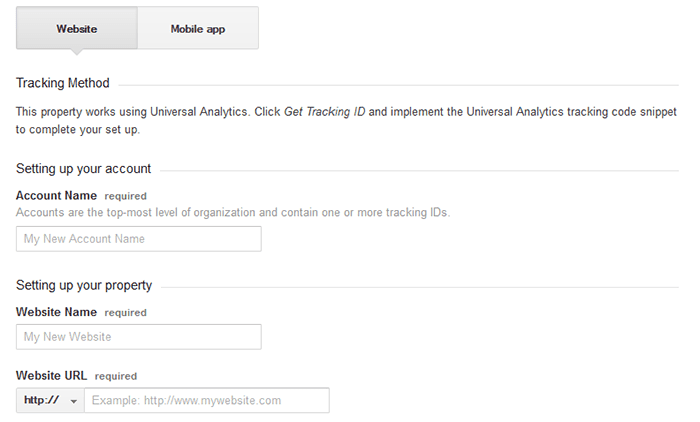
    Bloggers might not have products to offer, but adding a custom search gadget to Blogger can help site analytics and SEO. Google Analytics offers a tool that will track all the searches performed by your search bar, so that you can use this data when improving your keyword usage and content choices. Google web crawlers and search engine bots will also test out phrases in these boxes on the rare occasion to make sure that all your content leads to somewhere creates a closed loop.

    Add Your Own Custom Search Gadget To Blogger

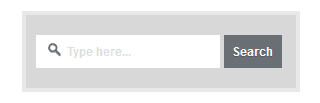
    Just because you should have a search bar doesn’t mean you you’re restricted to what time. Your site’s search bar should be easy to find and readily available whenever someone needs it, but other than that the look of the design is up to you. If you want to add a custom search gadget to Blogger, here are 6 stylish choices to pick from. Just copy the code below the search box that you want to add and follow the steps below:

    #searchbox{background:#d8d8d8;border:4px solid #e8e8e8;padding:20px 10px;width:250px}input:focus::-webkit-input-placeholder{color:transparent}input:focus:-moz-placeholder{color:transparent}input:focus::-moz-placeholder{color:transparent}#searchbox input{outline:none}#searchbox input[type=”text”]{background:url(https://blogger.googleusercontent.com/img/b/R29vZ2xl/AVvXsEir2-I-O-QPPZCFdZGeOCsDpAWAGeNoupDK7pdmk1Hfdc2XORp6828qc7EM5anNvtAQJfNiibOMpvWg7B3xFfz8N948DIqsz2b21H9F_1YyLE18fmtNvW9k2pD-DzVa_3hQ5Rl_-sHNEkkl/s1600/search-dark.png) no-repeat 10px 6px #fff;border-width:1px;border-style:solid;border-color:#fff;font:bold 12px Arial,Helvetica,Sans-serif;color:#bebebe;width:55%;padding:8px 15px 8px 30px}#button-submit{background:#6A6F75;border-width:0;padding:9px 0;width:23%;cursor:pointer;font:bold 12px Arial,Helvetica;color:#fff;text-shadow:0 1px 0 #555}#button-submit:hover{background:#4f5356}#button-submit:active{background:#5b5d60;outline:none}#button-submit::-moz-focus-inner{border:0}

    #searchbox{width:240px}#searchbox input{outline:none}input:focus::-webkit-input-placeholder{color:transparent}input:focus:-moz-placeholder{color:transparent}input:focus::-moz-placeholder{color:transparent}#searchbox input[type=”text”]{background:url(https://blogger.googleusercontent.com/img/b/R29vZ2xl/AVvXsEir2-I-O-QPPZCFdZGeOCsDpAWAGeNoupDK7pdmk1Hfdc2XORp6828qc7EM5anNvtAQJfNiibOMpvWg7B3xFfz8N948DIqsz2b21H9F_1YyLE18fmtNvW9k2pD-DzVa_3hQ5Rl_-sHNEkkl/s1600/search-dark.png) no-repeat 10px 13px #f2f2f2;border:2px solid #f2f2f2;font:bold 12px Arial,Helvetica,Sans-serif;color:#6A6F75;width:160px;padding:14px 17px 12px 30px;-webkit-border-radius:5px 0 0 5px;-moz-border-radius:5px 0 0 5px;border-radius:5px 0 0 5px;text-shadow:0 2px 3px #fff;-webkit-transition:all 0.7s ease 0s;-moz-transition:all 0.7s ease 0s;-o-transition:all 0.7s ease 0s;transition:all 0.7s ease 0s;}#searchbox input[type=”text”]:focus{background:#f7f7f7;border:2px solid #f7f7f7;width:200px;padding-left:10px}#button-submit{background:url(https://blogger.googleusercontent.com/img/b/R29vZ2xl/AVvXsEijAaZgbp4aETBOnd8za-Wjszsof9X77r7VOwtVEs6U9A-VdxwssXxb1UOCl6EtJWTN-aG3AIPqFP5M6Sx42fKY8scF1eMZB9eFRdqZBod9pAsRNjZ7wDPU32aNiEYFZeO6VMcuv18eUyhc/s1600/slider-arrow-right.png) no-repeat;margin-left:-40px;border-width:0;width:43px;height:45px}

    #searchbox{background:url(https://blogger.googleusercontent.com/img/b/R29vZ2xl/AVvXsEiWZ3JoGmHdcBnLWBdBfu6zxdHilAdVX5CvL0YLDTAgbUB1hBT7LNAUaQmtsKdDodNnm5nPrQVkkR_N6mCJKAjOfRYwrZ6_8AVJ1qvvSANETf-lslfC6TOWnXJSSHWfNJRjXTVw8a_Ce9Lu/s1600/searchbar.png) no-repeat;width:208px;height:29px}input:focus::-webkit-input-placeholder{color:transparent}input:focus:-moz-placeholder{color:transparent}input:focus::-moz-placeholder{color:transparent}#searchbox input{outline:none}#searchbox input[type=”text”]{background:transparent;margin:3px 0 0 20px;padding:5px 0;border-width:0;font-family:”Arial Narrow”,Arial,sans-serif;font-size:12px;color:#828282;width:70%;display:inline-table;vertical-align:top}#button-submit{background:url(https://blogger.googleusercontent.com/img/b/R29vZ2xl/AVvXsEhUcoCukqv7rgDDW4Z7eRI_K3zD8fkPJzFLRe3ClH-M3_pa5HbypxX3i8Tx1yleUlR5tM_rlS9xF4Ft5GlP9UDxfoN4psSuavhOhV6Wg5lP8jUJ2FCYwY19gyuR0W0ijmbIBCqzmGXqwdsz/s1600/magnifier.png) no-repeat;border-width:0;cursor:pointer;margin-left:10px;margin-top:4px;width:21px;height:22px}#button-submit:hover{background:url(https://blogger.googleusercontent.com/img/b/R29vZ2xl/AVvXsEhxnQbjd7m2eeHIYawogO0ABC4GdNAZcodxQOxlBDd6Ss_tLfvFIYkRPlNpftT_ExgW0c1RWG7UqUexzYf1aVecLy65pwY-qicXEBNX89sZsXeJVdXqO6cNzkkAWYN9TnhG6i5xfStF3PVP/s1600/magnifier-hover.png) no-repeat}#button-submit:active{background:url(https://blogger.googleusercontent.com/img/b/R29vZ2xl/AVvXsEhxnQbjd7m2eeHIYawogO0ABC4GdNAZcodxQOxlBDd6Ss_tLfvFIYkRPlNpftT_ExgW0c1RWG7UqUexzYf1aVecLy65pwY-qicXEBNX89sZsXeJVdXqO6cNzkkAWYN9TnhG6i5xfStF3PVP/s1600/magnifier-hover.png) no-repeat;outline:none}#button-submit::-moz-focus-inner{border:0}

    #searchbox{background:url(https://blogger.googleusercontent.com/img/b/R29vZ2xl/AVvXsEjxE_mvn0mEcLYu-TUrazRbzsZOef6y5JuvPt7yw6gon0WBPPkg5lV6Y4voOt8vtBNRw_lwDBwD8QTEbYlA0yR2rbSteJgXIJNvqT3uuH6n1SfVNYtI6zKN9zG4GN2ef6k-iF5mL3T9PJqh/s1600/search-box.png) no-repeat;height:27px;width:202px}input:focus::-webkit-input-placeholder{color:transparent}input:focus:-moz-placeholder{color:transparent}input:focus::-moz-placeholder{color:transparent}#searchbox input{outline:none}#searchbox input[type=”text”]{background:transparent;margin:0 0 0 12px;padding:5px 0;border-width:0;font:italic 12px “Arial Narrow”,Arial,sans-serif;width:77%;color:#828282;display:inline-table;vertical-align:top}#button-submit{background:url(https://blogger.googleusercontent.com/img/b/R29vZ2xl/AVvXsEhZ-MSHxBky3WU4J8CUvbwanPS5AzcN6L-MWqnUx507t5hEqwz6XIdFezeHvmP-QVrFz-tlZ7He5fDzi5kAm50Vo0b31WSQU53iwseZDcSLftLyR3wOaN0uokoBTXhieGVWdy56rwRjXxkB/s1600/search-button.png) no-repeat;border-width:0;cursor:pointer;width:30px;height:25px}#button-submit:hover{background:url(https://blogger.googleusercontent.com/img/b/R29vZ2xl/AVvXsEiHYDwqAf840hHhlallfD7CAB8mZD4IQ-E8YsfuKz__2_SYJYCaYTOair2FV16SocMen8h-V6MtVQWRoOYF8hq48mYzR81HRmVrwFNHNRrFMKQJvk3o-M7GsgeIW6aMv_75DSOwHdHJxCVg/s1600/search-button-hover.png) no-repeat}#button-submit::-moz-focus-inner{border:0}

    #searchbox{background:url(https://blogger.googleusercontent.com/img/b/R29vZ2xl/AVvXsEi-bBXSM-VUctP3i7K1foC6ZE2b8ZQPhRVNzVZQ8qK7oTV6p4IzNt67peuQTUGG0-7piuGLNqYWOQRG8j2kfIy_Hn9WH0noJmBxo4KpV93iAU_lK9IHyJ_EO96qvSe-CKXqhJO0G5FhqGVM/s1600/search-box1.png) no-repeat;width:250px;height:65px}input:focus::-webkit-input-placeholder{color:transparent}input:focus:-moz-placeholder{color:transparent}input:focus::-moz-placeholder{color:transparent}#searchbox input{outline:none}#searchbox input[type=”text”]{background:transparent;padding:2px 0 2px 20px;margin:10px 15px 0 0;border-width:0;font:bold 16px “Brush Script MT”,cursive;color:#595959;width:65%;display:inline-table;vertical-align:top}#button-submit{background:url(https://blogger.googleusercontent.com/img/b/R29vZ2xl/AVvXsEjaki4ULasrRyk5oCfi0CcdYqYd3mCihBmhEtsGAF7JKH6fPx8hJVmgY97r97X_pn7-HXRcLswkgsxRGnncCOu0oBmu7-Ber1bQVby0QHMD6UbQxA8wNthToLgs4cioAWrPqqDMdbMLvFpW/s1600/magnifier.png) no-repeat;border-width:0;cursor:pointer;margin-top:10px;width:19px;height:25px}#button-submit:hover{background:url(https://blogger.googleusercontent.com/img/b/R29vZ2xl/AVvXsEigGdvbIRf4pGvA4Svw9RLodPgxNqBAV6oynV7BqzQWiHwNxhCvehVdcr9B79NNenoDnkblUl0FZbu8bFQZjDyeS6xiPfXRnR1TUUNL9hPbezNxMY3R9qJ5O7WVvG1YWmRywo-fqdp-455-/s1600/magnifier-hover.png) no-repeat}#button-submit:active{background:url(https://blogger.googleusercontent.com/img/b/R29vZ2xl/AVvXsEigGdvbIRf4pGvA4Svw9RLodPgxNqBAV6oynV7BqzQWiHwNxhCvehVdcr9B79NNenoDnkblUl0FZbu8bFQZjDyeS6xiPfXRnR1TUUNL9hPbezNxMY3R9qJ5O7WVvG1YWmRywo-fqdp-455-/s1600/magnifier-hover.png) no-repeat;outline:none}#button-submit::-moz-focus-inner{border:0}

    #searchbox{width:280px;background:url(https://blogger.googleusercontent.com/img/b/R29vZ2xl/AVvXsEh4aqqtSTaT-NWwvcofugxh2R_C9qbhUSezOwOhz_DRhuZc-XOgKN2Y0KoxnM2mvNeVwPoPmIQQEnCOKAQs9VvqUAa2Njp60uMcwJ0t4nEg7BIXbFTsTOAn-XOwLlhKjN1WkjWyhYf8_Q0u/s1600/search-box.png) no-repeat}#searchbox input{outline:none}input:focus::-webkit-input-placeholder{color:transparent}input:focus:-moz-placeholder{color:transparent}input:focus::-moz-placeholder{color:transparent}#searchbox input[type=”text”]{background:transparent;border:0;font:14px “Avant Garde”,Avantgarde,”Century Gothic”,CenturyGothic,”AppleGothic”,sans-serif;color:#f2f2f2!important;padding:10px 35px 10px 20px;width:220px}#searchbox input[type=”text”]:focus{color:#fff}#button-submit{background:url(https://blogger.googleusercontent.com/img/b/R29vZ2xl/AVvXsEgG36NTKKWdtnvzZmgfsJ2aaKak-G02RHrTYpfJhRfZJNoQo9yXy2DlpNsbQJuwpLg-fyMRHn1poxnpmwzL2EleG12YEL03CrYMRZR2Z2wLtUQwp3m_LgrYgZig6lAoRmXHnhPdYrFSSvON/s1600/search-icon.png) no-repeat;margin-left:-40px;border-width:0;width:40px;height:50px;cursor:pointer}#button-submit:hover{background:url(https://blogger.googleusercontent.com/img/b/R29vZ2xl/AVvXsEgVAXYviI0u7w-Xwk6scHQk9yfPhRCxxyearEhAhg25k91RDQMrQNKT7ZzANMyT3UtsRHR2V366cxIzK7887a1FDIajz8SY9bJsleK3hgkvElNg21uTtwlu2inPD0yOE3YmmDFMcwuR-Bb5/s1600/search-icon-hover.png)}

    Steps: How to Add a Custom Search Box to Blogger

    Step 1. Log in to your Blogger account, then go to Layout > click on the ‘Add a gadget’ link on the left side.

    Step 2. Choose HTML/JavaScript from the pop-up window > paste the code of the search box inside the empty box.

    Step 3. Press Save.

    That’s it!

    There you have it, 6 stylish choices that will let you take advantage from all the great benefits of using a search box, while still helping you make your blog stand out. After adding your new search bar, your visitors will be able to navigate through your site and get to the same place using both the box and the navigation bar.

    How To Add An Instagram Widget In A Blogger Blog

      If you’re not familiar with Instagram, it’s a photo-sharing network that can be downloaded to your smart phone as an application. Think of it as Facebook without the status updates. By developing a simple service that does one thing, and does it well, Instagram has become one of the most prominent photo sharing apps on the market.

    The great thing about using Instagram is that it’s not just for individuals. Businesses and non-profits alike can take advantage of this service to share their day and passions with their dedicated customers and fans. These fans number nearly 200 million active users a month, and approximately 7.3 million new daily posts. That’s an astonishing number of potential new customers available for you to capture.

    By adding Instagram on Blogger as a widget, you can unleash a new visual aspect of that site and allow visitors to go beyond just words on a page. With the convenience to carry the application around on your smartphone wherever you go, you can snap pictures, apply filters, and upload that content to your profile. From the profile, a widget specially designed for Instagram on Blogger would translate that data and display the image on your site. Even those visitors that aren’t members of Instagram could benefit from such a service.

    instagram widget for blogger

    It doesn’t matter what you are sharing. Whether you’re the type of person that loves to share pictures of your dinner with the world, or business owner that loves showcasing their brand in everyday life, Instagram can work for you. Adding Instagram on Blogger as a widget also offers an incredibly accessible tool for stock photos to use in new posts.

    This guide will explain how to add an Instagram widget to your site with step-by-step instructions. The design of your new Instagram widget is entirely customizable and will allow you to modify the background color, font, and how the widget is actually displayed on the site. When you’re finished, you’ll find that the Instagram widget will blend together effortlessly with your current theme and make your Blogger site truly stand out from the rest.

    How to Add An Instagram Widget in Blogger

    1. To get the Instagram widget, access the Intagme website here: http://www.intagme.com/

    2. Type in your username > select Grid or Slideshow:

    instagme username setting

    3. Select the Thumbnail size of your images (100px is the default) and choose if you want a border around your Photos or not

    instagram widget thumbnail

    4. To change the Background Color, simply click on the empty box and pick your favorite color

    instagram background color

    5. If you want to show the Sharing buttons on your widget, select ‘Yes’, otherwise, click ‘No’.

    6. Once you’re satisfied with the widget, press the “Get Code” button and copy your code.

    instagram sharing buttons

    7. Log into your Blogger account and select your blog > navigate to Layout and click on the “Add a Gadget” link on the right side:

    adding instagram to blogger

    8. In the pop-up window, scroll down and click on the “HTML/JavaScript” gadget:

    add html javascript gadget

    9. Paste the code that you got from the Intagme website into the content section and press the ‘Save’ button to save the widget.

    instagram code to blogger

    10. Click and drag your widget if you want to change its position and press the “Save Arrangement” button on the upper right side.

    blogger save arrangement

    And that’s it! Now you have your very own Instagram widget on your Blogger blog to share new photos with visitors, and provide just a glimpse of your life when you’re away from the computer. To change or add any of the photos that are displayed in the widget, you’ll have to go directly through the app itself, or log on to your account via Instagram’s website.

    Once you’re ready to show off your new work, let all your customers or fans know by posting a Facebook link to the site or a tweet about the changes and asking them to follow you. Just make sure that you’ve added a few photos before making the announcement, so that they have something to look at. After they access your widget, they can like your new photos and interact with you in entirely new ways.

    How To Host Blogger CSS And JavaScript Files In Google Drive

      Anyone that has ever worked on a web design or development can tell you that where you decide to store your files is important. Every time someone visits your site, the server or host will access this location and bring up the relevant files that need to be displayed. Wherever you decide to store your files, this will have an impact on some important aspects like the speed that your site loads, your overall SEO ranking and your ability to make necessary adjustments to the site.

    Things To Think About

    When you are designing your online structure and where to store your important CSS and JavaScript files, here is a run down on how this decision might impact your site later on:

    Site Loading Speed

    By combining some of the style sheets and website files, the Blogger server only has to collect information from a single location. When you split up your files or decentralize the file system, it takes a longer time for all the data to come together to make your site possible.

    Slow loading speeds can negatively impact your SEO ratings because the slower the site is, the less likely that visitors are going to wait around for it to load. If someone visits your site and immediately clicks the ‘back’ button because it’s taking too long to load, that is going to increase your bounce rate and provide Google with statistics that show your site is either low quality or irrelevant to the search keywords.

    File Storage Affects SEO

    In addition to increasing your bounce rate, storing your files in a central location and managing the name of your files can affect SEO site wide. Web crawlers enlisted by Google, or some of the other search engines, index both the code on your site, and the name and directory of your files. If file names are random or not placed in the proper categories, the web crawlers aren’t going to know what to do with the information.

    Clear file structure and a central location provide you with incentive to organize everything and name them appropriately. All the content that is relevant to the subject of your website or blog will be in the same location for web crawlers to review.

    Storage Locations Affect Editing Abilities

    Shuffling through files and folders or opening up FTP connections just to make some simple edits can be a hassle, and take up a lot of time that could have otherwise have been spent writing new content.

    If you’re a Blogger site owner, this is something you need to think about. When you need to make alterations to things like social media sharing buttons, popular posts, recent posts and related posts widgets, you have to know where everything is intended to go, or risk losing both available content and money.

    Some of the larger sites that produce hundreds of unique articles each month can’t afford to have content in different locations. When articles start to get lost out of order, they run the risk of duplicating content on their site, or forgetting to post it altogether. Things should be right at your fingertips to minimize mistakes and reduce the amount of time spent editing the site while it’s still live.

    Storing Javascript/CSS Files With Google Drive

    Storing Blogger CSS and JavaScript files with Google Drive will help to eliminate any of the problems mentioned above and reduce the clutter among your services. Taking this method can increase your site speed, increase the opportunities for a successful SEO campaign, and make your life so much easier.

    Google Drive provides ample amount of space to store large files, and offers collaboration services so that you can work among different team members on the same project. Some of the files that you upload into the cloud services can remain unpublished and stay within the private site, whereas other files like blog posts can be published or stored to the public site.

    Another beneficial feature of storing all your Blogger files on Google Drive is that it is highly secure. Google comes with the backing of one of the leading companies in the technical world so that you can be sure your content is safe from hackers and those looking to compromise your site.

    This guide will provide you with step-by-step instructions on how to setup your Blogger site using Google Drive. It’s completely free to take advantage of this strategy, and will provide you with a solid platform from which to build your blog.

    Step 1. Prepare the CSS/JavaScript Files

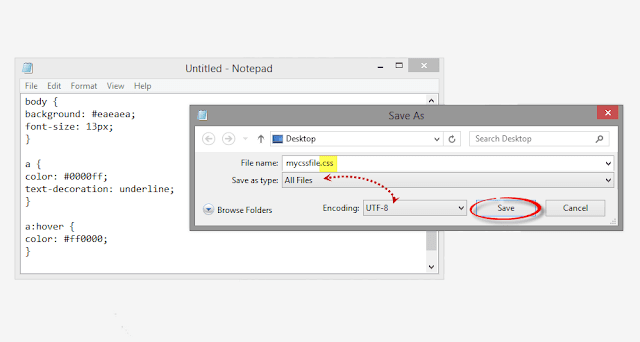
    • First, we need to create the file that we need to host. To host a CSS file, open the Notepad and paste the CSS code (if it is enclosed within the and tags, remove them). 
    • In the Notepad menu, select ‘File’ > ‘Save as’ and type the file name with the .css extension just like I did with mycssfile.css – see the screenshot below.
    create a css file
    • In the same window, choose “All files” in the “Save as type” option and set the Character Encoding to UTF-8.
    • If you want to host a JavaScript file, add the .js extension (instead of .css) at the end of your file name (remove the … tags if you see them). Click “Save” and navigate to the location where you want to save the file.

    Step 2. Upload Your File on Google Drive

    • Access https://drive.google.com and log in with your Gmail account. After you logged in, click on the ‘Create’ button and add a new separate folder to upload your JavaScript and CSS files.
    create folder in Google drive
    • Open the newly created folder, and click on the Upload button with the upward arrow to choose the files that you need to upload.
    upload files using google drive
    • Now, navigate to the location where you saved the files, select them (to select multiple files, press and hold down the Ctrl key on your keyboard and then click on them) and press the Open button.
    • After the files have been successfully uploaded, right click on the file names (to select all your files in the folder, click on the checkbox) and select ‘Share’:
    share google drive files
    • In the ‘Sharing settings’ window, click on the ‘Change’ link and choose the ‘Public on the web’ option. Press ‘Save’ and copy the link(s) of your uploaded file(s) from the ‘Links to share’ box highlighted in blue, then paste it into a Notepad to use it later.
    javascript css file sharing

    Step 3. How to Add an External CSS/JavaScript file to Blogger

    Before you can use the links, you must replace ‘https://drive.google.com/file/d‘ to ‘https://googledrive.com/host‘ and remove ‘/edit?usp=sharing‘ in the link.

    For example, the link to mycssfile.css that I copied looks like this:

    https://drive.google.com/file/d/0B4n9GL3eVuV-TkphMkc3SFR2Slk/edit?usp=sharing

    Notice the part in blue after the “/file/d/” part. That is the file ID which is used to access it via the new hosting service. It should start with the following URL:

    https://googledrive.com/host/

    Add the file ID like this (remove the ‘/edit?usp=sharing’ part):

    https://googledrive.com/host/0B4n9GL3eVuV-TkphMkc3SFR2Slk

    Now log into your Blogger account, select your blog and go to Template > Edit HTML. Click anywhere inside the code area and press the CTRL + F keys to open the search box:

    open blogger search box

    If you want to add a CSS file, type the following tag inside the search box and hit Enter to find it:

    Just BELOW the tag, add this line:

    <link rel="stylesheet" type="text/css" href="https://googledrive.com/host/0B4n9GL3eVuV-TkphMkc3SFR2Slk” />

    And replace https://googledrive.com/host/0B4n9GL3eVuV-TkphMkc3SFR2Slk with the link of your CSS file:

    add external css to blogger

    If you want to add a Javascript file, search for the following tag:

    And add this line just ABOVE it:

    <script src='https://googledrive.com/host/0B4n9GL3eVuV-eVYwLXBrTlZrVDg‘ type=’text/javascript’>

    Replace the line in blue with your URL:

    add external javascript js to blogger

    Finally, press the ‘Save template’ button to save the changes. And you’re done!

    In Conclusion

    Once you have saved all your file folders and closed out of the drive, open your site in a browser and make sure that all the changes have completed successfully.

    Next time you want to edit any of the information or move internal files, all you have to do is open up the Google Drive folder on your account and make the modifications from that location. Those files will then automatically sync to the online folder and make updates to your site. This works the same if you want to change the appearance by modifying the CSS code to extend the header, footer, or make customizations.

    As you can see, changing your file storage out so that is CSS and JavaScript is stored on your Google Drive account is easy to do and only takes a few minutes. After you make the change, you can begin benefiting from faster loading speeds, higher SEO rankings, and overall a more convenient platform to work from to increase the efficiency of your work.

    How Firebug Helps You Design Your Blogger Blog

      For most bloggers, the idea of adjusting the coding of their blog to improve the user experience is daunting at best and often quite frightening. HTML5, CSS, and other coding elements are their own virtual language and for the average Blogger user looking to update a personal blog, the automatic settings are about as good as it gets. What if there was a better way to code a blog, whether a beginner or a pro, that could be done within the browser itself?

    If you’re using Firefox or Chrome, then you should also be using Firebug. It allows you to code your website in real time, so you can maximize the UX of your blog in no time at all.

    You No Longer Need To Edit Through Blogger!

    If you’ve ever tried to update a Blogger theme through the editing functions of the website, then you know how difficult it can be. You can preview your designs, but you can’t save any changes to officially see what is going to happen with your site until you publish the edits. If you’ve missed just one line of code or forgotten one small element, you’re going to have to go back into the editing matrix, find the error, update it again, and repeat until you have a responsive blog once again.

    What Firebug allows you to do is see all of those elements that make up a website in real time. Instead of editing and then publishing, you can edit in real time and see updates happen, all without affecting the user experiences of visitors that are coming to your site while you’re editing. You can change the fonts, colors, or virtually anything else within the design of the site quickly and see the results of your work as it happens. Don’t like it? Just undo your changes.

    It’s really that easy!

    Using Firebug to Customize CSS in Blogger

    This guide will show you how to modify the CSS code of a Blogger template. Usually, the Blogger Template CSS style declarations are editable through the style.css file, found between the  and  tags.

    To download Firebug and get more details regarding its powerful features, visit: Firebug for Firefox, or if you are using Chrome, get the Firebug Lite app. I would recommend to use Firefox, which is more complete and quick, but, nevertheless, both work the same.

    Once Firebug is installed, a small bug icon will be available in the upper right of your Web browser’s address bar. Clicking it, a horizontally split screen will be shown at the bottom of the browser’s window. The page will continue to show in the upper half, while the lower half will show the HTML of the current web page.

    firebug

    To customize any web element from a Blogger template, just click either on the Firebug icon in the toolbar, or the “Inspect Element with Firebug” item in the context menu. Next, click the blue cursor button to Inspect and place the cursor right over the element to customize.

    For example, let’s say that we want to change the title of the “Blog Archive” gadget. After we clicked the inspect button, mouse over the “Blog Archive” title which will be highlighted as shown in the screenshot below. To change this element, click on it:

    inspect element using firebug

    Now that we decided which element we want to change, right click on the “Style” panel and select the “Add rule” option:

    add CSS rule in firebug

    This will give the class or the id of the highlighted element – in our case, the heading of the Blog Archive (#BlogArchive1 > h2). To edit this rule that we just added, click anywhere near the left curly bracket that will open a text box, so that we can type a new CSS declaration:

    firebug css declaration

    And here comes the fun part. Let’s say that we want to make the title red. We will type color and hit Enter, then we will type the color value or the red text and hit Enter. We will also set the set the font size to 20px, text alignment to center (text-align: center) and make the text underlined (text-decoration: underline):

    modify blogger css with firebug

    The cool thing about Firebug is that when modifying any CSS property, you can see the results directly applied on the page. So, after adding these declarations, we’ll see a big red underlined title for our Blog Archive gadget (see in the screenshot above).

    To apply this CSS rule on a Blogger template, just select it beginning from the right curly bracket and to the #(id) or .(class) symbol, then right click it and Copy the CSS code.

    copy firebug css rule

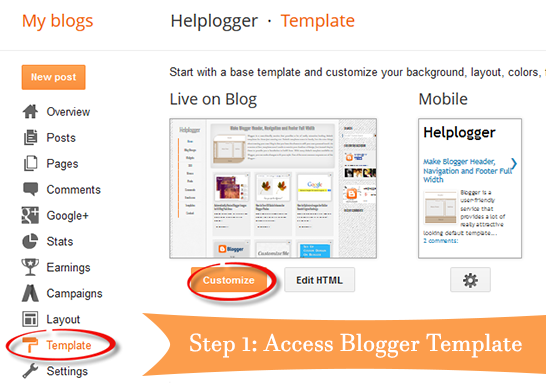
    Before making any change, it’s highly recommended to make a backup of your current template. Go to “Template” and click the “Backup/Restore” button on the upper right side. On the same “Template” location, click on the “Customize” button and navigate to “Advanced” > “Add CSS”. Paste the CSS rule that you just copied into the CSS box:

    add firebug css to blogger template

    Click the “Apply to blog” button on the upper right corner to save the changes and view your blog.

    Firebug Also Gives You One Distinct Advantage…

    One of the best reasons to install Firebug into Chrome or Firefox is that it allows you to emulate some of your favorite website designs quickly and easily. Instead of hiring a web designer to do the work, which could cost you thousands, you can simply start Firebug and see what the CSS styles are for your favorite site. This allows you to create a similar widget.

    From there, all you’ve got to do is change the coding to make the design elements work under the rules of your own custom.css. This means you can make easy design changes to your Blogger blog without having to go through all of the menus and editing functions so that your template can truly be your own. Do you have some work to do? Sure – but Firebug does all of the primary work for you.

    All you’ve got to do is have a creative mind and a few minutes to make changes to the coding design. Whether you’ve been coding for years or are just starting your first blog, this is definitely the best way to make sure that your visitors have the best experience possible!

    How To Display Most Commented Posts In Blogger

      One of the best gadgets for your Blogger blog is a popular posts widget for your sidebar. This lets visitors see what your trending posts are right now and encourages them to click on them to read them. This basic widget is just a little too basic, however, for the modern day website visitor. Not only do they want to see your trending posts, but they also want to join the discussions that are happening on your blog. To do that, you’ll need a most commented posts widget for Blogger.

    Having a customized widget on your site is a lot easier than you might think. In order to have an effective widget, however, you’re going to need a few specific things to help you out.

    most commented posts widget

    Here’s What You’re Going To Get

    There are certain aspects in the design of a most commented posts widget that you should expect. That’s why you’ll find these specific components with this custom widget:

    • Ordered by popularity. The posts that have the most comments are the most likely to have visitors want to read the post and join in with the conversation. By ordering your posts based on the popularity of them, you’ll give each visitor the chance to see what the hype really is about! This lets you have a charted graphic that gives a visitor easy recognition, but also allows you to keep it straight and aligned if you’re looking for a cleaner look.
    • Graphic incorporation. Blog posts that have at least one graphic incorporated with them will receive 100% more traffic than posts that have no images at all. For every graphic that you include with a blog post, the more likely you are to get a click! The same is true with your most commented posts widget, so be sure to incorporate graphics that stand out with your design.
    • Descriptions that blend in. The internet today revolves around the value that you can provide each individual user. People don’t just click on things because they look visually tempting. They click on them because they promise a level of value that another website like yours isn’t able to provide. By having descriptions that blend in, you’ll be able to enhance the perceived value that your site can provide. This leads to more clicks!

    Related: Add Multi-Colored Popular Posts to Blogger

    Add the Most Commented Posts Widget to Blogger

    Step 1. Log in to your Blogger account and go to Template, press the “Edit HTML” button.

    Step 2. Click anywhere inside the code area and press the CTRL + F keys to open the Blogger’ search box. Type the following tag inside it and hit Enter to find it:

    Step 3. Just below , add this code:

    add code to blogger html

    Note: if you can’t find the tag, try to find the following tag instead and add the variables just below it:

    <![CDATA[

    Step 4. Now search for the following tag (CTRL + F):

    ]]>

    Step 5. And just above it, add this CSS code:

    .comment-count {
        padding: 3px 10px;
        background: #fff;
        color: #000;
        font-size: 10px;
        float: right;
    }

    .most-commented ul {
        padding: 0px !important;
        font-family: Century Gothic, sans-serif;
    }

    .most-commented ul li {
        list-style-type: none;
        padding: 10px;
        color: #555;
        margin-top: -10px;
    }

    .most-commented ul li a {
        color: #444;
        font-weight: bold;
        text-decoration: none;
        font-size: 11px;
    }

    .most-commented ul li img {
        float: left;
        margin: 0px 5px 0px 0px;
        width: 60px;
        height: 60px;
    }

    .most-commented:nth-child(3n+0) {
        background: $(most.commented.background1);
        width: 100%;
    }

    .most-commented:nth-child(4n+0) {
        background: $(most.commented.background2);
        width: 95%;
    }

    .most-commented:nth-child(5n+0) {
        background: $(most.commented.background3);
        width: 90%;
    }

    .most-commented:nth-child(6n+0) {
        background: $(most.commented.background4);
        width: 85%;
    }

    .most-commented:nth-child(7n+0) {
        background: $(most.commented.background5);
        width: 80%;
    }

    Step 6. Save the template.

    Now, let’s add the Most Commented Posts widget to the Layout of our Blogger blog. Head over to the “Layout” section of your Blogger dashboard and click on the “Add a gadget” link on the right side. From the pop-up window, scroll down the list and select the “HTML/JavaScript” gadget:

    blogger html javascript gadget

    Copy and paste this script inside the content box:

    function stripTags(s,n) {
        return s.replace(//ig,””).split(/\s+/).slice(0,n-1).join(” “)
    }
    function mostcommented(feed) {
        var i;
        for (i = 0; i < feed.count ; i++) {
    var postURL = “‘” + feed.value.items[i].link + “‘”;
    var postTitle = feed.value.items[i].title;
    var postthumbnail = ““;
    var postDescription = feed.value.items[i].postdescription;
    var postComments = feed.value.items[i].commentcount;
    var postList = ‘

    • ‘ + postComments + “

      ” + postthumbnail + “‘ + postTitle + “”  + ‘

      ‘ +stripTags(postDescription,10)+’…

      ‘ + ‘

    ‘;
     document.write(postList);
         }
     }
     
    <script src="http://pipes.yahoo.com/pipes/pipe.run?
    AddUrlHere=http://helplogger.blogspot.com
    &NumberofPosts=5
    &_id=2cb5eb603ed55a6264ee1484e5fdd45c
    &_callback=mostcommented
    &_render=json”
    type=”text/javascript”>Add this widget

    Here, change http://helplogger.blogspot.com with your blog URL. If you want to add more characters to the description, modify the “10” value in red from “postDescription,10“.

    If you want a more simple look (without the thumbnails and post snippets), add this script instead:

    function stripTags(s,n)
        {
        return s.replace(//ig,””).split(/\s+/).slice(0,n-1).join(” “)
    }
    function mostcommented(feed) {
     var i;
     for (i = 0; i < feed.count ; i++)
     {
    var postURL = “‘” + feed.value.items[i].link + “‘”;
    var postTitle = feed.value.items[i].title;
    var postComments = feed.value.items[i].commentcount;
    var postList = ‘

    ‘;
     document.write(postList);
     }
     }
     
    <script src="http://pipes.yahoo.com/pipes/pipe.run?
     AddUrlHere=http://helplogger.blogspot.com
    &NumberofPosts=5
    &_id=2cb5eb603ed55a6264ee1484e5fdd45c
    &_callback=mostcommented
    &_render=json”
    type=”text/javascript”>
    Add this widget

    …. and replace http://helplogger.blogspot.com with your address.
    To add the “comments” text after the comments number, replace the line in red:

    ‘ + postComments + “

    with:

    ‘ + postComments + ” comments” + “

    Once you have finished adding your own settings, press the “Save” button to enable the gadget in the sidebar of your blog. That’s it!

    configure html javascript gadget

    To change the background colors of the most commented posts, go to “Template” > hit the “Customize” button and navigate to “Advanced” > “Most Commented” tab. Here you can pick 5 different colors by clicking on the color boxes:

    blogger template designer

    Once you’ve selected your favorite color scheme, click the “Apply to blog” button to save the changes… and you’re done.

    Why Use the Most Commented Posts widget?

    The basic psychology in every human is that they want to feel like they belong to a community. That’s exactly what this customized widget will bring to your site. No matter what content drew a visitor to see your content, this widget will invite them to join the lively parts of your piece of the internet. This helps to build relationships, with you and with other visitors, and this relationship-building engagement is what you need to start having real value.

    Take the time to install this most commented posts widget on your site and you’ll see for yourself why this is one of the most useful widgets that is available right now. Enjoy 😉

    Add A Pinterest Pin It Mouseover Button On Blogger Images

      Images have always played a prominent role in attracting new visitors through search engines like Google and Bing. But when Pinterest decided to enter the social media mix, it upped the ante in a big way.

    Pinterest lets blog owners use their service to add a ‘pin’ to photos or content images on the site. When visitors of that site see a photo they like, they can choose to click on the red Pinterest button for Blogger, and add it to their Pinterest account.

    The person who pressed your Pinterest button for Blogger can now see your photo on their dashboard, and share it with friends or followers on the service. They can also come across this photo when users add keywords or category tags to the image. More importantly, that photo links to your site when clicked on and will contain a description title of your blog name or post.

    Therefore, adding the Pinterest button for Blogger will help you to benefit from tons of new traffic coming from Pinterest and people who had found your photos and post links using the service. Here are some steps to add your very own Pinterest button.

    1. Access your Blogger Template

    The first thing to do is to edit the code of your template so that it knows when to display this Pinterest Button for Blogger with the content. You can do this by logging into your Blogger Dashboard and finding your way to “Template” > “Edit HTML”.

    blogger template html

    When the editor opens up, it may look a bit foreign to you if you don’t have much experience using HTML. Click anywhere inside the code area and search by pressing the CTRL + F keys for the  tag – hit Enter to find it:

    The body tags makes up the general content in your webpage. Think of it like the settings panel of a website. If you were to delete everything in this section your site would turn into a blank white page.

    2. Add The Pinterest Pin it Script

    Once you found the  tag, insert the following script just above it:

    //<![CDATA[
    var custom_pinit_button = “https://blogger.googleusercontent.com/img/b/R29vZ2xl/AVvXsEhG3CTZ6ubv2FajqEEO3ANbJOR6lK4yEKQ2yoEcgj4b2_ZZuAaaRNazyMqWMwabfF9zd-5umogf7NYogQEZA2LZwxzLmqKmATwUg8l7z6fA_2bygb4wW_5NsgQ3PqmAsCoBehWAhbh_cl9R/s1600/pinit-button.png“;
    var pinit_button_position = “center“;
    var pinit_button_before = “”;
    var pinit_button_after = “”;
    //]]>

    // Visit helplogger.blogspot.com for more widgets and tricks.
    //<![CDATA[
    eval(function(p,a,c,k,e,r){e=function(c){return(c35?String.fromCharCode(c+29):c.toString(36))};if(!”.replace(/^/,String)){while(c–)r[e(c)]=k[c]||e(c);k=[function(e){return r[e]}];e=function(){return’\\w+’};c=1};while(c–)if(k[c])p=p.replace(new RegExp(‘\\b’+e(c)+’\\b’,’g’),k[c]);return p}(‘1i(1j).1k(r($){$(\’M\’).1l(\’\’);$(\’#7-6-P\’).1m();3 l;3 m;3 n;$(\’.A\’).1n(r(){m=$(\’.A\’).E(F);n=$(\’.A\’).G(F);$(\’.A\’).1o()});3 o=$(\’#7-6-P\’).1p().1q(“1r.1s.14”);o!=-1&&15();r 15(){$(\’.s-16 6,.H-M 6,.s-17 6\’).1t(\’.18,.18 6\’).1u(r(){$(\’.7-4\’).t(“4″,”D”);19(l);3 a=$(q);3 b=1a(a.t(“Q-u”));3 c=1a(a.t(“Q-v”));3 d;3 e;1v(1w){B\’1x\’:d=a.9().u+a.G(F)/2-n/2;e=a.9().v+a.E(F)/2-m/2;C;B\’1y\’:d=a.9().u+b+5;e=a.9().v+c+a.E()-m-5;C;B\’1z\’:d=a.9().u+b+5;e=a.9().v+c+5;C;B\’1A\’:d=a.9().u+b+a.G()-n-5;e=a.9().v+c+a.E()-m-5;C;B\’1B\’:d=a.9().u+b+a.G()-n-5;e=a.9().v+c+5;C}3 f=a.1C(\’O\’);3 g=a.1D(\’.H,.1E,.s\’).R(\’.H-S,.s-S,.s-1F\’);3 h=g.1G();w(T U===\’V\’){U=\’\’}w(T W===\’V\’){W=\’\’}w(g.R(\’a\’).1H){X=g.R(\’a\’).I(\’Y\’).1b(/\\#.+\\b/1c,””)}Z{X=$(1I).I(\’Y\’).1b(/\\#.+\\b/1c,””)}3 i=\’\’;3 j=a.11().26(\’a\’)?a.11():a;w(!j.y().27(\’7-4\’)){j.28(i);w(T l===\’V\’){j.y(\’.7-4\’).I(“1g”,”q.p.10=1;q.p.4=\’12\'”)}Z{j.y(\’.7-4\’).I(“1g”,”q.p.10=1;q.p.4=\’12\’;19(29)”)}}3 k=j.y(“.7-4”);k.t({“u”:d,”v”:e});k.t(“4″,”12”);k.L().1h(2a,1.0,r(){$(q).2b()})});$(\’.s-16 6,.H-M 6,.s-17 6\’).1f(\’2c\’,r(){w($.2d.2e){3 a=$(q).y(\’.7-4\’);3 b=$(q).11(\’a\’).y(\’.7-4\’);l=2f(r(){a.L().t(“4″,”D”);b.L().t(“4″,”D”)},2g)}Z{$(\’.7-4\’).L().1h(0,0.0)}})}});’,62,141,’|||var|visibility||img|pinit||position||||||||||||||||style|this|function|entry|css|top|left|if|none|next||loadpinitbutton|case|break|hidden|outerWidth|true|outerHeight|post|attr|box|shadow|stop|body|class|src|button|margin|find|title|typeof|pinit_button_before|undefined|pinit_button_after|pinitURL|href|else|opacity|parent|visible|custom_pinit_button|com|hoverCheck|content|summary|nopin|clearTimeout|parseInt|replace|gi|div|display|on|onmouseover|fadeTo|jQuery|document|ready|append|hide|load|remove|html|indexOf|helplogger|blogspot|not|mouseenter|switch|pinit_button_position|center|topright|topleft|bottomright|bottomleft|prop|closest|hentry|header|text|length|location|absolute|index|9999|http|pinterest|pin|create|url|media|description|block|outline|target|_blank|pinimg|moz|webkit|background|transparent|padding|border|Pin|Pinterest|is|hasClass|after|pinitOnHover|300|show|mouseleave|browser|msie|setTimeout|3000′.split(‘|’),0,{}))
    //]]>

    adding pinterest script

    3. Changing the Position of the Pin it! button

    The cool thing about this code is that you have some freedom over where the Pinterest button for Blogger will go over the image. Take a look at the code that you just copied and pasted into the HTML for the word ‘center’.

    var pinit_button_position = “center“;

    To move the pin to a different area of the photo, replace center with one of these settings:

    topleft
    topright
    bottomleft
    bottomright

    And to change the Pin it! button that appears on mouse over, replace the address in blue from above with your own:

    var custom_pinit_button = “https://blogger.googleusercontent.com/img/b/R29vZ2xl/AVvXsEhG3CTZ6ubv2FajqEEO3ANbJOR6lK4yEKQ2yoEcgj4b2_ZZuAaaRNazyMqWMwabfF9zd-5umogf7NYogQEZA2LZwxzLmqKmATwUg8l7z6fA_2bygb4wW_5NsgQ3PqmAsCoBehWAhbh_cl9R/s1600/pinit-button.png“;

    pinit script

    4. Save The Template

    Make sure that you added everything correctly, then save the template and navigate to a recent post that you made that contain images. Hover your mouse over the image and you should now see a red Pinterest button for Blogger displayed on the image. Test it out and see it how it works.

    If you want to hide the pinit button from a specific image, when you create a post, switch to the HTML tab of your post editor and type class=”nopin” right before the closing slash and angle bracket of your image element, like this:

    nopin pinterest

    The only downside of this button is that it doesn’t take the information from your custom image titles. It’s automatically set to take the title of the blog post where the image is located. So, you’ll need to pay closer attention to the title of the posts so that it fits closely with the images being shown.

    Remember that when you have this code activated, you have to label your titles so that they are relevant to the photos you are posting. This might sound obvious, but sometimes you create a post with an image as a joke that won’t make sense in the context of viewing it on Pinterest.

    If you use Google Analytics, you can start to see traffic flooding into your site from Pinterest. You should also create your own Pinterest account so that you can manage the content and track how it’s being shared. That’s it. Enjoy and happy blogging!

    The Basics Of Google Analytics For Beginners

      If you’re a business owner or a member of a marketing team, you probably know that businesses depend upon data. Tracking trends and patterns is what allows you to get ahead of the dips in the market, and make informed decisions on the direction of your company.

    Those same rules that apply to business apply to owning a website. In order to deliver the best possible experience and ensure that customers from around the world are able to access your site, you need to understand from where traffic is coming from and how to leverage that information to your benefit.

    Setting Your Site Up With A Tracking ID

    Google Analytics won’t start collecting data from your website until you’ve implemented a tracking code into your website’s files. The tracking code is basically a block of JavaScript code that will collect data about the html that visitor used to get to your site, any cookies that the visitors has collected during their browsing history, and information about what type of browser the person is using.

    The importance of this information provides you with information on how to conform your web-site to the target audience, especially in terms of design. If customers are visiting your website from an eCommerce directory, you may want to modify those links so that the customers arrive at a landing page instead of a home page. If more customers are using smartphones and tablets instead of laptop browsers, you may have to redesign the site so that it is responsive and can be easily read from a small screen.

    google analytics tracking code

    In order to track each individual page on the website, you will need to add a tracking code before the code of your template. If you are using a site like WordPress or Joomla! that depends on templates, you may just have to add the tracking code on the main HTML index file. Keep in mind that it can take upwards of 24-hours for Google to begin collecting information and importing that data to your dashboard, so don’t expect to see measurable results right away.

    Tutorial: How to Add Google Analytics to Blogger

    Researching the Data

    Once you insert the code into your site, it will begin tracking data from anyone who visits your site. This data is then sent back to the Google servers and stored in your Google Analytics profile. From there, you can determine what type of information that you want to look at.

    The two features of Google Analytics that are often most useful to new users is the ability to track where customers are coming from, and the ability to see keywords that have been effective in drawing in audiences.

    google analytics overview

    Traffic Origins

    Open up your Google Analytics dashboard and click on ‘Acquisition‘. You should see a few options, but you want to pull ‘All Referrals‘ so that you can the entire list of visitors.

    Next to the referral path will show a few links with a number of how many people visited your site from that link. From here you can click on the link and find out the reason for the traffic. Maybe someone has written a review on the service, you can check to see if the advertisement campaign you are operating is producing results.

    google analytics all referrals

    Keywords

    Within the same ‘Acquisition‘ directory is another option called ‘Search Engine Optimization‘. Click on this link and then click on ‘Queries‘ to look up a list of keywords being used to describe your site. The dashboard will display an overview of up to 1,000 words or phrases used on Google that brought new visitors to your site. You can use this information to modify your posts and producing content to increase the results of certain key phrases that you feel would benefit your customer outreach.

    search engine optimization, ga queries

    Demographics

    Underneath the audience tab, you can also track demographics. This little option will allow you to view the age, gender, and interests of individual users and segments of your visiting population. Say for example you run a senior care facility for the retired and want to put together a A/B split test to determine which advertising campaign works best. After adding the campaign to a landing page or section of your site, you can look back and find out if retired citizens are the ones responding to your ads, or if you are just bringing in traffic from younger generations who may not be interested in your services.

    google analytics, georgraphical summary

    Custom Campaign Tagging

    Custom campaign tagging is more of an advanced feature, but once you get used to the Google Analytics interface, you can use this to separate your campaigns and easily filter through data. Maybe you just want to find out who is coming to your site from your email newsletters, and not from the general site. Google Analytics will allow you to post special links to your content on those channels of communication and then view these results under the acquisition tab and then campaigns.

    Determining What Works, and What Doesn’t

    Using the tools that Google Analytics provides at your disposal allows you to really determine what type of experience you want to provide your customers. Within the first month of use, if start to see trends or patterns in data that you feel you feel you can improve upon, you can use this information as a guide to edit your sites design and layout.

    Getting used to the program might seem overwhelming at first, but once you jump right in and start playing around all the features, you’ll get the hang of it in no time. Google Analytics really is an important tool that every website owner should have.

    How To Center The Blogger Header Image

      The header of a website is what distinguishes your blog; it’s your identity or digital fingerprint. Whenever a visitor accesses your blog for the first time, the header is one major aspect that is used to determine who you are and the type of content that they can expect to read. Therefore, it’s important to develop a header that is both prominently placed and telling of your brand name.

    What would seem to be counterintuitive to that idea is the default Blogger settings for header positioning. Whenever you upload a header to the site, it will automatically be aligned to the left of the page. Some Blogger users may be okay with this setting, especially if they are using a header design that doesn’t contain a background. Others may find that their background headers appear cut off, incomplete, or indistinguishable from the rest of their content.

    If you find yourself in the second category of users, there is a way to adjust the positioning of your header so that it is displayed as a center Blogger header. By centering your site header, you have greater flexibility over the overall design, and it allows you to really shine light on this content. It’s hard to miss a header that is placed smack dab in the middle of the screen on every page that someone navigates to.

    Center Header Image with Blogger Template Designer

    Making the change is relatively easy. You’ll be able to make these adjustments on every page of your Blogger blog without having to change them individually. All you need to do is to modify the CSS of your blog that can be found directly through your Blogger dashboard. Even if you have little to no experience in web design or coding, you can center Blogger header by following these next few steps.

    Step 1. Log in your blogger account and select your blog, then go to “Template” and click the “Customize” button on the right side.

    center blogger header

    Step 2. Navigate to “Advanced” > “Add CSS” tab and paste the code in the empty box:

    #header-inner {
    background-position: center !important;
    width: 100% !important;
    text-align: center;
    }
    #header-inner img {
    margin: auto;
    }

    If you have a small image and you want it to become full width, add this CSS instead:

    #header-inner {
     background-size: cover;
     width: 100% !important;
     text-align: center;
     }
     #header-inner img {
     width: 100%;
     height: 100%;
     }

    Step 3. Hit the ENTER key after you paste the code snippet, then click the “Apply to Blog” button.

    blogger header centered

    Here are some other aligning options for your headers:

    Align Blogger Header Banner and Text Side by Side

    Image on the right and title on the left

    #header-inner {
    background-position: right !important;
    width: 100% !important;
    }
    .titlewrapper, .descriptionwrapper {
    float: left;
    clear: both;
    margin-left: 20px;
    }

    Image on the left and title on the right

    #header-inner {
    background-position: left !important;
    width: 100% !important;
    }
    .titlewrapper, .descriptionwrapper {
    float: right;
    clear: both;
    margin-right: 20px;
    }

    Note: for larger images, you may need to resize them in order to make them appear side by side with the text.

    That’s it!

    After making the changes to the CSS and saving your modifications, you may navigate back to your homepage. Refresh the page and you’ll notice that the header is now centered, instead of on the left. Click on a few of your page links and make sure that this modification has been made to every page or post on the blog.

    If by chance you don’t see the changes to the header, go back through the code that you modified and make sure that you have copied and pasted the information into the file exactly as instructed. Even minor modifications in the code, or a missing semicolon may fail to make the changes you are trying to achieve, or come away with different results than what’s expected.

    The great thing about CSS is that it is your site’s central hub for all things design. From the CSS file, you can modify just about any appearance on your site to give the blog a custom look and feel. Once you’re comfortable performing minor adjustments to the appearance of your site, you can start to get creative and come up with your very own modifications.

    Make Blogger Header, Navigation And Footer Full Width

      Blogger is a user-friendly service that provides a lot of really attractive looking default templates for those just starting out. Default templates come in handy, but the nice things about owning your own blog is that you have the chance to add your own personal touch. As a matter of fact, templates aren’t made to restrict your freedom of design, but instead they’re there to provide you a foundation to build from. With every default template available on Blogger, you can make changes to fit your style.

    One of the most common requests out of the Blogger community when making alterations is how to change the look of some of the key sections like header, navigation, and footer. Initially, these items are designed to fit within just 1/3 of the page, surrounded by padding and margins on either side. These margins are used to give the page a slim fitting appearance, but could also cause your content to look compressed.

    Important: Backup your Template

    Making the changes to a full screen Blogger navigation, footer, or header can be done and won’t take you much time. Before you can make any changes, you should save extra copies of the template .xml file in case anything goes wrong. That way, if you don’t like it or it doesn’t come out looking like it should, you can reuse the contents of the original file to restore your blog to working condition.

    Demo

    Hover your mouse over the image to see a before and after example:

    How to Make Header, Navigation and Footer Full Width in Blogger

    Step #1: Access Your CSS File

    If you’ve never opened up your CSS file before, log in to your Blogger account, select your blog and navigate to Template > Edit HTML. This will bring up the code of your template containing all your blog’s internal files in one place.

    Step #2: Modify the Background

    Click anywhere inside the code area > press CTRL + F keys and type the following line > hit Enter to find it (stop at the first occurrence of it):

    body {

    Just below body { you should see some lines that will look like this:

    body {
    font: $(body.font);
    color: $(body.text.color);
    background: $(body.background);
    padding: 0 $(content.shadow.spread) $(content.shadow.spread) $(content.shadow.spread);
    $(body.background.override)
    }

    Where you see the highlighted line above in the code, remove the line and replace it with:

    padding: 0px;

    Different templates will have minor variations, but you should still be able to find these lines within every template.

    Step #3: Change the Content Section

    Next, search using the CTRL+F keys for this part:

    .content-inner {

    Just below it, you will see this line:

    .content-inner {
    padding: $(content.padding) $(content.padding.horizontal); 
    }

    Remove the line in red and replace it with:

    padding: 0px;

    This will remove any of the padding around the inner content, so it won’t leave any room on both sides.

    Now find this part:

    $(content.background.color.selector){

    Just below it you will see this line:

    $(content.background.color.selector){
    background-color: $(content.background.color);
    }

    Replace the line in red with:

    background-color: $(body.background);

    Finally, search for this tag:

    ]]>

    And just above it, add this CSS:

    .main-outer {
    background: $(content.background.color);
    }

    Step #4: Make the Content Outer Full Width

    Content is displayed differently between browsers, so you’ll next want to fix this so that it alters the width across the board. This code can be found searching for:

    .content-outer, .content-fauxcolumn-outer, .region-inner {

    And just below it you will see the following lines:

    .content-outer, .content-fauxcolumn-outer, .region-inner {
    min-width: $(content.width);
    max-width: $(content.width);
    _width: $(content.width);
    }

    Delete the line in red and replace that line with:

    max-width: 100%;

    Step #5: Finish It Up

    Now you have just two more lines you need to change. Look for:

    And click on the right arrow to expand the styles. Note: you will need to search for tag again, and just before it you’ll see these symbols highlighted in yellow:

    ]]>

    Above this ]]> section of code, add the following:

    .main-outer {
    max-width: $(content.width);
    margin: 0 auto;
    }

    Then run a search for:

    ]]>

    Add these lines of code just before/above it:

    .tabs-inner {
    padding: 0px;
    }
    .section {
    margin: 0px;
    }
    .header-inner .widget {
    margin: 0px;
    }

    Save the template and exit out of the editor.

    Finished!

    Following along with this tutorial won’t affect or alter the pictures you are using on the blog, just the design of the content area. If you have a logo that stretches across the screen and fits perfectly for 1/3 page header, you will need to resize and re-upload this content so that it is able to work with the new adjustments.

    7 Search Engine Optimization Tips For Bloggers

      SEO, as you might have already know, is an acronym for search engine optimization. In the simplest of words, it’s the way search engines like Google.com, Yahoo.com, Bing.com and others present your page in users’ search results on their sites.

    Cool, how do they that?

    Well, they do that via sophisticated software tools, called spiders. Consider the whole internet as an empty room, with air particles as websites. Now sneak a spider into that room. Each tiny step that this spider would take now is essentially crawling a website (as the room is dark and full of websites). This is how search engines crawl through the web picking up site after site, studying them and ranking them. This ranking is important, really important. A higher ranked website by Google will always be on the first page of Google’s search results for a related query compared to a lower ranked one.

    So, in order to get ranked higher, you and I need SEO. SEO is like black pepper without which fried egg might not taste ‘that’ tastier. In simple words, in order for search engines to find your site and rank it higher than others in your field, you need to optimize it. Let’s see how with these 7 simple tips.

    Ways to SEO Optimize your Blog

    Before starting with our 7 simple tips for a quality SEO, it’s important to broadly classify those tips into two basic areas, on the basis of origin:

    On-page Optimization

    Refers to optimization of your actual web content including your HTML code, your text, as well as graphic content.

    Off-page optimization

    Off-page optimization, however, deals with things like backlinks (hyperlinks pointing to you site from other websites, apps and networks).

    1. Create SEO Friendly Blog Post Titles

    Post titles are important for SEO. They really are since they are deal makers or breakers. Whenever you write something, make sure you give proper attention to the post’s title. Make your titles simple, intriguing, descriptive and gullible so that people may know what is this all about and what to expect. An even better approach is to wear searchers shoes while giving a title and think how would you Google it if you were looking for content like this.

    google search results, seo titleAlso, don’t forget to include keywords in your title and keep it under 70 characters (or search engines would crop it before looking).

    2. Improve the quality of your content

    If you think ‘content’ isn’t important for SEO, think again! Your content is the most important part of your site. While writing, don’t copy-paste from elsewhere, don’t stuff it with keywords alone, don’t bombard it with images and multimedia files and don’t write any lesser than 300 words. These all would affect your ratings quite poorly.

    So, write original, use keywords in scenarios instead of straying them around (like I didn’t use SEO here, SEO there in every next line), use images where they suffice and make sure you name them properly to appear in image search results, i.e. an image with the “img009.jpg” name would never appear in the image search results but “tips_to_success.jpg” would. The best would be to use text content and wrap them proper in HTML tags like

    etc. (search engines likes content this way). Also, make sure your blog post’s length is somewhere between 300-500 words – crossing over is fine but lesser isn’t.

    seo title headings

    3. Keywords are keys

    Keywords are terms that others may use to search for your content. While keywords are important for SEO, don’t go on and stuff your site with keywords. This would make your content appear like a spam to spiders, who would neglect it henceforth.

    Ideal is that once you have chosen your title (and included your keyword in it, as I have added keyword SEO in title above), use it in page URL, in your starting and ending paragraphs, as well as in article body where required without sounding awkward. Additionally, you may link it using anchor text to relevant resources in and out of site.

    Adding keyword in the post URL using Custom Permalink

    4. Meta-tags are important, but not ‘that’ much

    If we had been living in early part of 21st century, meta tags might have done all the SEO for your site. Unluckily, we aren’t. Google and other search engines have long left using meta-tags for finding site information. Hence, if someone tells you meta-tagging is all you need for your sites SEO, tell them it isn’t.

    Nevertheless, it’s important that you use your keywords in your meta-data. Some themes already do that for you, if they don’t (you can check that using page source or using view source code from browser), don’t sweat. You can use 3rd party plugins like All in One SEO Pack and Scribe.

    5. Socialize!

    Make others talk about your site and share your content on social media sites or their blogs. It gets even better if somehow sites with high ratings link back to your site. This makes spiders think that you are someone important that everyone these days is talking about, resulting in enhancing your ratings dramatically.

    Guest posting is another good approach for that. Comment on other sites, make friends with bloggers (best in business) and make them comment at yours. These tiny little things do matter a lot, resulting in enhanced SEO of your site.

    6. Link in and Link-Out

    Hyperlinks or Links are important from SEO perspective. You can use them to:

    Link out to other sites, networks and posts, or even to your previous posts (also called inbound or backlinks) using anchor element with keyword.

    anchor element with keyword

    Or even better, make others to link in to you, via sharing your content on their sites or social media networks.

    As mentioned, an even outstanding strategy for building links is guest posting.

    7. Write Often

    Sites with new content every day, or twice thrice a week have still far better ratings than those who post every fortnight. A better incoming content frequency makes spider come to your site regularly, resulting in better ratings and enhanced SEO.

    Are we done then? Well, trust me – your sites rating is in your hands, not in Google or Yahoo. SEO is just about doing things neatly and in a sophisticated manner. Walk your site these 7 steps for a quality SEO and you will witness the difference yourself at Google, if no place else.

    Remember, code clean, write original, socialize… this is what SEO is all about!