Features you’ll lose when upgrading from Windows 10 to Windows 11.

When Windows 11 is released later this year, it will include a new design, new colours, and new functions. However, not everything in Windows 10 will be preserved after the upgrade.
Between now and the public release of Windows 11, expect a few feature additions and subtractions, but here’s all we know about what will be lost along the road.

Timeline

Perhaps you’ve never used Timeline, which is one of the reasons it’s being phased out in Windows 11. The function allows you to sync your activity over the previous 30 days across different Windows PCs (files you’ve opened, websites you’ve visited, and so on), making it quicker to switch between devices registered in with the same Microsoft account.
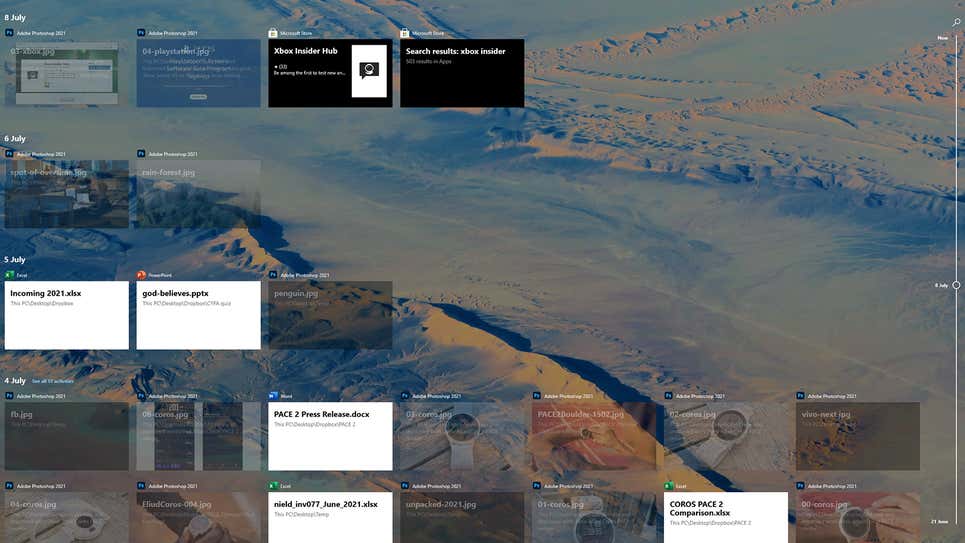
Timeline will not be available on Windows 11. Screenshot: Windows 10

Live Tiles

The Live Tiles feature on the Windows 10 Start menu, which allows different bits of information to be presented and updated in real time, was not well received by developers. You’d be correct if you thought that sounded a lot like widgets. However, with Windows 11, Microsoft will attempt to bring back desktop widgets, so let’s hope they perform better than Live Tiles.

Start Menu Groups 

Another feature borrowed from the Start menu is the ability for users to organise and name tiles in categories like as productivity, writing, gaming, and so on. The Start menu’s layout will also not be resizable, implying that Microsoft intends to make the Start menu experience the same for everyone (as well as move it into the centre of the screen).
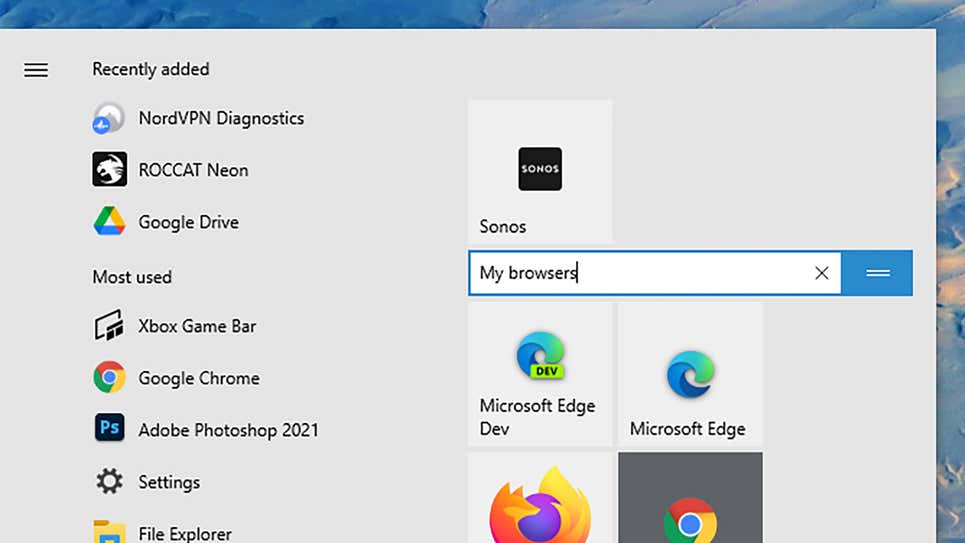
In Windows 11, tile grouping and naming are no longer available in the Start menu. Screenshot:Windows 10

Internet Explorer

What exactly is it? Didn’t you think it was already dead? It’s still available in Windows 10 if you look hard enough, but in Windows 11, all traces of Internet Explorer will be gone, and Microsoft Edge will take its place. Use the IE mode in Edge for those really, very ancient legacy programmes and sites you still require access to for whatever reason.

Cortana

Although Microsoft’s digital assistant will not be completely removed from Windows 11, it will be removed from the setup process and will no longer be pinned to the taskbar. It’s unclear what Microsoft has planned for Cortana, but based on the capabilities introduced to it in the previous year or so, it may be recast as a business tool.
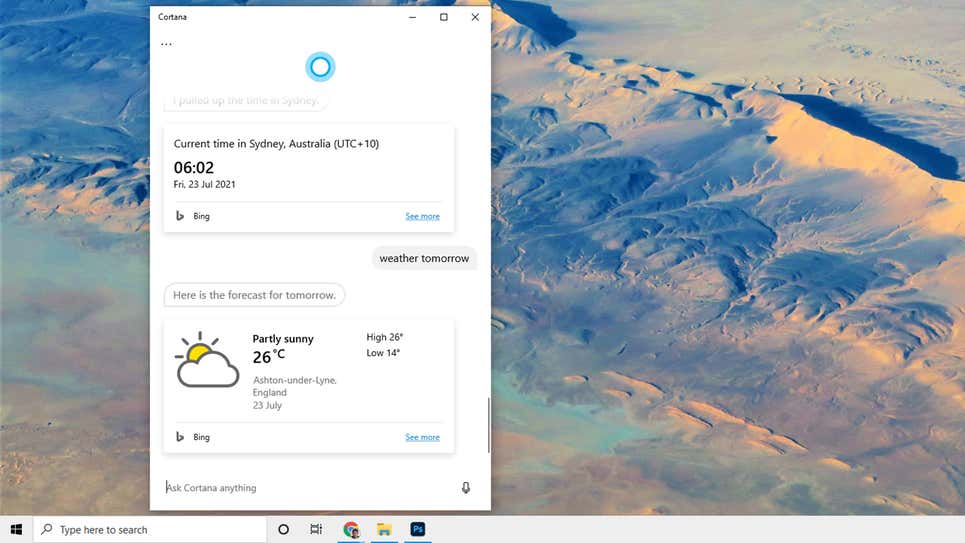
In Windows 11, Cortana will be less prominent. Screenshot: Windows 10

Skype

Skype will continue to be available in Windows 11, but it will not be included as an integral member as it is in Windows 10. That’s because Microsoft has shifted its attention to Teams as a solution for all of your communication requirements, including video, so expect a lot of tight Teams connections in the final Windows 11 experience.

Tablet Mode

Although Windows 10 works well on tablets like the Surface Pro as well as complete desktop and laptop computers, Windows 11 will not have a specific mode for tablet devices. Rather, this functionality will be redesigned, with part of it occurring automatically (like when you attach or detach a Bluetooth keyboard, for example).

Taskbar Location

In terms of removing customizations, the taskbar in Windows 11 can only be found at the bottom of the screen. You may not have known it, but Windows 10 allows you to move the taskbar to the left, right, or even to the top of the screen. You’re out of luck if you enjoy tinkering with your operating system.
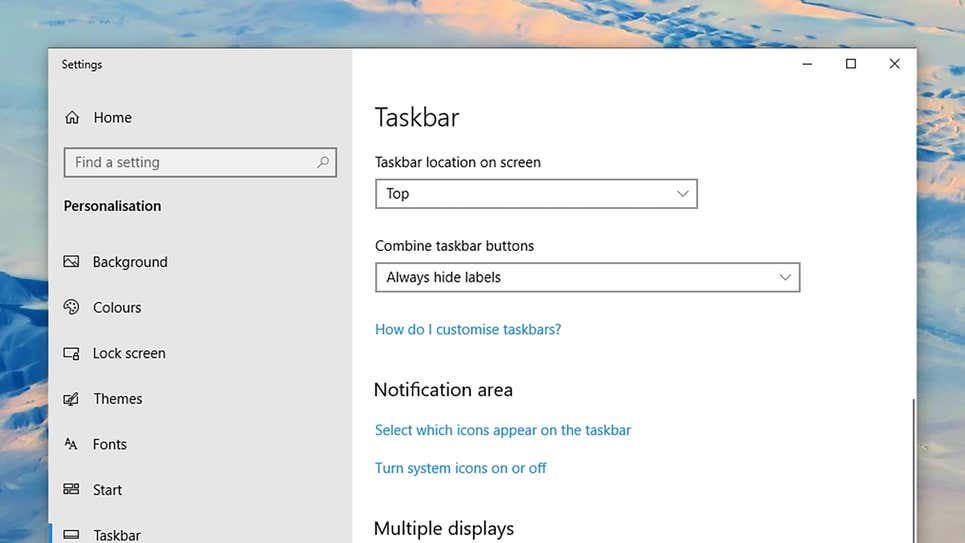
You may move the taskbar in Windows 10 if you haven’t noticed. Screenshot: Windows 10

Quick Status

Applications in Windows 10 can leave little blocks of information on the lock screen to remind you of incoming emails, impending calendar appointments, and so on. When Windows 11 ships, this feature, known as Quick Status, will be unavailable to applications, however widgets (see above) may be able to fill the void.

Windows S Mode

This is another feature that isn’t going away altogether, although you’ll see it less frequently: S Mode, which improves speed and security by only allowing programmes from the official Microsoft Store to be installed, will only be available in Windows 11 Home version. S Mode is now available for Windows 10 Home and Windows 10 Pro.

[GUIDE] How to install the Windows 11 Insider Build.

At a virtual event on 24 June 2021, Microsoft unveiled “the next generation of Windows”, Windows 11. It is the successor of the Windows 10 May 2021 update (also known as version 21H1), and it came out with big improvements and key features like:-

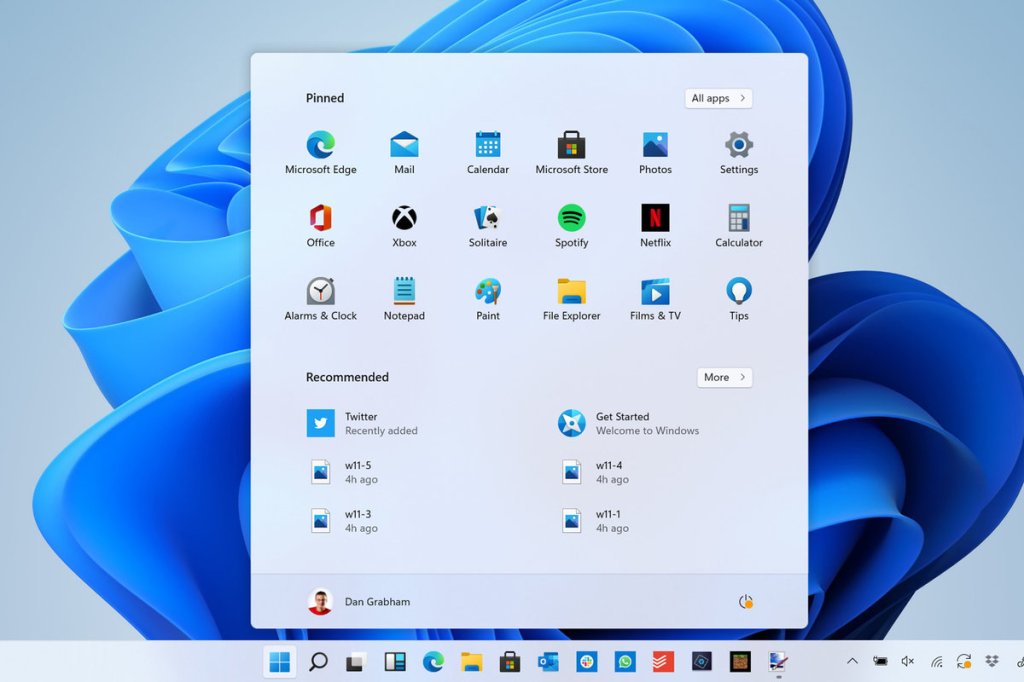
  • A new, more Mac-like interface.
  • Integrated Android apps.
  • Microsoft Teams integration.
  • Widgets.
  • Snap Groups and better multitasking.

Today I am going to show you how to install the Insider Build of Windows 11, but before check out the minimum system requirments to run Windows 11 on Microsoft’s official website.

Before Installing

Back up any file that you would deem essential somewhere safe (e.g USB drive, Cloud storage, etc…). Download the ISO then get a USB drive minimum of 8GB or more and create a bootable USB drive. Next, go into the BIOS and follow these steps:-

Enable TPM-

If INTEL, you need to enable PTT (TPM)

BIOS> Security> Intel Platform Trust Technology> Enable> Save and Exit.

IF AMD, You need to enable fTPM (TPM)

BIOS> Advanced> CPU Configuration> AMD fTPM Switch> Enable> Save and Exit.

Disable Compatiblity Support Module (CSM) and turn Secure Boot OFF (on few motherboard).

NOTE- TPM 2.0 is required but in some cases, it ran in TPM 1.2. Make sure to check your TPM version and enter BIOS and enable your TPM settings.

Steps for installing Windows

  1. ISO method

Connect your bootable USB and turn on your PC, press F8 (or ESC, F1, F11 depending on your motherboard) to go into the boot menu select your USB drive and it’ll take you to WIndows installation.

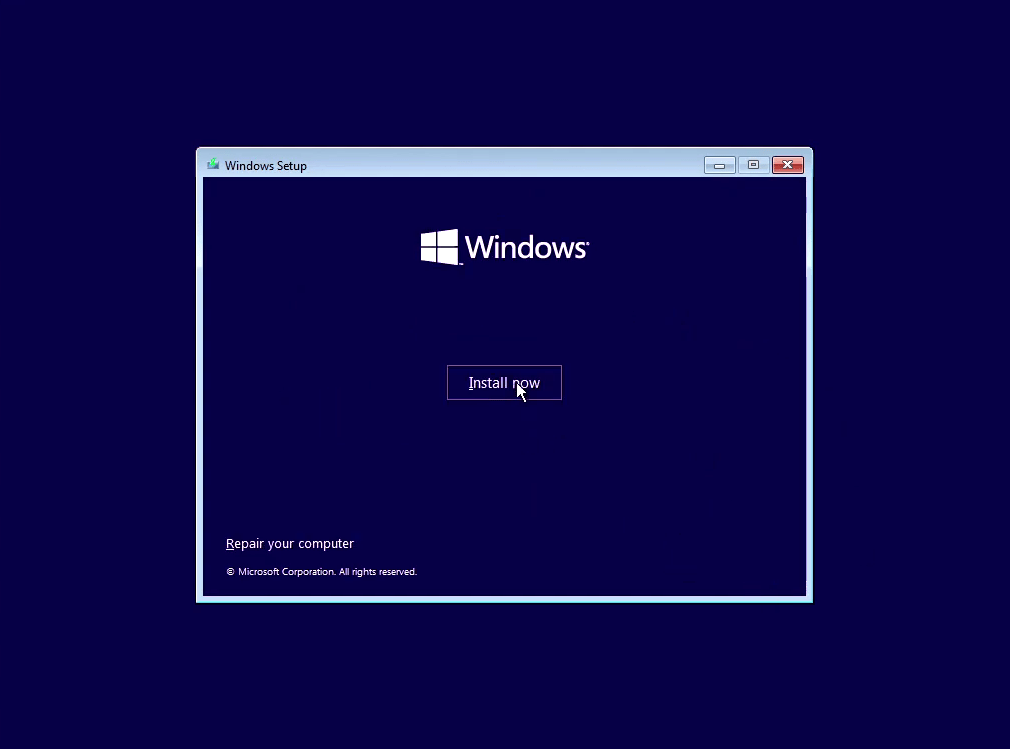
Click on “Install now”
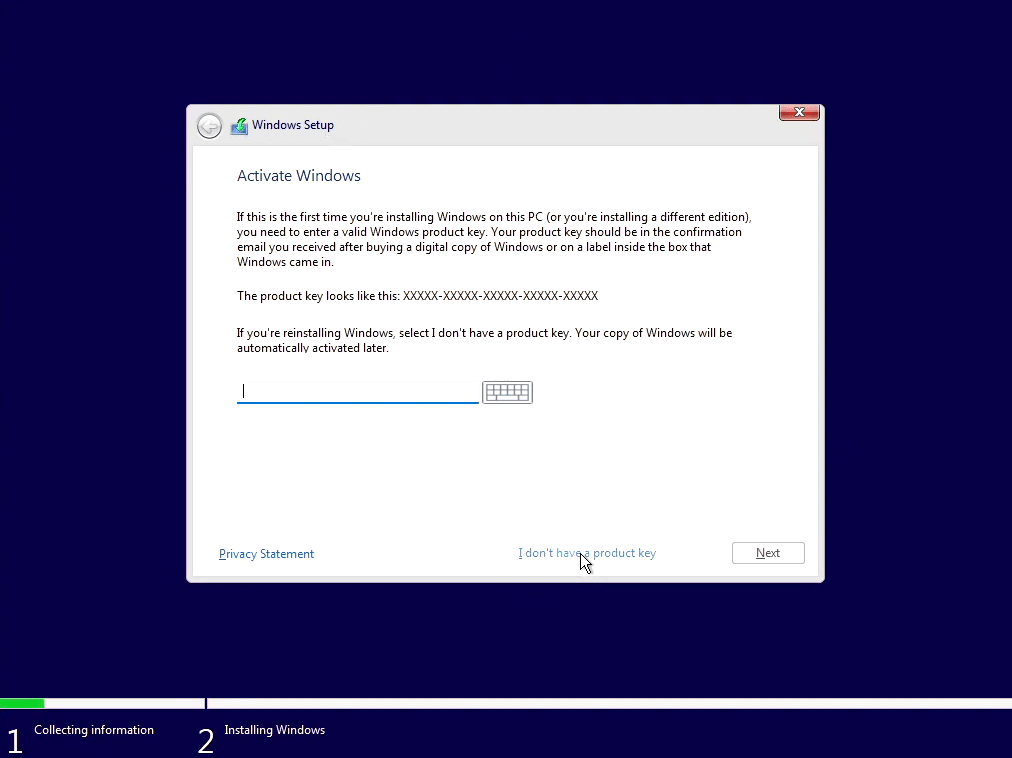
Click on “I don’t have a product key”
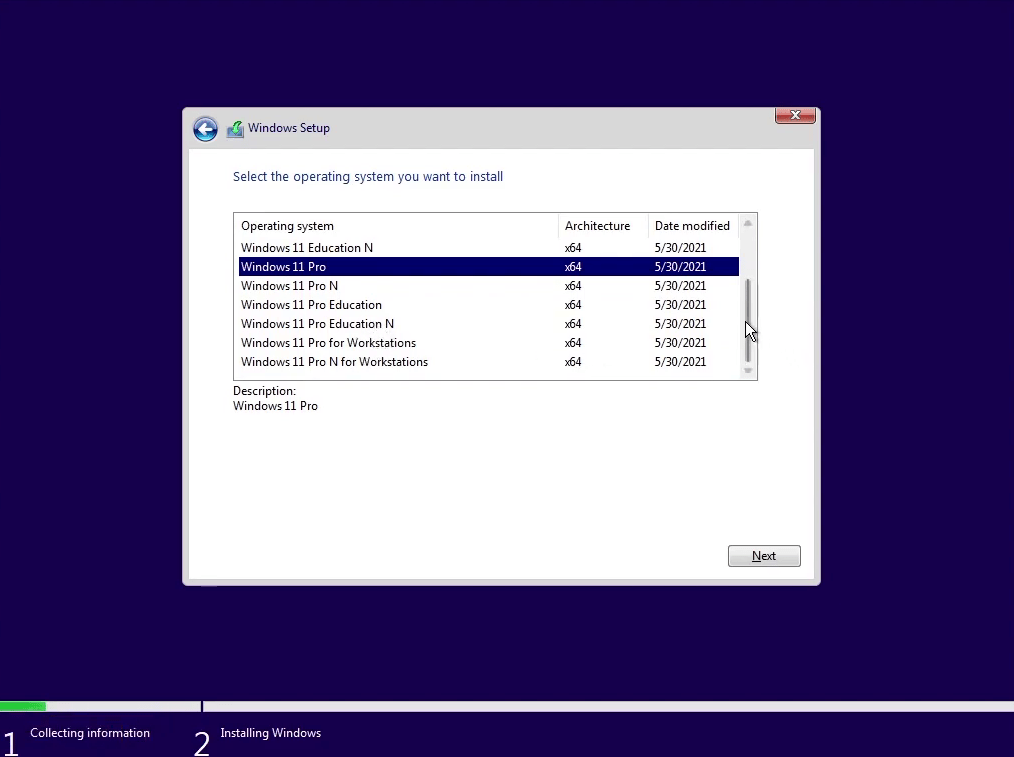
Select the edition of Windows you would like to install and click Next and Click on “I agree on terms and condition” and again click Next.
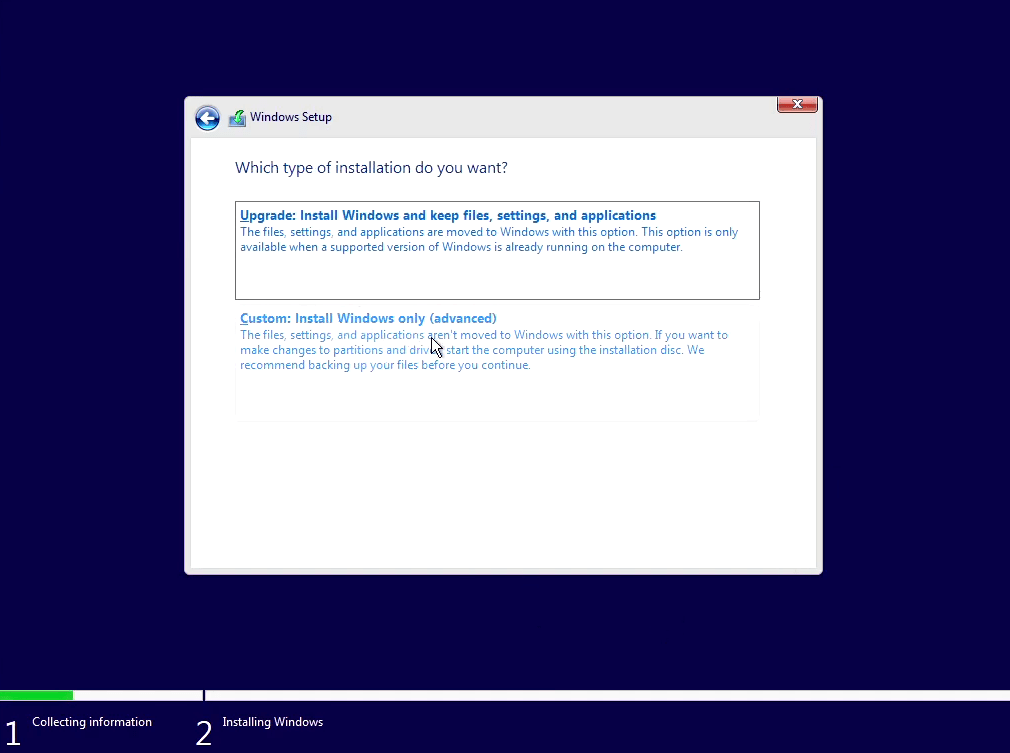
Now, click on “Custon: Install Windows Only (advanced)”.
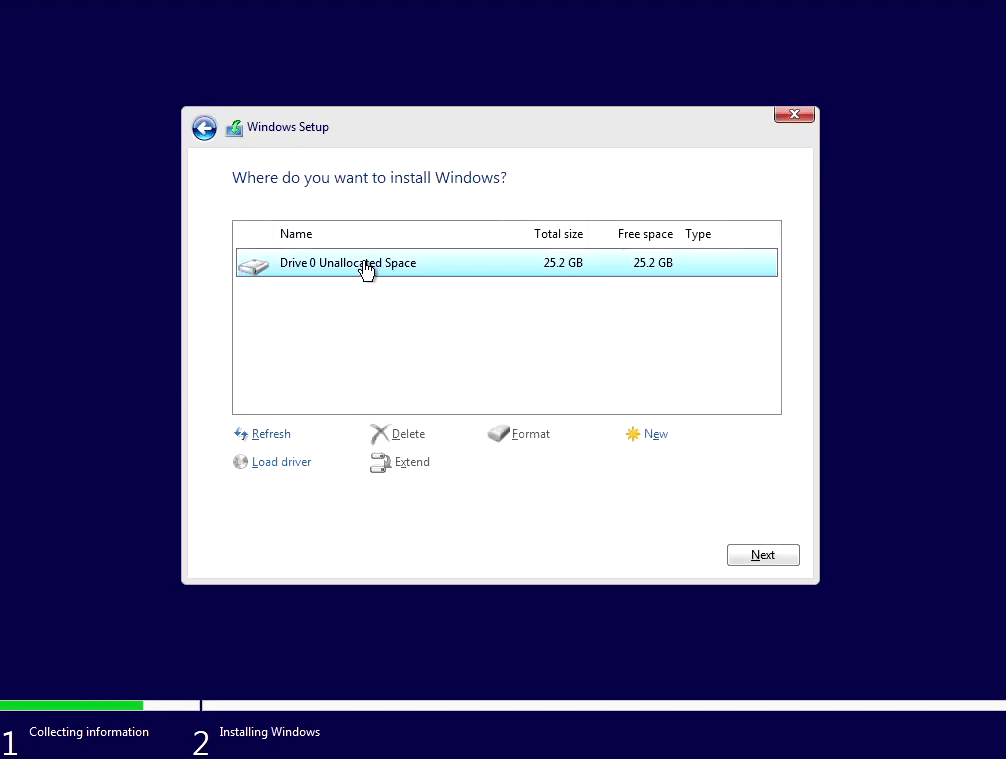
Click on “New” to make new partiton or select the partition you want and click on “Next”.
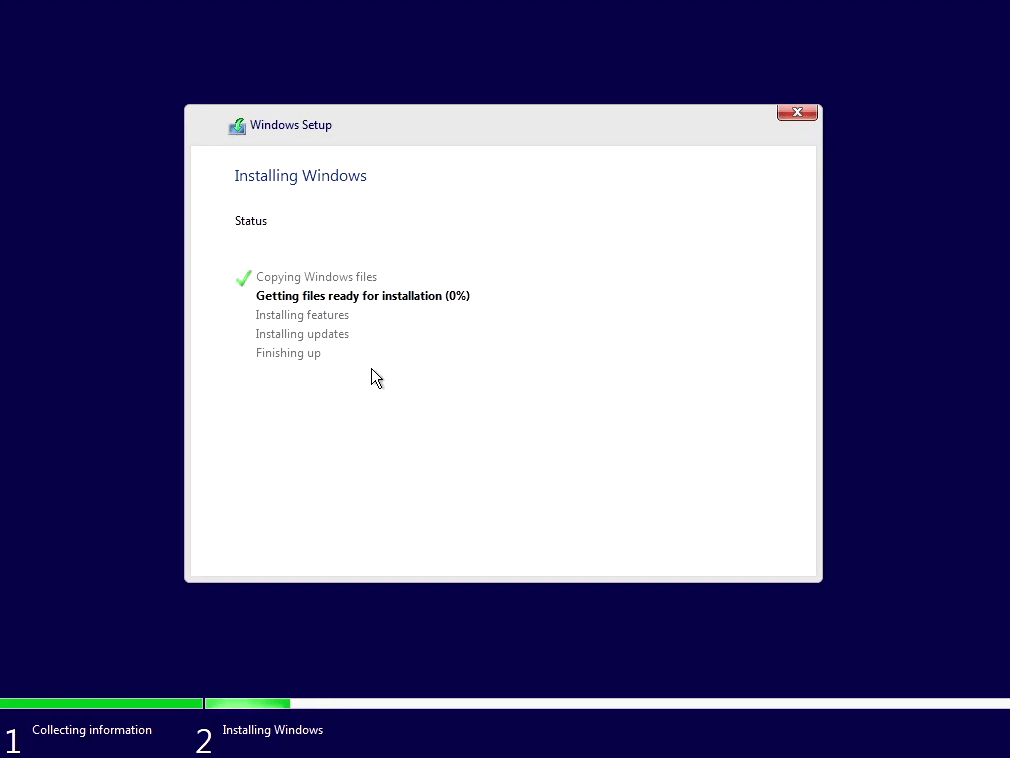
Now, wait for the installation to complete (don’t turn your PC off during the process). It will “Restart” several times and will come to the Setup screen.
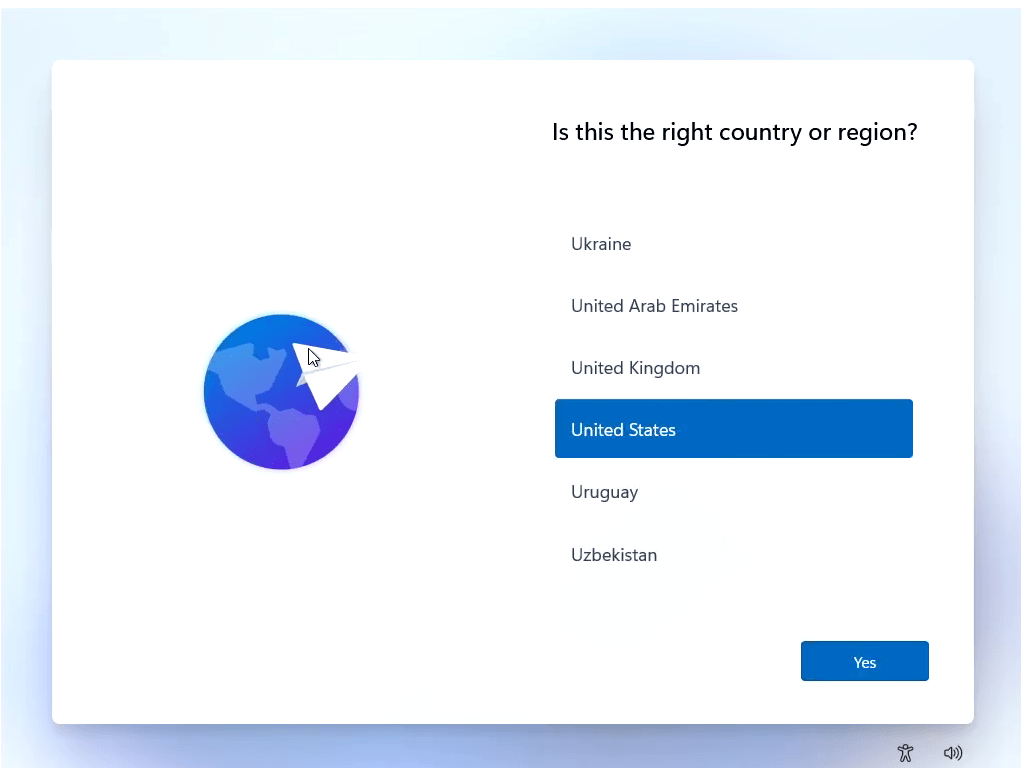
Now Select your Region, Time and Date, Username, Password, Preference, and complete the setup.
Windows 11 Insider build

After completing the setup you’re good to go. Enjoy the latest Windows on your PC.

Post installation tweaks

  • Install drivers related to your PC.
  • Join the Windows Insider Program via Settings > Windows Update > Windows Insider Program.
  • Check for Windows Update.

2. Upgrade Method

Installing windows 11 via the Windows Insider development ring:

  • Go to Settings > Privacy > Diagnostics & feedback and check that option instead of “Basic” to “Full”.
  • Now to join the Insider Program, go into Settings > Update & Security > Windows Insider Program and click on “Get Started”, then follow the prompt and select “Pick your Insider settings” and choose “Dev Channel”, now click confirm and reboot you PC.
  • Now check for Windows Update and install “Windows 11 Insider Preview 10.0.22000.51 (co_release)”
  • Follow the Post Installation Tweaks and you’re good to go.

WARNING! As this is the Insider Build it can contain some bugs and cons and may not be ideal for a daily driver for many users.

Windows 11 and What holds for microsoft in 2021 and beyond

Microsoft will hold the Windows event dubbed as ‘what’s next of windows’ on Thursday, June 24. After the alleged leak of Windows 11 developer build on the internet, it begs the question, what is Microsoft going to reveal on June 24? Because if rumors are true, Microsoft will officially announce Windows 11 to be the successor of windows.

WHAT ABOUT WINDOWS 10?

Many were surprised after hearing about the news of a Windows event. Apparently, in 2015 one of the Microsoft senior spokespeople told that Windows 10 would be the last version of windows. Many assumed that Microsoft will continuously update windows as a service. But this doesn’t seem to be true anymore. It’s hard to believe but windows 10 is almost 7 years old now. Windows 10 has seen major overhauls and many major updates throughout its lifespan. But this has been proven as a double-edged sword for Microsoft since its launch in 2015. Microsoft has also updated the end of support date for Windows 10 to June 2015 which confirms that Windows 10 is not the last version of Windows after all. After Microsoft disbanded its in-house testing team in favor of the Windows 10 update service where users participate in the testing phase (Windows insider program). This new method of update delivery has been problematic and many users’ Windows PCs were marred with bugs and broken functionalities. It seems that updating Windows operating system is not as easy as Android, Mac OS, or iOS. The legacy platforms and enterprise business that Microsoft has to support have always kept Windows progress at a snail’s pace. Microsoft cannot radically change the interface or remove its functionalities as many legacy software still relies on those functionalities. The leak version has the start button in the middle of the taskbar and it looks more like the Mac OS taskbar now. Thankfully it can also be changed back to the left corner like the previous versions. There is also a separate search button and new icons and it looks like that Windows is leaving behind the flat design language.

WHAT TO EXPECT FROM WINDOWS 11?

The leaked build of Windows is not drastically different from the current version of Windows 10 but many experts believe that the leaked version is most probably the UX team build and there will be a lot more than Microsoft will unveil in the event. The leak was indirectly acknowledged by Microsoft and indicated that ‘This is just the start. There is a possibility that the Windows 11 or Windows Sun Valley or whatever they will call it, will be an incremental update and Windows 10 users could update free of charge. But we cannot be sure as of yet until the official event.

Satya Nadella and Panos Panay will be present at the event to unveil Windows 11 features and capabilities on Thursday. The Microsoft store could also get an overhaul and there is also a good probability of support for ARM processors and the support for upcoming Intel’s new Big little architecture. There will be an overhaul in the the system sounds and UI and new animations. All these are still speculations and we will have to wait will the official announcement by Microsoft themselves.