

Ugly logos or timestamps on your videos ruin your content instantly. Fixing them frame by frame takes too long and leaves behind a messy blur. Audiences notice these flaws right away, and social media platforms might penalize your video for low quality. You need a fast way to clean your footage without spending hours on complex editing software.
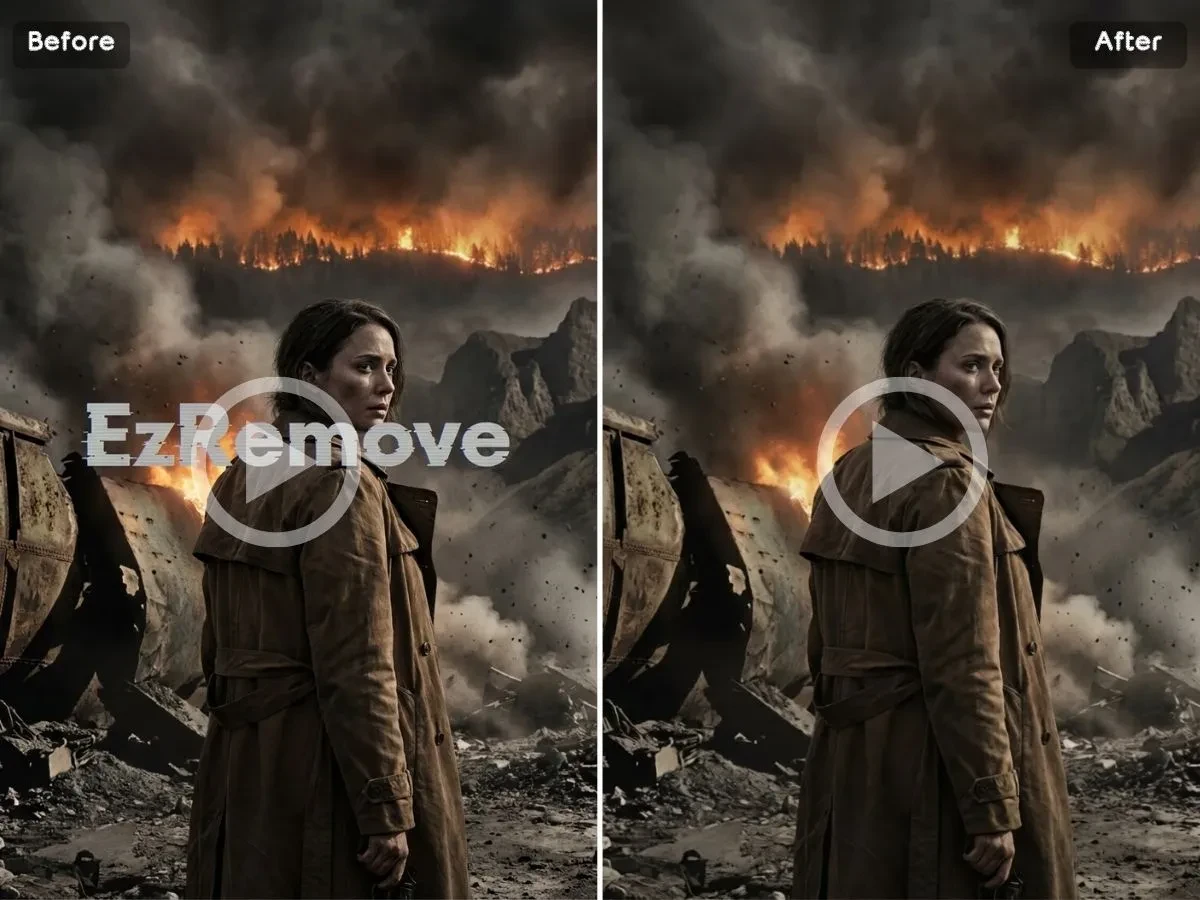
A reliable video watermark remover helps you erase these unwanted overlays in seconds. Smart algorithms track the background movement and fill in the missing pixels seamlessly. You do not need any professional editing skills to get a clean result. Combining this with a solidAI photo editor creates a perfect workflow for your marketing team. You can clean your videos and enhance your social media images without switching between heavy desktop applications.
Cloud processing makes these tools faster than ever this year. You no longer need an expensive graphics card to render high-definition files. Everything happens on remote servers, so you can work directly inside your favorite web browser.
2026 Multimedia Cleaning Tools Comparison
Review the summary table below to find the right tool for your specific project.
| Tool Name | Core Strength | Pricing Model | Best Use Case |
| EzRemove AI | Dynamic motion tracking and removal | Free and premium | Cleaning social media video clips |
| Morphic | Multi-modal canvas integration | Monthly subscription | Comprehensive multimedia design |
| Topaz Gigapixel | Local pixel reconstruction | One-time purchase | High-fidelity image printing |
| PhotoEditor AI | Text-based color grading | Free basic tier | Fast social media image fixes |
| Canva | Team collaboration and templates | Tiered subscription | Corporate marketing assets |
1. EzRemove AI
Overview
EzRemove AI focuses on removing distractions from complex video backgrounds. The platform uses advanced time-series tracking to predict what lies behind moving watermarks. This approach makes it incredibly effective for clips with fast-moving cameras or detailed textures.
Key Features
- Automated tracking locks onto logos and erases them across multiple frames.
- The system supports major video formats like MP4 and MOV for easy uploads.
- Cloud servers handle multiple rendering tasks simultaneously to save your time.
- The simple brush interface lets you paint over distractions without navigating layers.
Pros & Cons
- Pros: The motion tracking works beautifully on complex textures without leaving heavy artifacts.
- Cons: The free version limits the duration of the video you can export.
- Best For: Social media managers who need to repurpose video content quickly.
2. Morphic
Overview
Morphic provides an infinite canvas that brings different creative tools into a single workspace. You can enlarge images, clean up videos, and generate assets without opening separate apps. It streamlines the entire pre-production phase for digital creators.
Key Features
- The infinite canvas layout lets you manage multiple assets side by side.
- You can replace specific objects inside video clips using generative masks.
- The platform offers automated batch processing pipelines for large projects.
- Deep cloud storage integration keeps your files synced across all your devices.
Pros & Cons
- Pros: Combining video and photo tools on one canvas speeds up your creative brainstorming.
- Cons: The interface contains many advanced modules that take time to learn.
- Best For: Multimedia creators who work on complex visual projects.
3. Topaz Gigapixel
Overview
Topaz Gigapixel remains a favorite choice for professional photographers who need local processing. It runs entirely on your local hardware to keep your files private. The software uses deep neural networks to restore fine details in low-resolution images.
Key Features
- Local GPU processing ensures your client assets never upload to a cloud server.
- The specialized face recovery module sharpens portraits without making them look fake.
- It integrates as a plugin for professional desktop editing software.
- Advanced batch renaming rules help you organize massive photo libraries.
Pros & Cons
- Pros: The level of detail restoration is excellent for large format printing.
- Cons: It demands a powerful local computer and lacks a lightweight web version.
- Best For: Portrait and documentary photographers who need maximum image sharpness.
4. PhotoEditor AI
Overview
PhotoEditor AI offers a lightweight web interface for editing images through simple text prompts. You do not need to use traditional selection tools or adjustment sliders. You type your changes, and the system modifies the pixels based on your description.
Key Features
- Natural language processing interprets your design instructions accurately.
- The browser-based interface requires zero local storage space or installations.
- Pre-made filters help you match popular social media styles in one click.
- Smart canvas extension fills in blank spaces when you resize your images.
Pros & Cons
- Pros: Editing with text commands is fast and requires no prior design training.
- Cons: You cannot perform fine pixel-level adjustments manually.
- Best For: Bloggers who need to style their images quickly before publishing.
5. Canva
Overview
Canva dominates the team collaboration and commercial layout market. It combines smart editing utilities with a massive library of templates. This setup allows non-designers to build branded marketing materials that look professional.
Key Features
- The platform provides a large database of templates optimized for global media platforms.
- Multiple team members can leave comments and edit the same design in real time.
- Smart layout suggestions recommend fonts and placements based on your copy.
- Direct publishing integrations let you schedule posts to social media channels.
Pros & Cons
- Pros: The complete ecosystem takes you from asset curation to final publishing seamlessly.
- Cons: Many premium fonts and advanced editing elements require a paid account.
- Best For: Corporate marketing teams that need to maintain consistent brand guidelines.
Frequently Asked Questions
How do AI video watermark removers erase logos?
These tools use smart algorithms to analyze the frames before and after the logo. The system looks at the background movement and fills in the missing pixels automatically. You don’t need to adjust pixels manually.
Will removing a watermark make my video look blurry?
Modern cloud tools rebuild the background textures carefully. If the watermark is huge or covers a face, you might notice a slight blend effect. Most small logos disappear without leaving any messy blurs behind.
Do I need a powerful computer to run an AI photo editor?
You don’t need expensive hardware for web-based tools. Most platforms process the files on remote cloud servers. You only need a stable internet connection and a normal web browser to finish your edits.


